My tasks lists the work assigned to you: things your managers or administrators asked you to do, training and policies to complete, handovers to review, and anything you noted down yourself. Open My tasks in the Portal sidebar. My day shows the first few of them too.
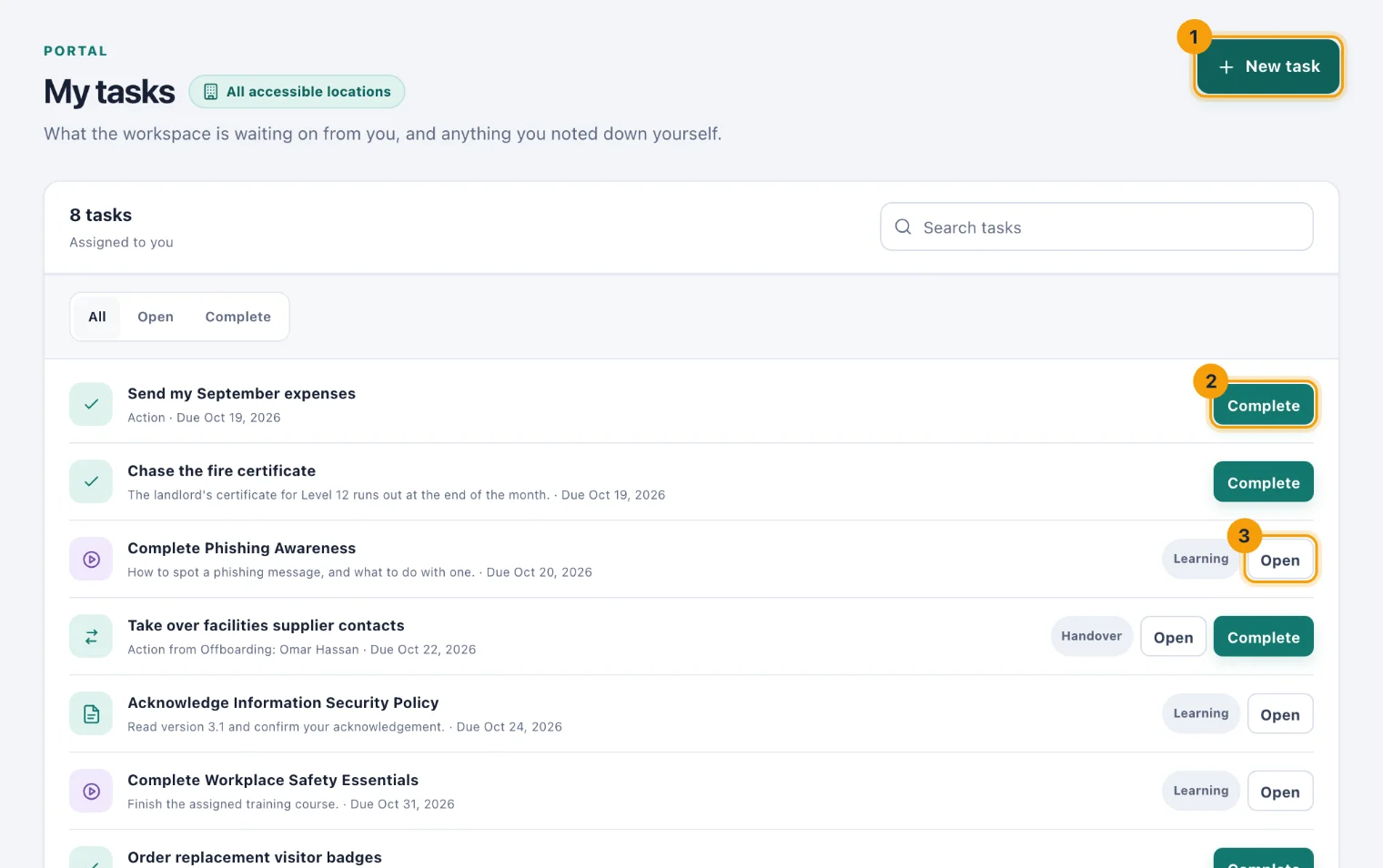
Find a task
Search with Search tasks.
Choose Open to see what is still to do, Complete for what is done, or All.
Each row says what the task is and when it is due. A task with a Learning or Handover badge came from that app.
Tick a task off
Choose Complete (2). For a task you wrote yourself, Reopen brings it back if you closed it by mistake.
For a task from another app, do the work where it lives. Choose Open (3) to go there:
Learning opens your learning, where you read a policy and confirm it, or take a course and its quiz. See Your learning.
Handover opens your handovers, where you review a handover and acknowledge it, or mark its actions done. See Your handovers.
When you finish it there, its task closes by itself.
Add your own task
Choose New task (1).
Say what needs doing in Title, and add Details if they help.
Leave Location as it is, or choose another location you work at.
Set Due if there is a deadline. You will be reminded as it approaches.
Choose Create task.
A task you write is always yours: you cannot assign it to someone else. You cannot change or delete it afterwards, so keep the title short and put the rest in the details; when it is done, complete it.
Reminders
When a task has a due date, you are reminded under the bell and by email as the date approaches, on the day, and once if it is overdue. To stop the emails, untick Reminders in your profile; the reminders under the bell carry on. Tasks with a due date also appear on My calendar.