The calendar puts two kinds of date side by side: company events, which someone in your workspace added for the people they are for, and the dates your apps already hold, such as a task that is due, a renewal deadline or a room you booked. Nothing is copied into the calendar. Each date is read from its app when you look, so it is never out of date.
Open Calendar in the Console sidebar, or My calendar in the Employee Portal. Every workspace has one, whatever apps it uses. Times are shown in your own time zone.
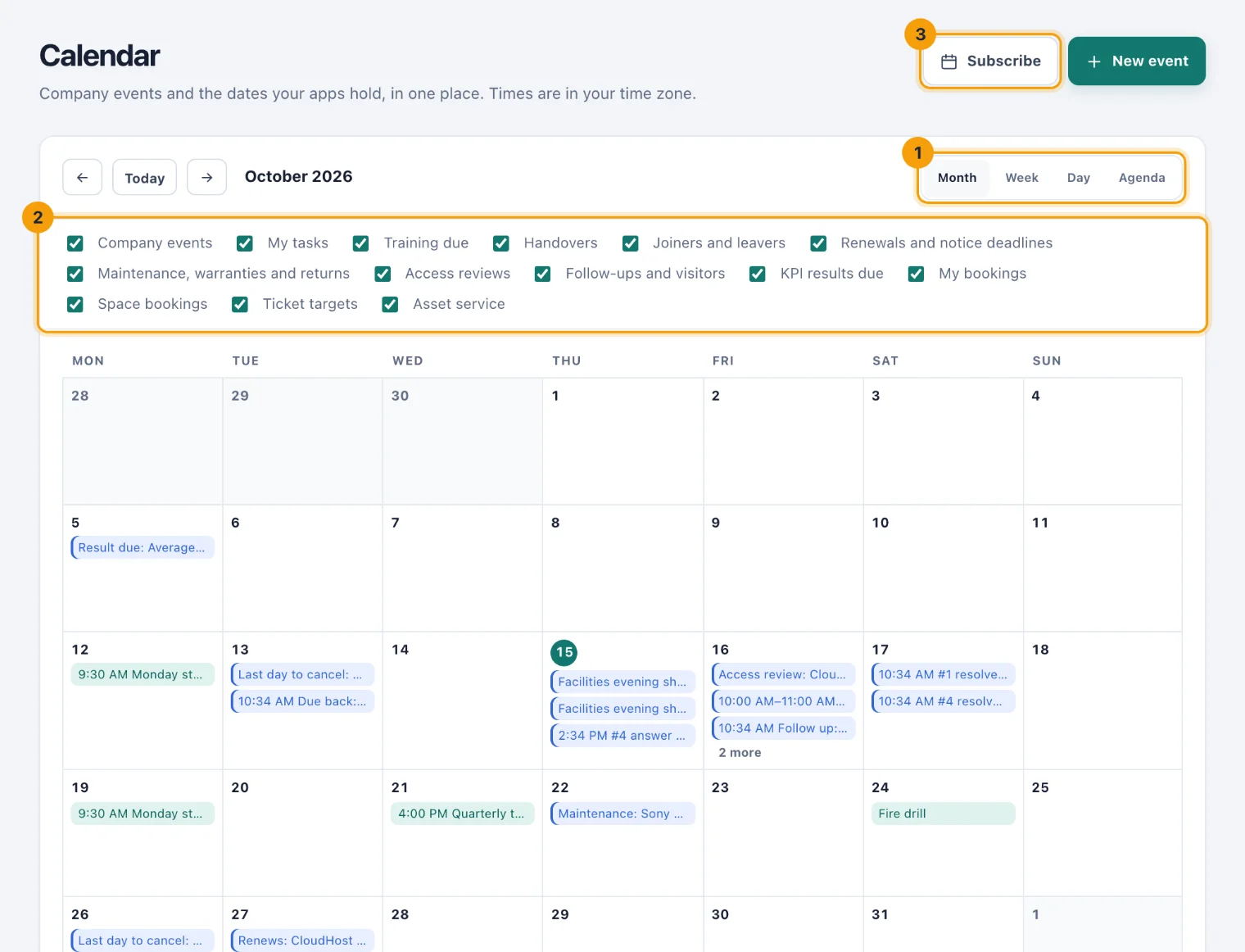
Move around
Choose Month, Week, Day or Agenda (1) to change the view.
The arrows beside Today go back or forward one month, week or day, or four weeks in the agenda. Today comes back to now.
In Month, a day shows its first three items. Choose 2 more (or however many there are) to see the rest of that day.
Week and Day list each day's items in time order, all-day items first. A day with nothing on it says Nothing.
Agenda lists the next four weeks, day by day, with times. An event with a meeting link has its join link beside it.
Choose what it shows
The checkboxes under the toolbar (2) are the calendar's layers. Company events is always there. The others depend on the apps your workspace uses and what you are allowed to see in each. For example:
My tasks: open tasks assigned to you, on their due date.
Training due: learning assigned to you.
Handovers and Joiners and leavers: the first and last days of the ones you are part of.
Renewals and notice deadlines, Maintenance, warranties and returns, Access reviews, Follow-ups and visitors, KPI results due, Asset service and Ticket targets: the dates those apps keep.
My bookings: the rooms, desks and pods you booked. People who look after spaces also see Space bookings.
Trial and plan dates: the Owner's alone.
Untick a layer to hide it. Your choice lasts until you sign out or reload the page.
In the Employee Portal each layer shows only what is yours. In the Console, layers about your own work (your tasks, your training, your handovers, your bookings) still show only yours, and the others show every record you could see in that app.
Open an item
Choose any item to open it:
A company event opens a quick look: when it is, whether it repeats, where it is, who it is for, its description and a button to join the meeting if it has a link. People who manage company events also see Edit, Skip and Cancel event there. See Add and change company events.
Any other date opens the page in its app, such as the task list, the vendor register or the KPI it belongs to.
You can also find a company event by name with Search workspace. See Find anything.
See it in your own calendar app
Subscribe (3) gives you a private address that Google Calendar or Outlook can read, so the same dates appear beside your other meetings. See Subscribe to your calendar.