Rooms, desks and pods are booked by the hour. Open Book a space in the Employee Portal, or Spaces & bookings in the Console. Every time you see is the space's own local time, which matters when you book a space in another city.
Find a free space
Choose a Day and, if you like, a Kind: Every kind, Room, Desk or Pod (1). Each space you can book has a card showing:
its kind, seats, floor and location, and the hours it is open;
A manager approves each booking, when it needs approval;
a note such as Check in within 15 minutes of the start, when it needs check-in;
what it has, such as a screen or video calls;
the times already Taken that day, with your own marked (yours), or Free all day.
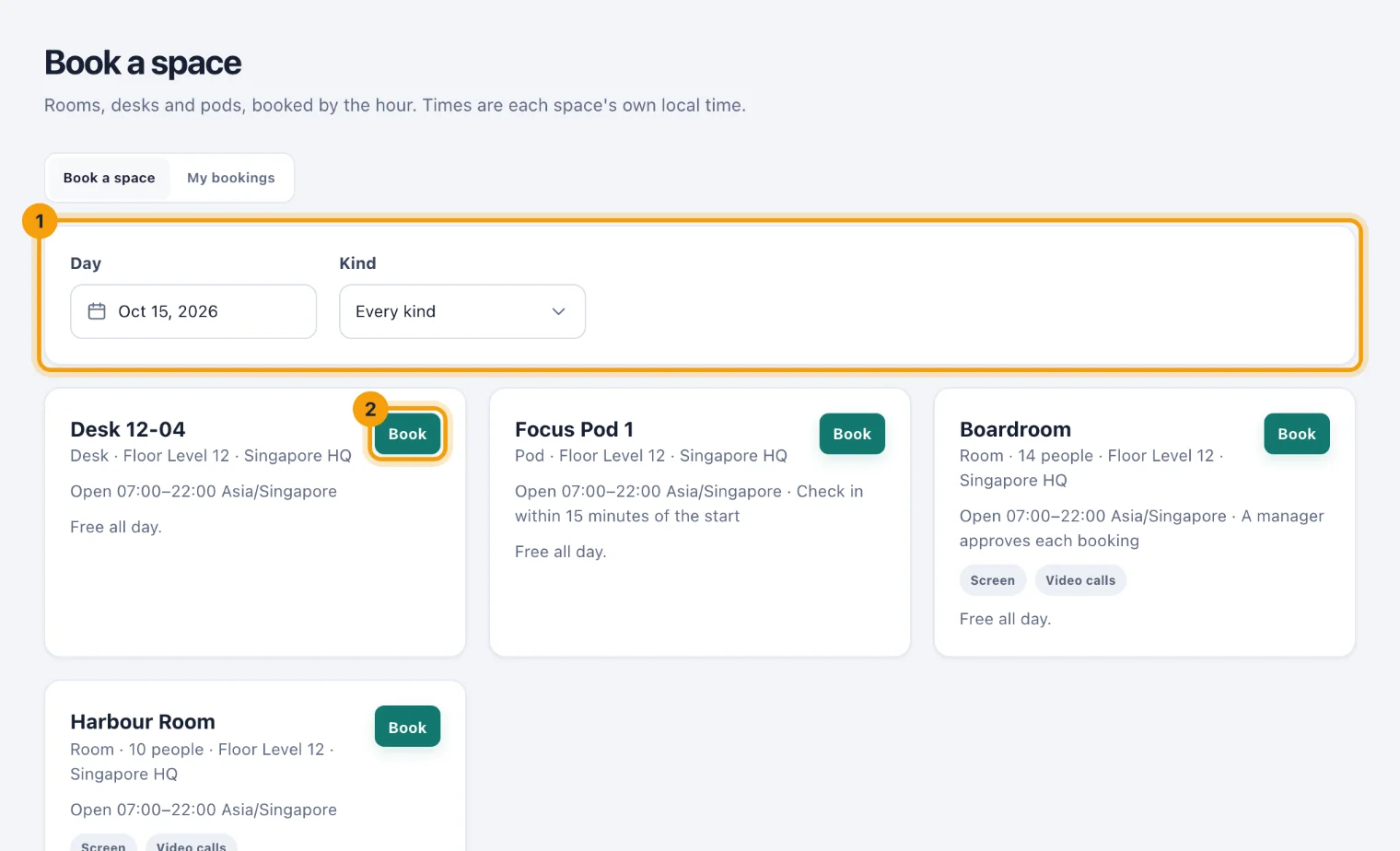
In the Portal you see the spaces open to you, usually those at the locations you belong to. In the Console you see the spaces at the locations your access covers.
Book it
Choose Book on the space's card (2).
Check the Day, and set From and To.
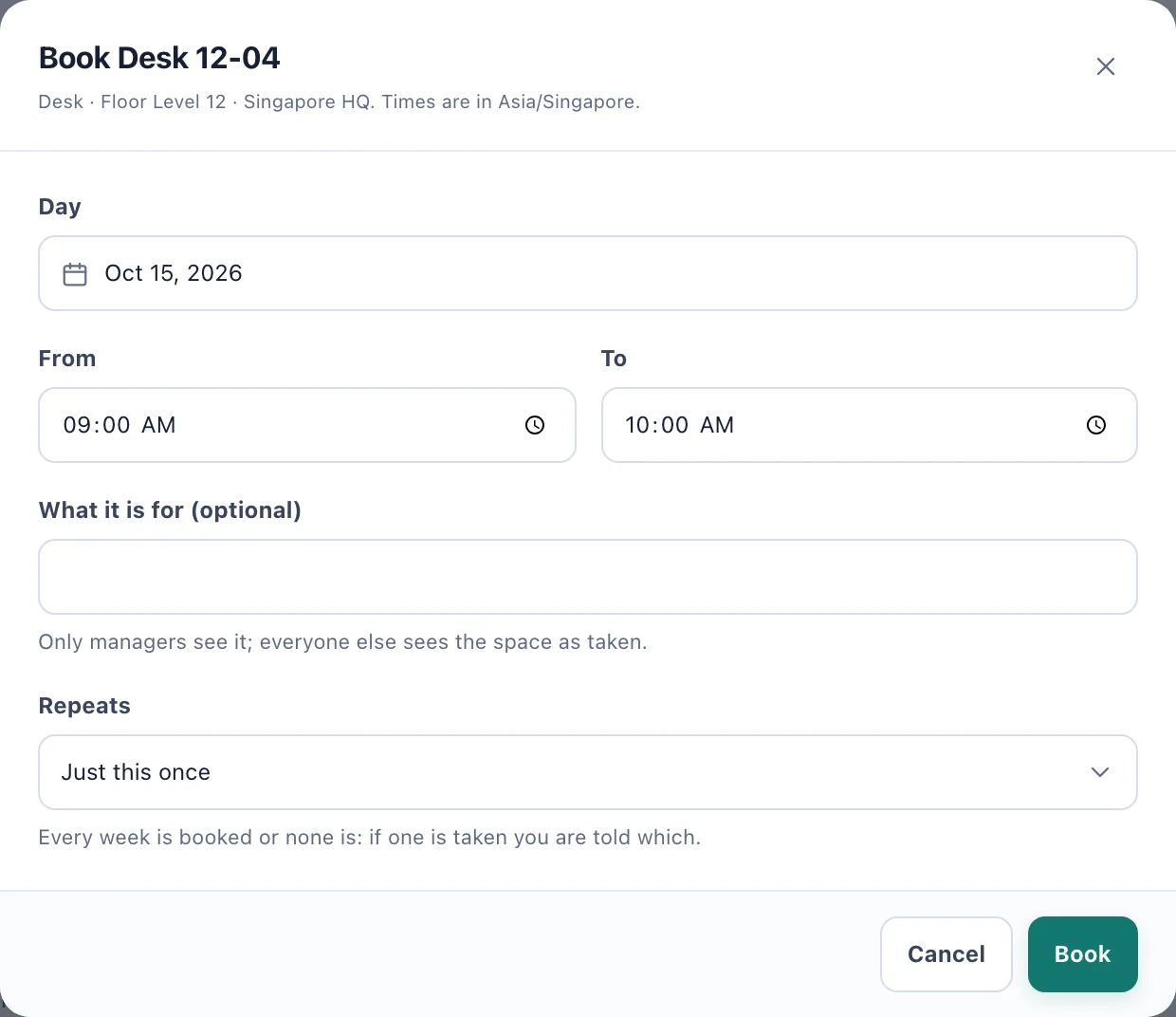
Booking a space: the times are the space's own local time. Add What it is for (optional) if it helps. Only the people who manage spaces see it; everyone else sees the space as taken.
Under Repeats, keep Just this once, or choose Weekly for 2, 4, 6, 8 or 12 weeks. Every week is booked or none is: if one week is taken, you are told which.
Choose Book. For a space a manager approves, the button reads Ask to book.
A confirmed booking is emailed to you with a calendar file, so it can go in your own calendar.
When a booking is refused
The dialog tells you why, in words. The usual reasons:
the times fall outside the space's opening hours, on a day it is closed, or across midnight;
the booking is shorter or longer than the space allows, or further ahead than it can be booked;
someone else has the space then, including any gap the space keeps between bookings;
you already have a desk, or a pod, at that time. You can book several rooms at once, for other people.
Bookings that need approval
When you ask to book a space a manager approves, the time is held for you while you wait, and the booking shows Waiting for approval. You are told when it is approved or declined, with the manager's reason if they gave one. The calendar file comes with the approval.
Your bookings
Choose My bookings to see what you have booked for the next sixty days, with each booking's status.
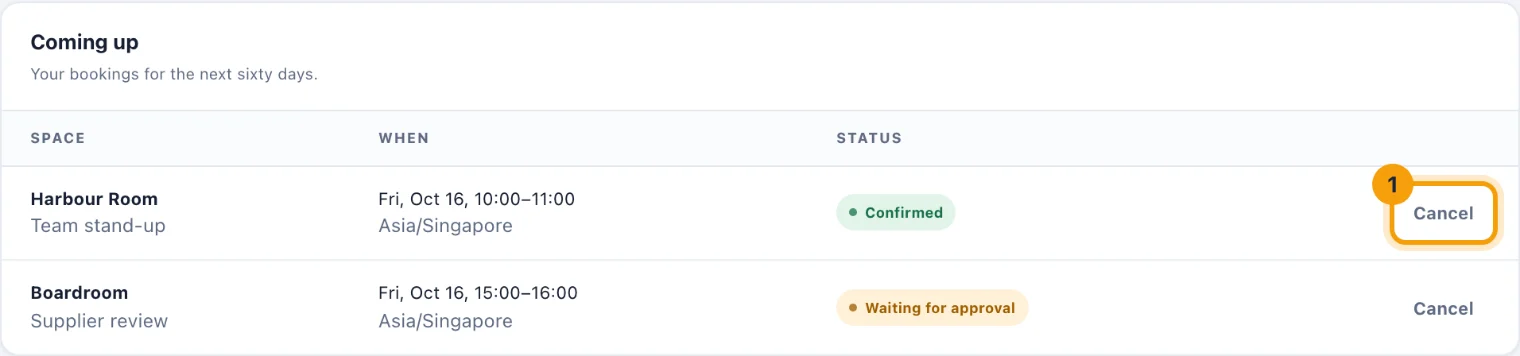
Check in appears from 15 minutes before the start, on a space that needs check-in.
Leave early ends a booking that has started and frees the rest of its time.
Cancel (1) frees a booking that has not started. For a weekly booking, tick Also cancel the later weeks of this repeat to cancel the rest as well. A cancelled booking is emailed to you with a calendar file that removes it from your calendar.