A room screen is a tablet or display by a space's door. It needs no sign-in: it opens a private link that shows the space's name, whether it is Free or Booked, and the rest of its day. It never shows what a booking is for or whose it is, because anyone walking past can read it. Making a screen link needs the Manage spaces and bookings permission at the space's location.
Make a screen link
In Spaces & bookings, open the Spaces tab and choose Screen on the space's row.
The dialog says whether the space already has a screen link. Choose Make link.
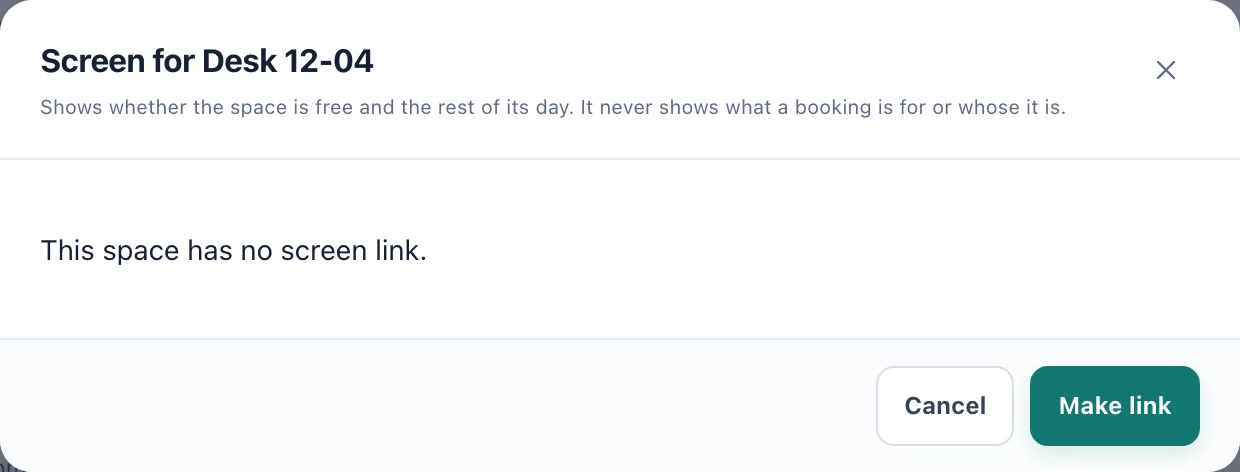
A space with no screen yet: Make link creates one. The link appears under Open this on the screen. Choose Copy link (1).
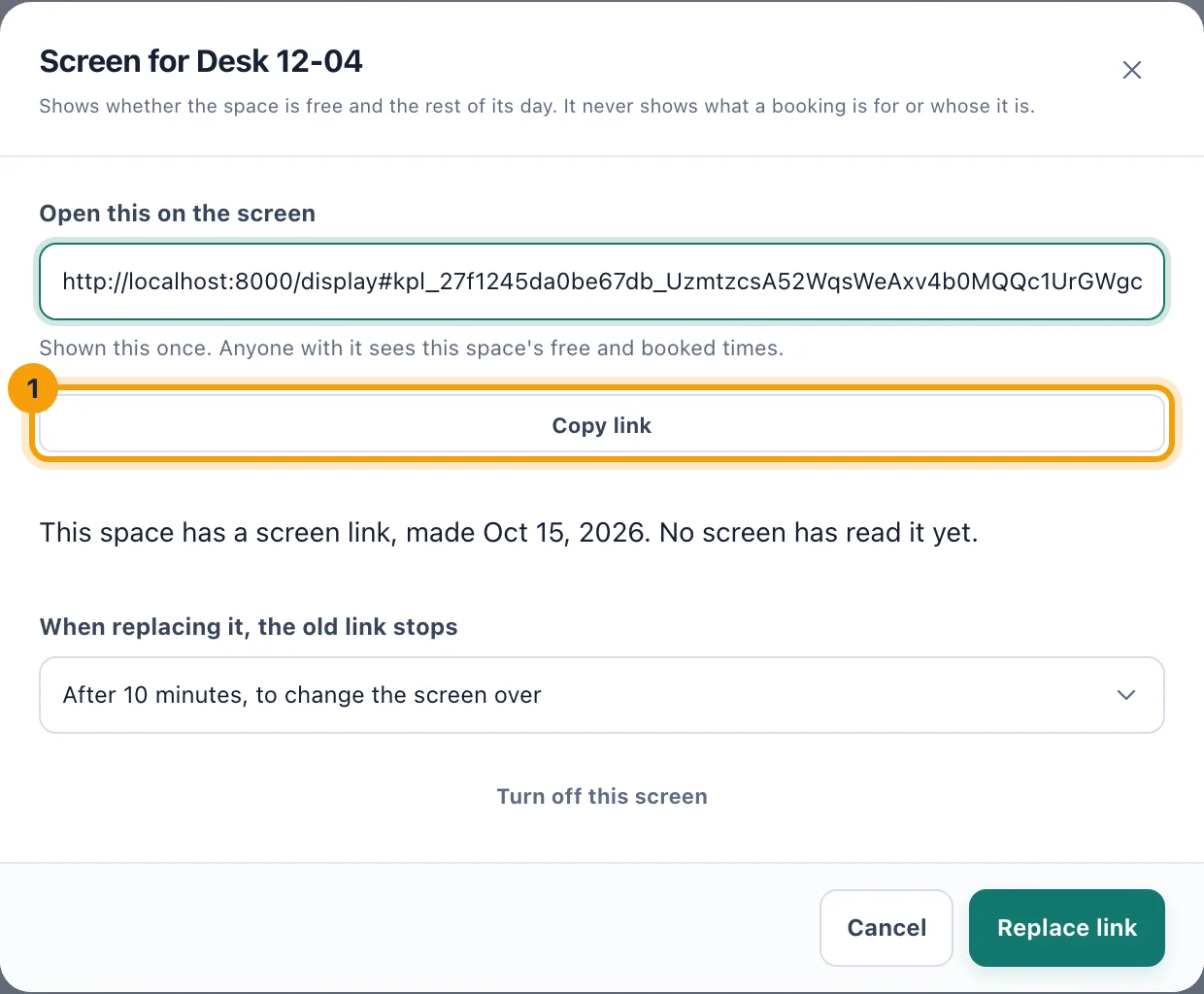
The link is shown this once: copy it before you close the dialog. Open the link in the browser on the screen, and leave it there.
What the screen shows
The space's name, floor, location and seats, and the time.
Free or Booked, in large type, with Free until the next booking, Free for the rest of the day, or Booked until the current one ends.
Later today: the times still booked, or Nothing else booked today.
On a space that needs check-in, a booking nobody has checked in to yet is marked as waiting for check-in, with when it will be released.
The screen checks again every thirty seconds. If it loses its connection it keeps the last update and says Offline — showing the last update.
Replace a link or turn a screen off
Choose Screen on the space's row again. The dialog says when the link was made and when a screen last read it.
To move to a new device, or if the link may have leaked, choose Replace link. Under When replacing it, the old link stops, choose After 10 minutes, to change the screen over, After an hour, or At once — the link was shared.
To stop the screen altogether, choose Turn off this screen, then Turn off.
A screen whose link has ended shows Not connected and asks for a new link. Archiving a space turns its screen off too; after restoring the space, make a new link.