A company event is a date your workspace keeps for its people: a town hall, a training day, a fire drill, a weekly stand-up. You choose who it is for, and it appears on their calendar, in their calendar feed and, if you ask, in their inbox.
Add an event
Open Calendar and choose New event. The event opens on a page of its own.
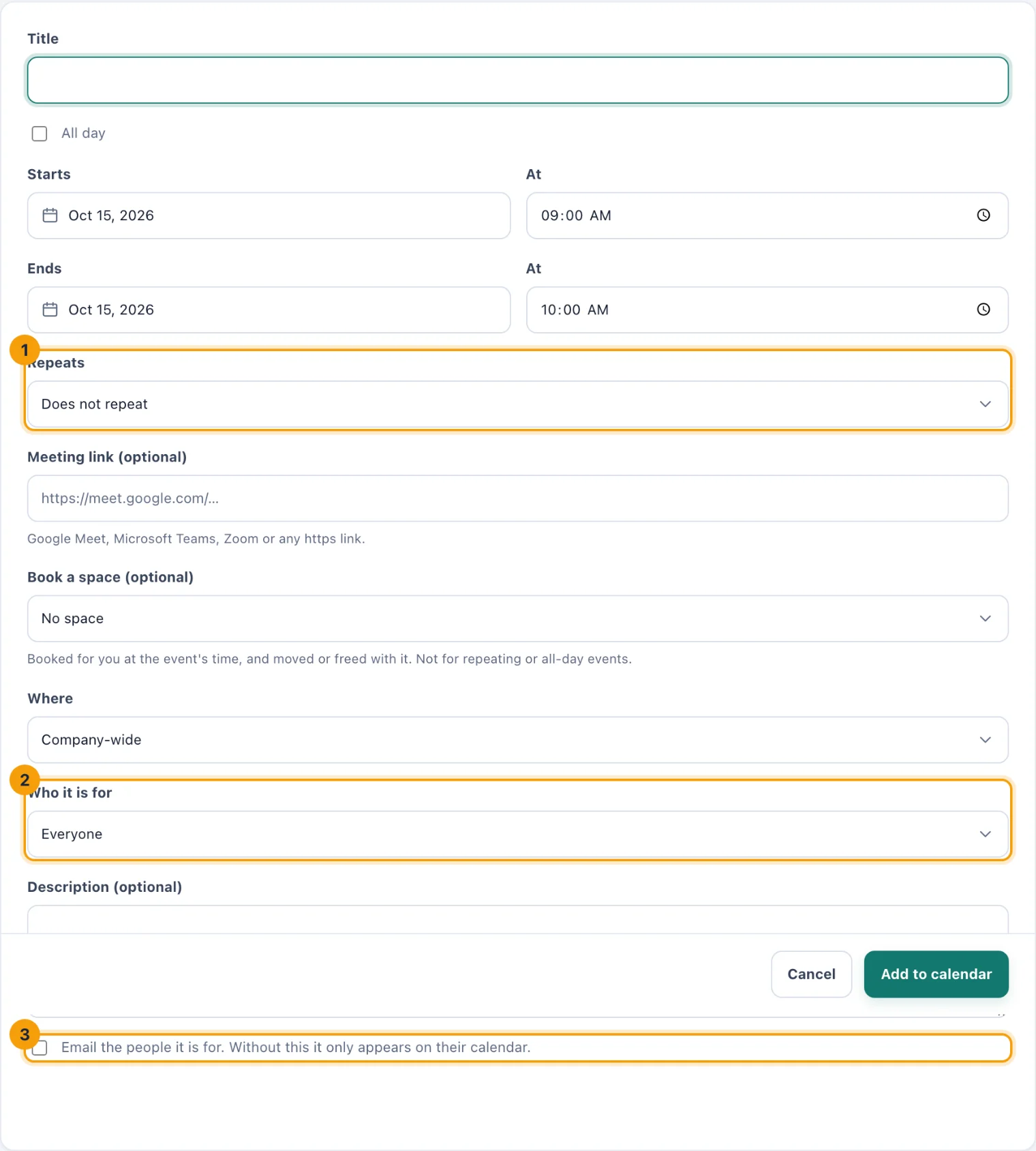
A new event. Times are in your own time zone, which the page names under its title. Give it a Title.
Set when it is: Starts and Ends, each with a time under At. For something that takes whole days, tick All day; the times disappear. An event lasts at most 14 days.
If it repeats, choose how in Repeats (1). See below.
Add a Meeting link (optional) if people join online: Google Meet, Microsoft Teams, Zoom or any link starting with https. The quick look and the agenda show a button to join.
If your workspace uses Spaces & Bookings, Book a space (optional) books a room for the event's time. The booking moves with the event and is freed if it is cancelled. It is not offered for repeating or all-day events.
In Where, choose the location it happens at, or leave Company-wide.
In Who it is for (2), choose Everyone, or people at chosen locations, chosen departments, teams or groups, or chosen people. For anything but Everyone, pick them in the list under Choose; hold Ctrl, or Cmd on a Mac, to pick more than one.
Add a Description (optional).
Tick the email option (3) to tell the people it is for by email as well. Leave it unticked and the event only appears on their calendar.
Choose Add to calendar.
If you chose to email people, the confirmation says how many were told. You are not told about your own change.
Repeating events
Repeats offers:
Every day.
Every week. Tick the days under On, for example Mon and Thu. With none ticked, it repeats on the day it starts.
Every month, on this date, such as the 15th.
Every month, on this weekday, such as the second Tuesday, taken from the day it starts. An event that starts on the 29th, 30th or 31st repeats on the last such weekday of each month.
Until (optional) ends the series on a date. Leave it empty and it goes on.
The quick look
Choose an event on the calendar to see it at a glance: when, whether it repeats, where, who it is for, and its description.
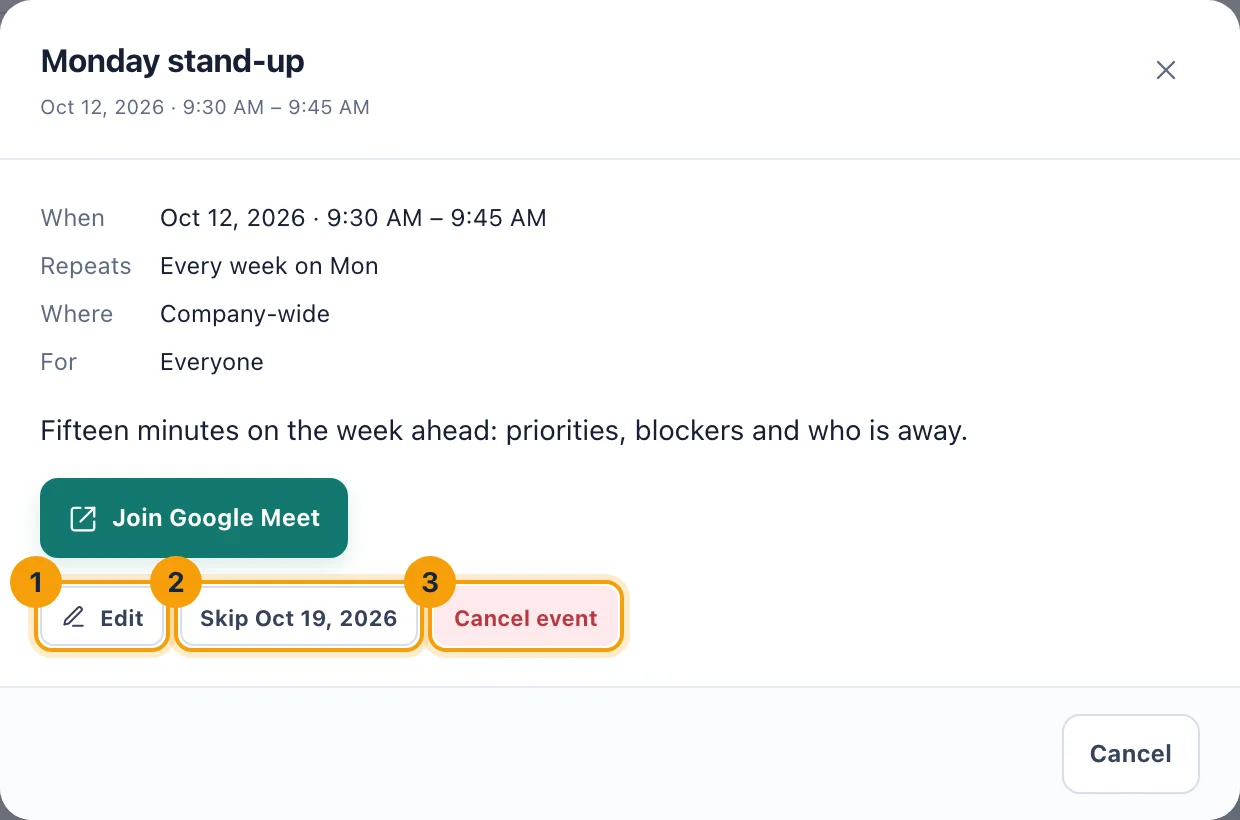
Edit (1) opens the event's page, with every field as it is now. A change to a repeating event changes every date of it. Choose Save changes.
Skip (2), followed by the date, takes that one date out of a repeating event and leaves the rest. It appears only when you opened the event from that date on the calendar.
Cancel event (3) takes the event, and every date of a repeating one, off everyone's calendar. This cannot be undone.
If the event was emailed when it was added, the people it is for are emailed again when it changes or is cancelled.
Who can add and change events
Add, change, skip and cancel. People with Manage company events: Admins by default; Owners and System Admins always. It needs a Console licence.
At which locations. The permission applies at the event's location, as set in Where. A Company-wide event needs it for the whole workspace. Custom access can limit it to some locations. See Scoping access.
Who sees an event. The people it is for, whoever created it, and anyone who could change it. Everyone else does not see it at all.