Tasks is one list of the work your workspace is tracking. Some tasks are written by hand. Others are created by the apps: a handover asks someone to review it, a handover action needs doing, a policy or a course has been assigned. Open Tasks in the Console sidebar.
The list
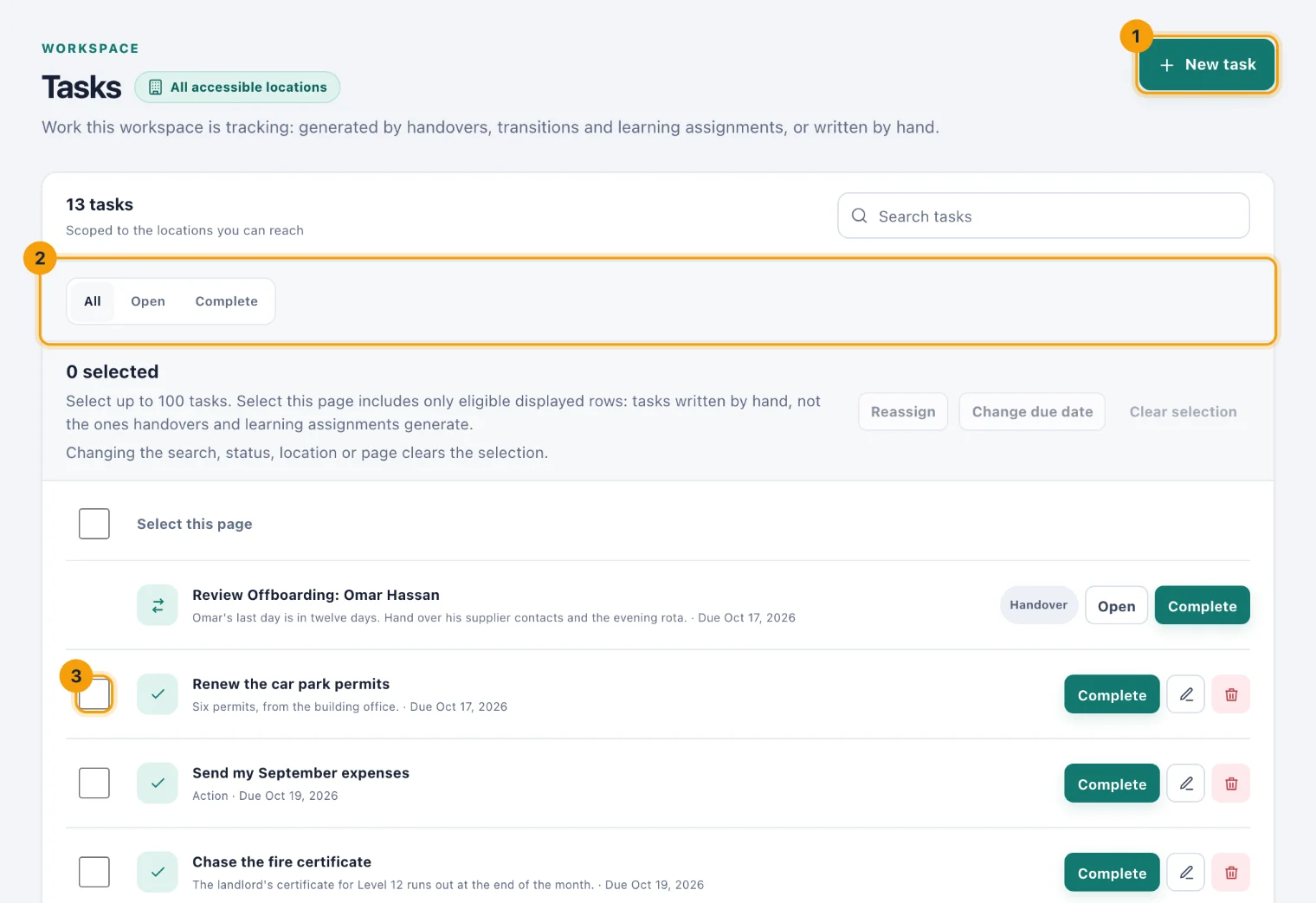
The heading counts the tasks that match. You see the tasks at the locations you can reach, whoever they are assigned to, and the location filter at the top of the page narrows them further.
Search by title or details with Search tasks.
Choose Open, Complete or All (2).
Each row shows the task, its details and its due date. A task an app created carries that app's name, Learning or Handover, and an Open button that goes there.
Write a task
Choose New task (1).
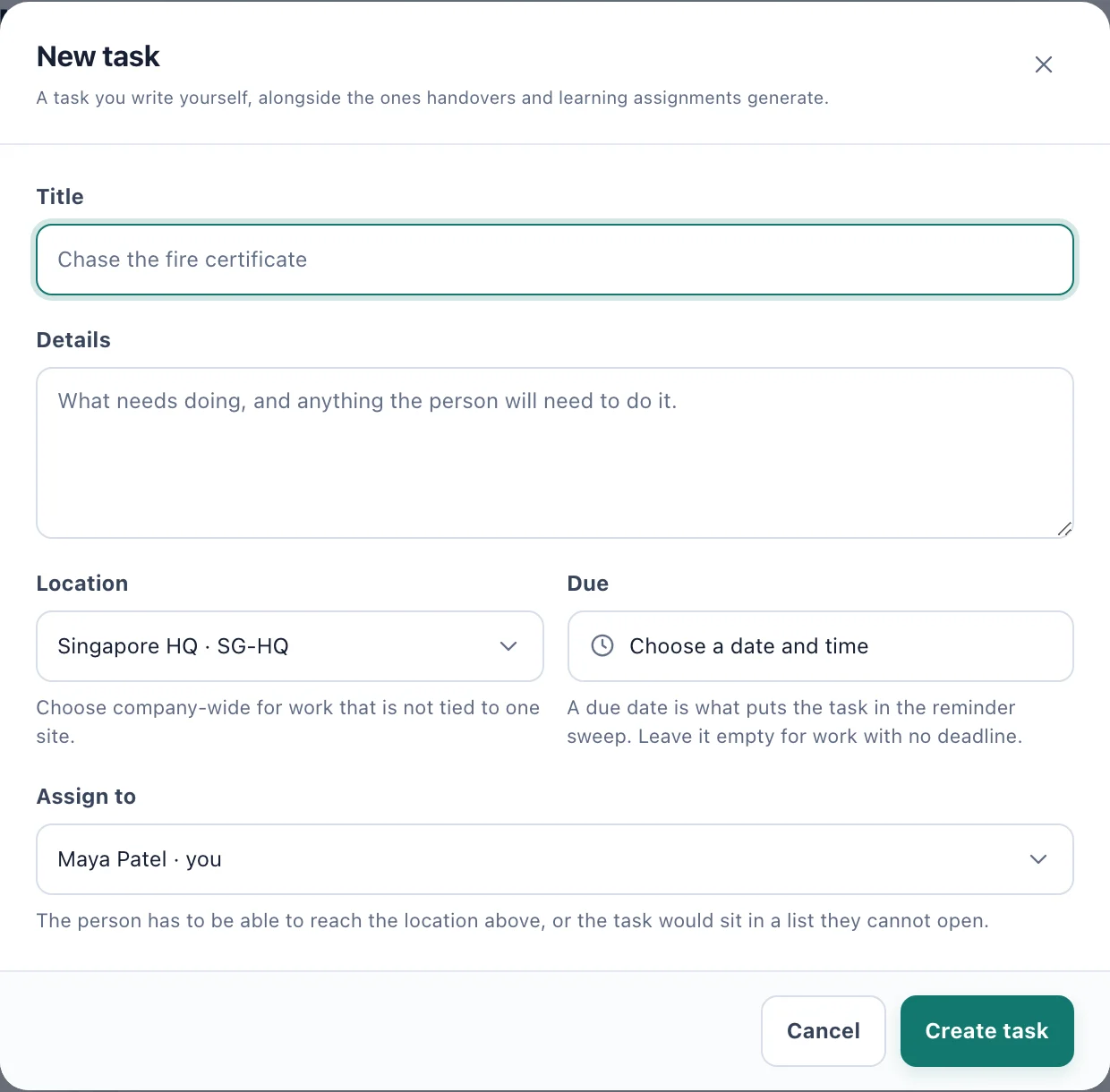
New task: what needs doing, where, by when and by whom. Say what needs doing in Title, and anything the person will need in Details.
Choose a Location, or Company-wide / global for work that is not tied to one site.
Set Due if there is a deadline. See below.
In Assign to, choose who does it. Leave it on yourself for your own to-do list.
Choose Create task.
The person you assign it to is told under the bell. They have to be able to reach the task's location; if they cannot, the task is not created and you are told why.
Due dates and reminders
A due date puts the task in the reminder sweep. The person it is assigned to is reminded under the bell and by email as the date approaches, on the day itself, and once when it is overdue. A task with no due date sends no reminders.
Reminder emails follow each person's Reminders setting in their profile. Open tasks with a due date also appear on the person's calendar, under My tasks.
Complete, reopen, change or delete
Complete closes a task. Reopen brings back a hand-written one.
The edit button (pencil) opens the task to change its title, details, location, due date or assignee. Choose Save task. Giving the task to someone else tells them.
The delete button (bin) removes a hand-written task for good. Only the audit history keeps a trace of it.
To change many hand-written tasks at once, see Change many tasks at once.
Tasks other apps create
A task with a Learning or Handover badge belongs to its app. Its title, assignee and due date come from there, so it has no edit or delete button: change the handover or the learning assignment instead, and the task follows.
Completing one here also completes what it came from:
A handover action is marked done on the handover.
A handover to review is acknowledged, as if the person had chosen Acknowledge on it.
For learning, choose Open and complete it in Learning & compliance, so that the quiz or the acknowledgement is recorded with it.
When the handover or the assignment is finished in its own app, its task closes by itself.
Who can do what
See the list. People with View operational tasks: Admins by default; Owners and System Admins always. Custom access can limit it to some locations.
Write, complete, change and delete tasks. People with Manage operational tasks, at the task's location. Admins by default; Owners and System Admins always.