When someone leaves, goes on holiday or changes role, their tasks need a new owner. Rather than editing them one by one, tick them on the Tasks page and change them together.
Choose the tasks
On Tasks, a box sits at the start of every hand-written task. Tick the ones to change, or tick Select this page to take every hand-written task on the page. The bar above the list counts what you have chosen.
Up to 100 tasks at a time.
Only hand-written tasks can be ticked. A task with a Learning or Handover badge belongs to its app: change the handover or the learning assignment instead.
The selection belongs to the list as you see it. Changing the search, the status, the location or the page clears it. Clear selection clears it yourself.
Make the change
Choose Reassign or Change due date.
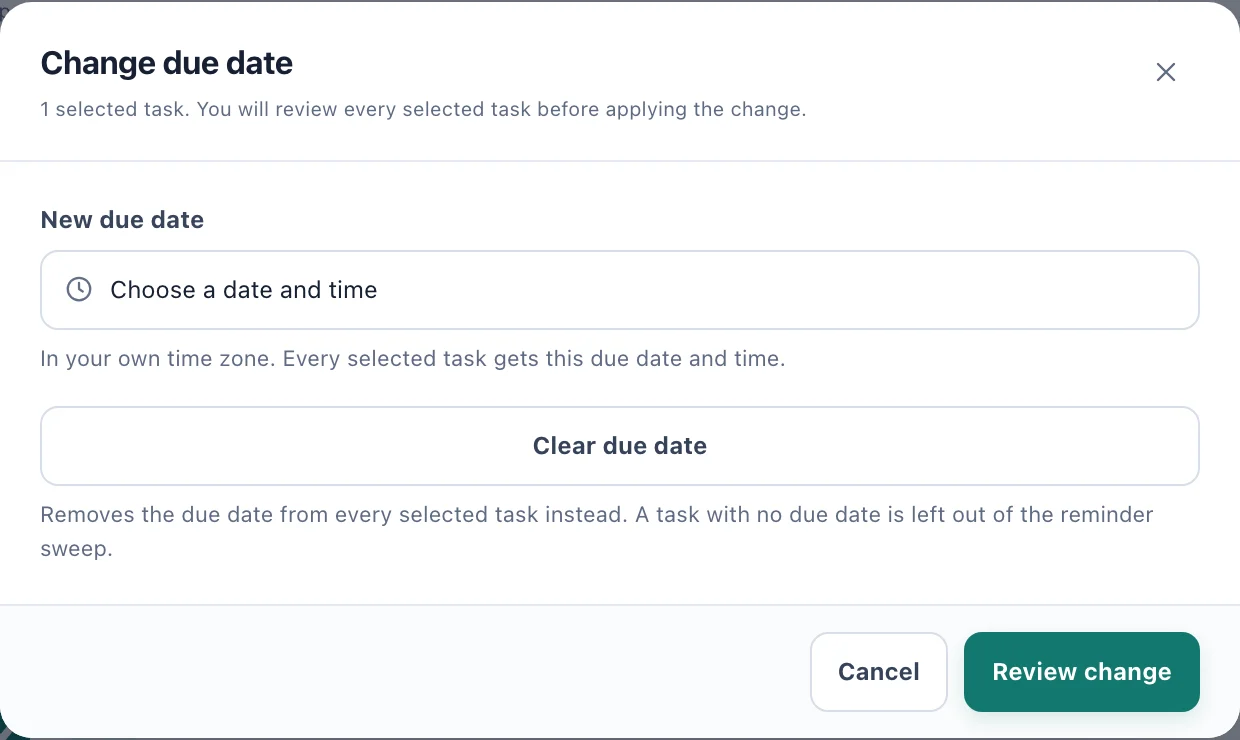
Change due date: one date and time for every task you chose, or none. For Reassign, choose the New assignee. They have to be able to reach every task's location, or nothing is changed. Each task you give them tells them under the bell.
For Change due date, set New due date, in your own time zone. Or choose Clear due date to take the date off every task instead, which also takes them out of the reminder sweep; it goes straight to the review.
Choose Review change. The next dialog says what will change and lists every task it applies to.
Choose Apply update.
The tasks change together or not at all. If any of them was changed by someone else since the list loaded, or can no longer be reached, nothing is changed and you are asked to refresh the list and choose again. Refresh tasks reloads it.
Who can do this
People with Manage operational tasks and a Console licence: Admins by default; Owners and System Admins always. Each task is checked at its own location.