Employee transitions coordinates the operational side of someone joining or leaving: who looks after them, what has to be handed over, and what has to be collected or switched off. Open it from Employee transitions in the Console sidebar.
There are two kinds. An onboarding organises a joiner's first days. An offboarding collects what a leaver holds and, when it is completed, returns their equipment, removes their system access and deactivates their account.
The register
Three figures sit at the top: Open transitions, Acknowledged ones and open Action items. The Transition register lists the newest first. Search by title with Search transitions, and narrow it by status (All, Draft, Submitted, Acknowledged, In progress, Completed, Closed) and by type (All types, Onboarding, Offboarding). Export CSV downloads what you are looking at.
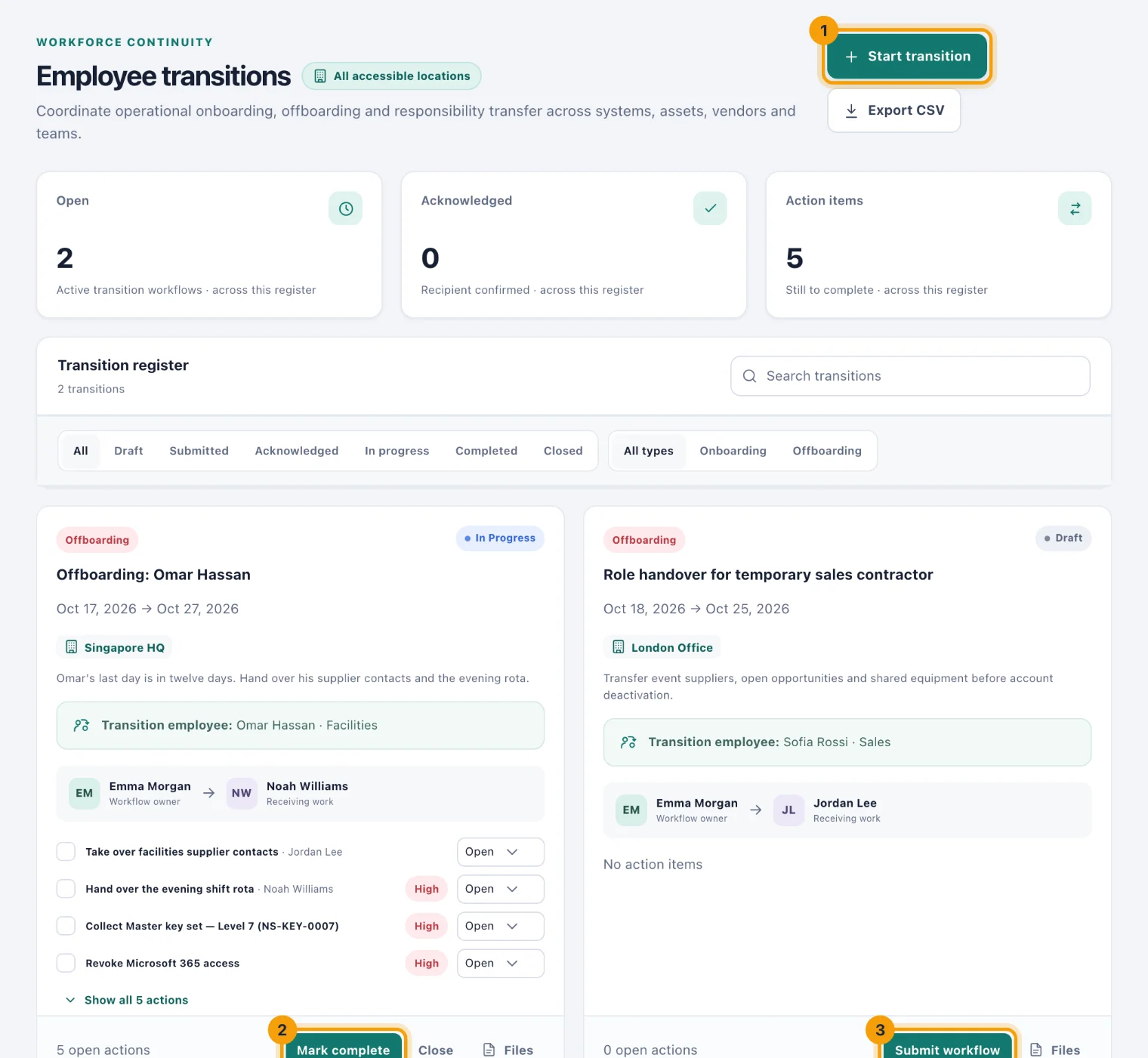
Each card names the Transition employee, who started it (Workflow owner), and the buddy, replacement or coordinator. Its actions, with their owners and statuses, work as they do on a handover: tick one off, or choose Open, In progress, Blocked or Complete.
Start a transition
Choose Start transition (1). The Start employee transition page opens.
Choose the Workflow type: Employee onboarding or Employee offboarding.
Give it a Title, such as "Offboarding: Omar Hassan".
Choose the Location, or Company-wide / global. Everyone on the transition must be able to reach it.
Choose the Employee being onboarded or offboarded.
Choose the Buddy, replacement or coordinator: a joiner's buddy, or whoever takes over a leaver's work.
Set the Start date and the End date. For an offboarding, the end date is their last day.
Write the Summary, and add the Action items, each with its own owner, priority and due date.
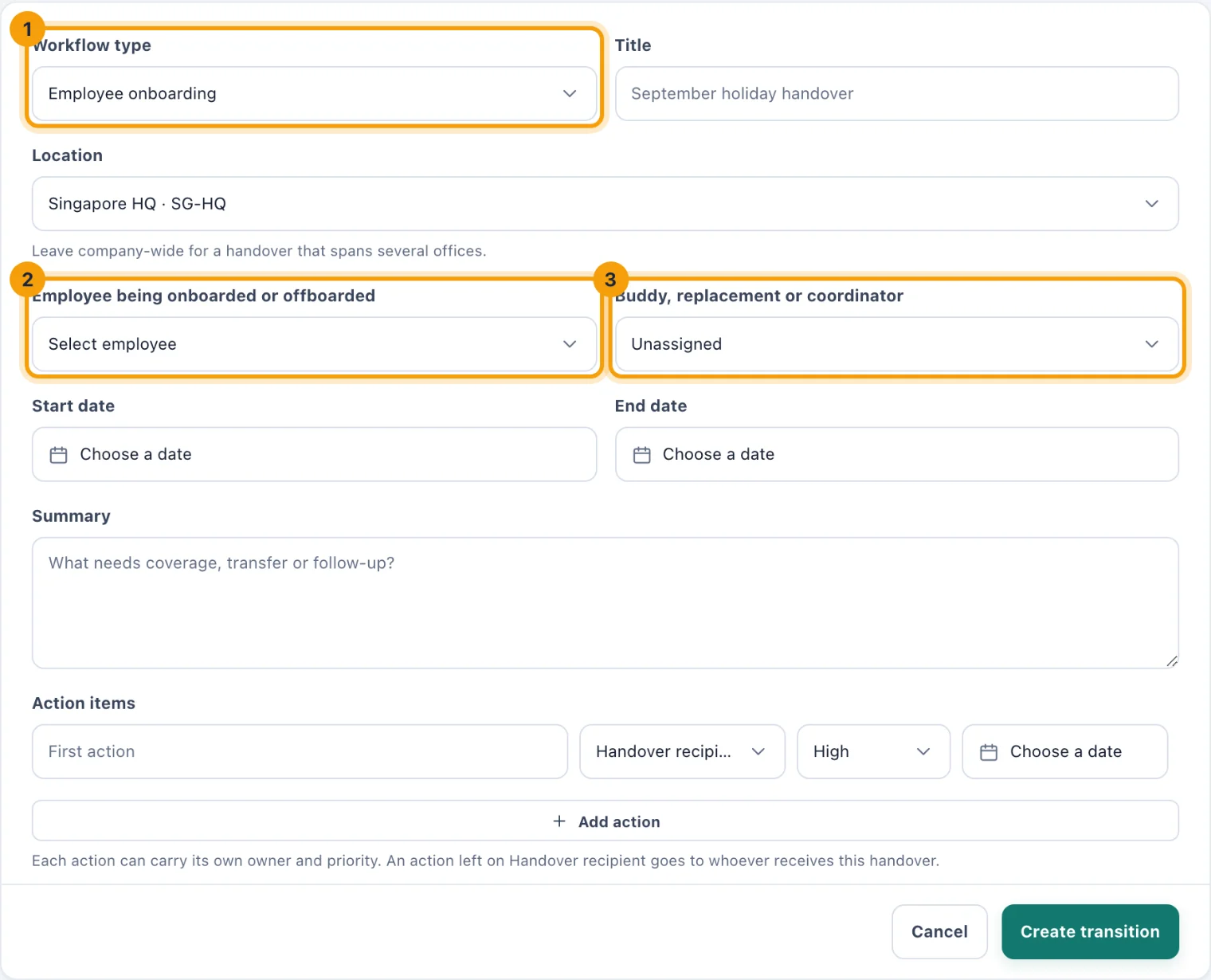
Start employee transition: the kind (1), the person (2), and who looks after them (3). Choose Create transition.
A transition starts as a Draft, and nobody is told about it yet. Check it, then choose Submit workflow (3) on its card. Submitting tells the buddy or replacement and each action's owner, and gives each a task.
What an offboarding adds
When you create an offboarding, kitset.io looks up what the person holds and adds a High priority row to the checklist for each item: Collect each asset assigned to them, with its tag, Revoke each system they have access to, and Deactivate their account.
These rows are a list to work through, not switches. Ticking "Revoke Microsoft 365 access" records that it was done; it does not remove anyone's access. The removal happens when the offboarding is completed.
Move a transition on
Submit workflow: from Draft, sends it out.
Start work: the transition is under way.
Acknowledge: the buddy or replacement confirms they have it, from their own card.
Mark complete: from Acknowledged or In progress. For an offboarding, this performs it; see below.
Close: files it away.
What completing an offboarding does
Mark complete (2) on an offboarding asks first, because it cannot be undone.
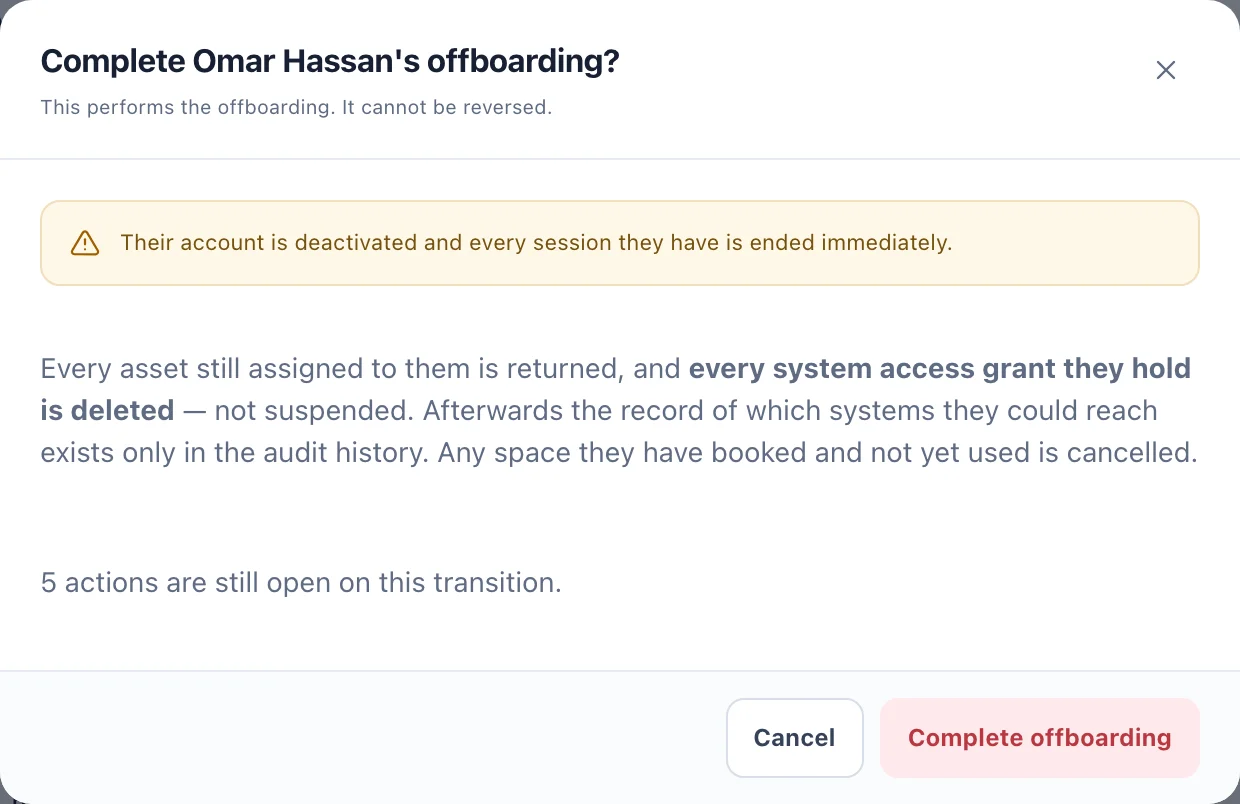
When you choose Complete offboarding, kitset.io:
Returns every asset still assigned to the person, including anything assigned since the transition was started. Each return is recorded in the asset's history.
Deletes every system access grant they hold. They are removed, not suspended. Each removal is recorded in the system's access history as made at offboarding.
Cancels their space bookings that have not finished yet, so the rooms and desks are free for others.
Deactivates their account, so they can no longer sign in.
Signs them out of every session they have open.
Ticks off every action on the checklist and completes the tasks it created.
The message that follows says what was done, for example how many assets were returned and how many system accesses were revoked. Completing an onboarding moves its status and performs nothing else.
Closing without completing
Close on an offboarding that has not been completed asks Close without offboarding?. Choosing Close anyway returns nothing and revokes nothing: the person keeps their equipment, their access and their account. Use it for a transition raised in error or for someone who is no longer leaving. The audit history records that it was closed without being performed.
Final-day reminders
While a transition is open and has an end date, reminders named Final day approaching, followed by its title, arrive 30 days before the end date, then at 14, 7, 3 and 1 days, on the day, and once more if the date passes. They go to the person who started it, the buddy or replacement, and the Console users who manage transitions at its location, under the bell and by email. Completing or closing it stops them.
Who can do what
See transitions. Admins by default; Owners and System Admins always.
Start, move on and complete transitions. The same people, with the Manage employee transitions permission. Only Console users can start one.
Employees. Portal users see the transitions they are part of in My transitions. See Your transitions.