Assets & maintenance is the register of the things your company owns and lends out: laptops, phones, cameras, equipment and keys. Each asset belongs to a location, and the register shows who holds it, when it is due back, and when its warranty and next maintenance fall. Open it from Assets & maintenance in the Console sidebar, or go there now.
Who can do what
View assets lets someone read the register at the locations their access covers.
Manage assets lets them add and change assets, assign and return them, and log service work. Admins have both by default.
Portal users see only the equipment assigned to them, under My assets. See Your equipment.
To limit someone to one location's assets, see Scoping access.
Read the register
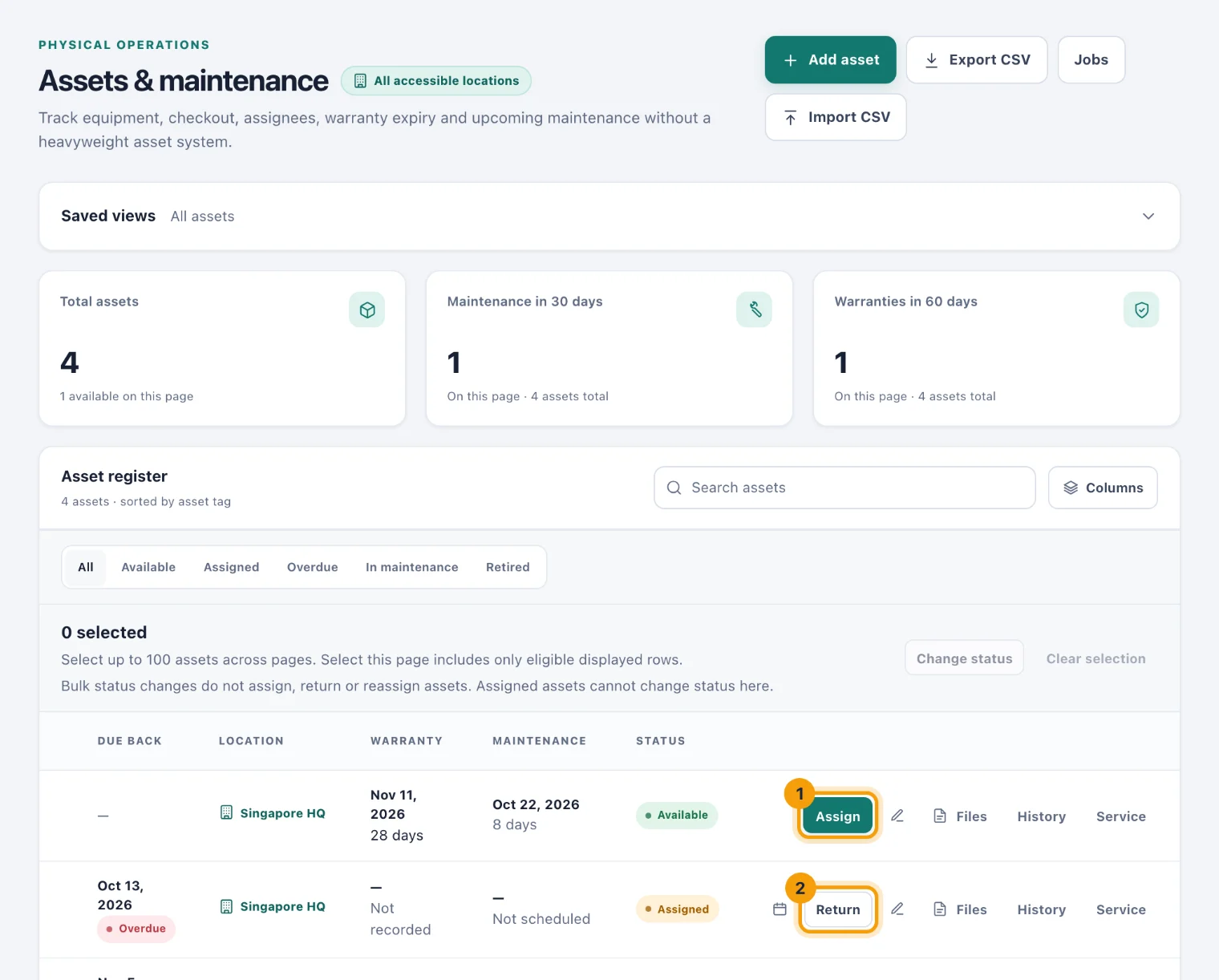
The cards at the top count your assets and, among those on the current page, the maintenance due in the next 30 days and the warranties that end in the next 60. Under them, the Asset register lists every asset you can see.
The tabs narrow it: All, Available, Assigned, Overdue, In maintenance and Retired. Overdue is an assigned asset whose return time has passed.
Search assets finds an asset by its name, tag or serial number.
Due back shows the return date of a temporary loan, or No return date when the holder can keep it.
Assign an asset to someone
Find an available asset and choose Assign on its row (1).
In Assign to, choose the person. They need access to the asset's location.
If the loan is temporary, set Expected return, if temporary. Leave it empty if they keep the asset until it is returned.
Choose Assign asset. The person is notified, and the item appears under My assets in their Portal.
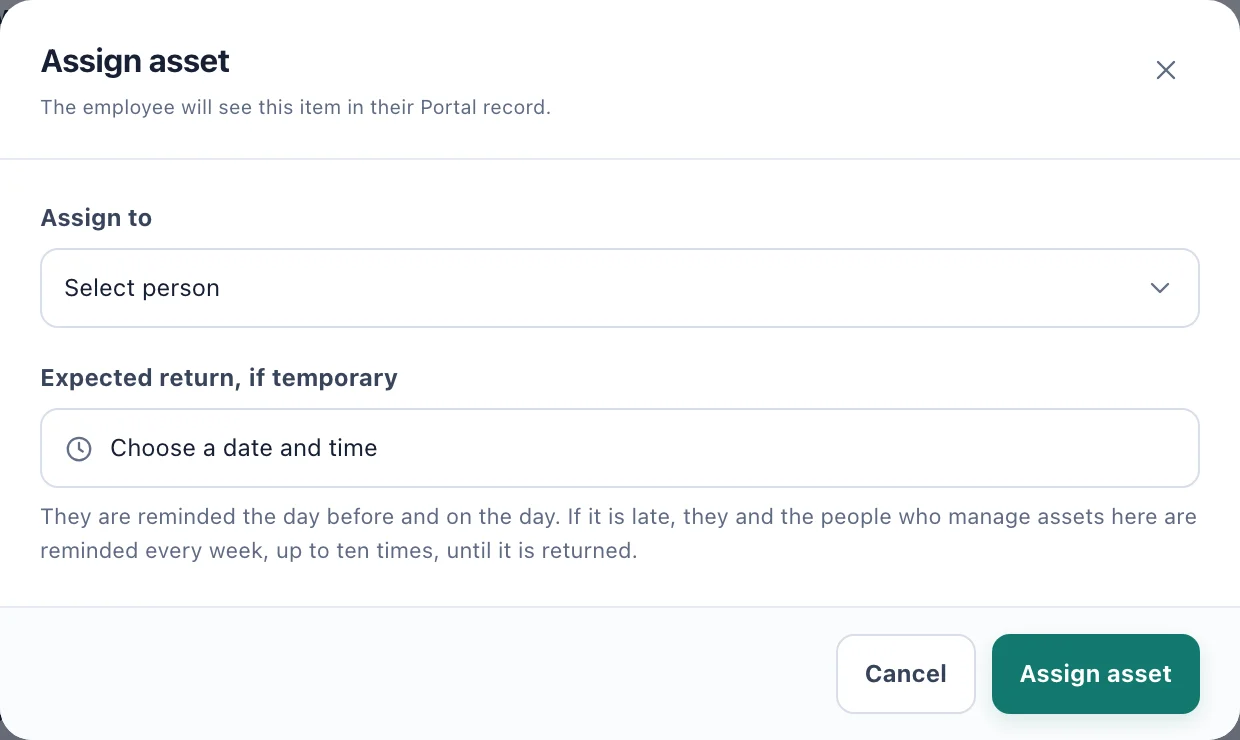
Assign asset: who holds it, and when it is due back if it is a loan.
When an asset has a return date, the holder is reminded the day before and on the day. If it is late, they and the people who manage assets at that location are reminded every week, up to ten times, until it comes back.
Change a return date
Choose the calendar button on the asset's row (its label is Change return date), set a new Expected return, and choose Save return date. The holder is told, and the reminders start again from the new date. Empty the field to let them keep the asset.
Take an asset back
Choose Return on the asset's row (2). There is no confirmation: the asset is Available at once, ready to assign again, and its custody record notes that you took it back.
See an asset's history
Choose History on a row to open the asset's own page. It has two parts.
Custody lists who has held the asset, from when until when, who checked it out and who took it back. Nobody edits it: assigning, returning and offboarding write it.
Service holds the problems reported by whoever held it, and the repairs, services and inspections done on it. Service on the register's row opens the same page at this part.
Log a repair, service or inspection
Under Log, choose Repair, Service or Inspection, and set Done on.
Describe it in What was done. Add Cost (optional) and its Currency if you want the spend on record.
Choose Log it (1).
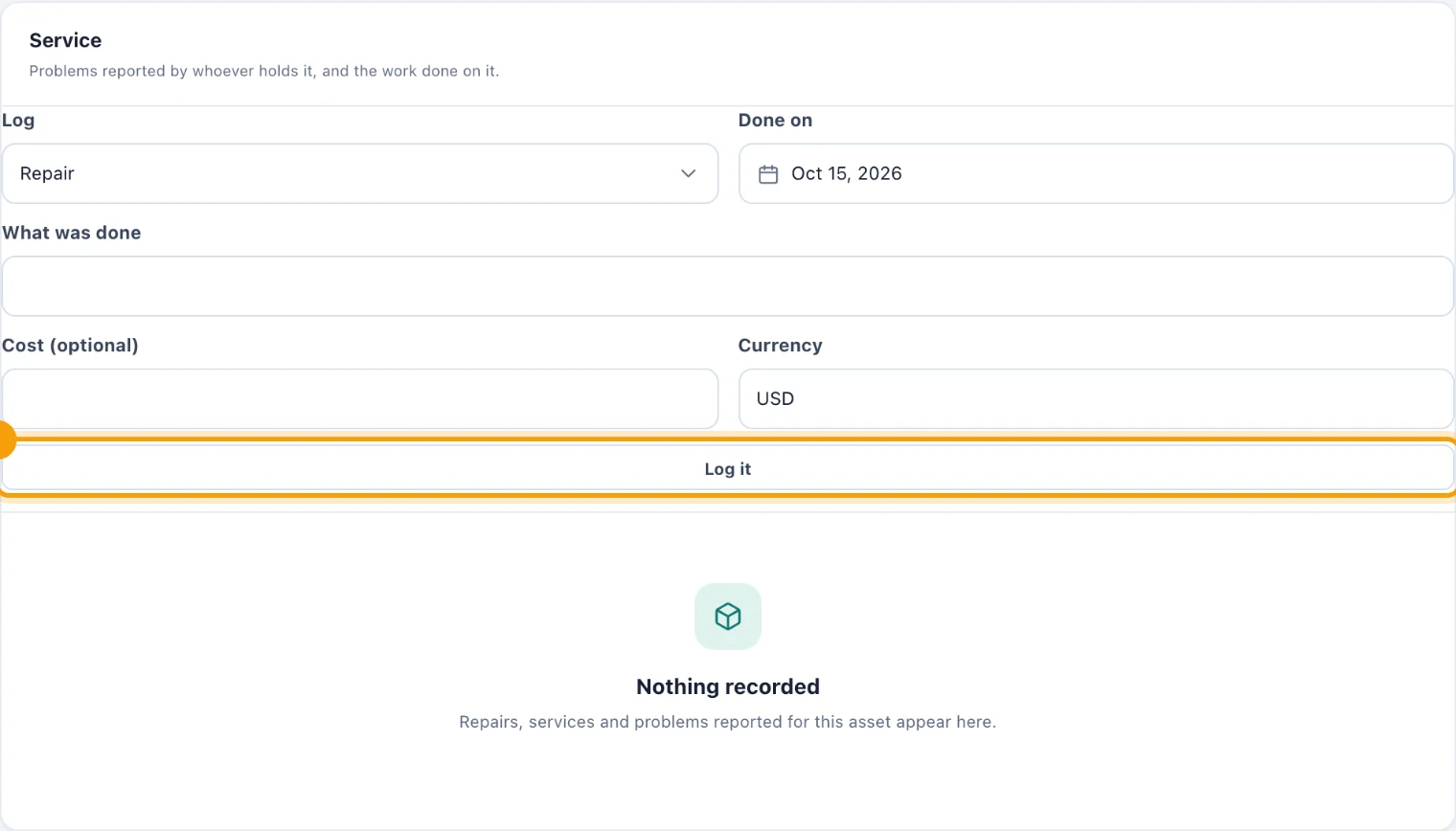
Service: log the work done, and answer what the holder reported.
Answer a reported problem
An open report has a box for your answer. Type one if you want the person to read it, then choose Working on it, Done or Decline. The person who reported it is told each time.
Warranty and maintenance reminders
As a Warranty expiry or Next maintenance date approaches, the holder and the people who can view assets at that location are notified. A retired asset sends no reminders. Set the dates when you add or change an asset.
Files, exports and imports
Files on a row keeps receipts, warranties and condition photographs with the asset.
Export CSV exports the register as it is currently searched and filtered.
Import CSV adds assets from a spreadsheet. An asset cannot be imported as assigned: assign it once it is in the register.