An asset is recorded once, with what it is, where it lives and the dates that matter, and then assigned to people as often as you need. Adding and changing assets needs the Manage assets permission at the asset's location.
Add an asset
In Assets & maintenance, choose Add asset. The form opens as a page of its own.
Enter the Asset name and the Asset tag, the label on the item itself.
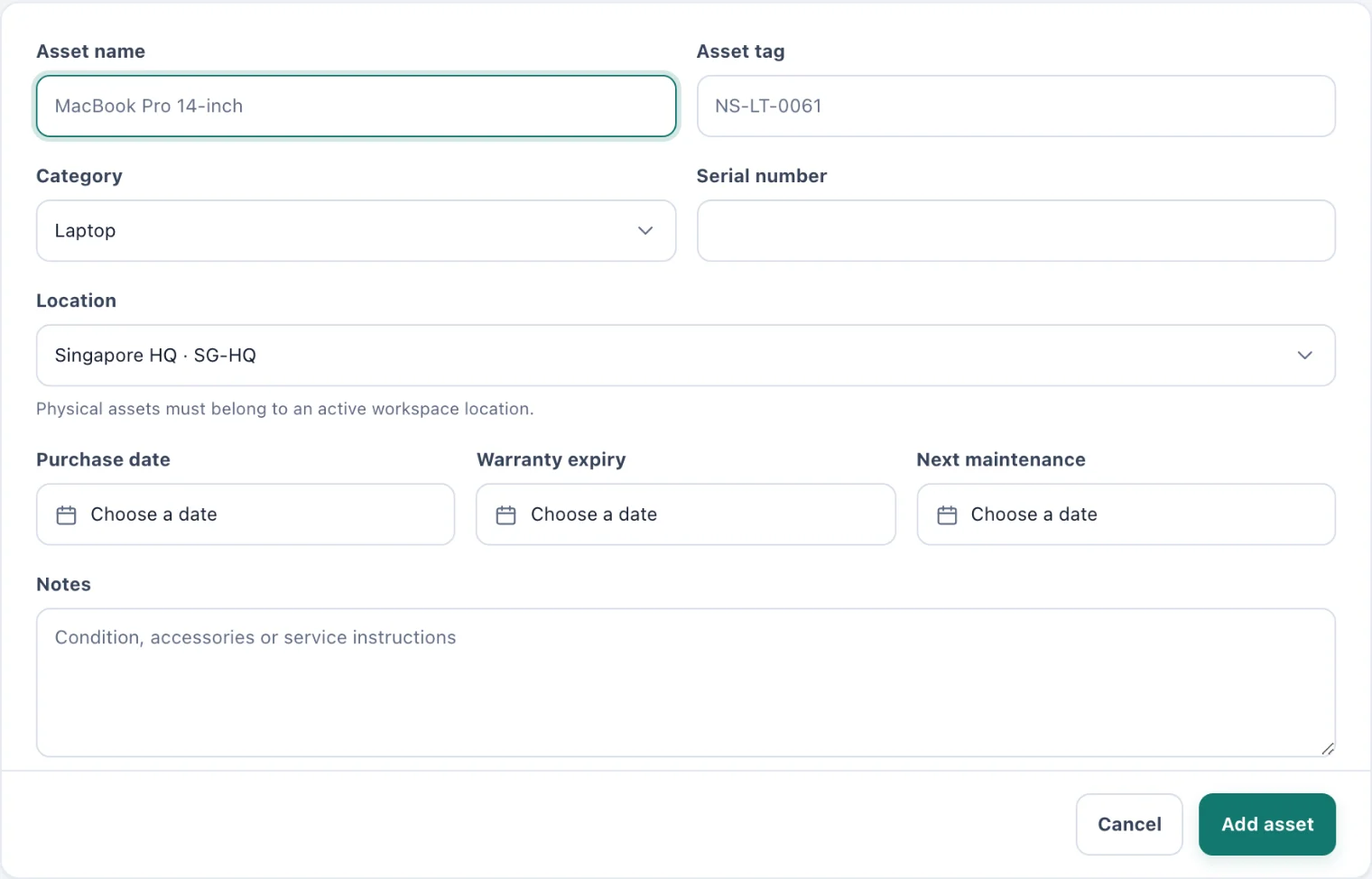
Add company asset: what it is, where it lives, and its dates. Choose a Category: Laptop, Phone, Camera, Equipment, Keys or Other. Add the Serial number if it has one.
Choose its Location. Every physical asset belongs to an active location, and only people with access to that location can be assigned it.
Add the Purchase date, Warranty expiry and Next maintenance dates you know. The last two send reminders as they approach.
Use Notes for its condition, accessories or service instructions.
Choose Add asset. It joins the register as available, ready to assign.
Change an asset
Choose the pencil button on the asset's row (its label is Edit asset). The page is titled with the asset's tag.
Change what you need.
Choose Save asset. The change is recorded in the audit history.
If you leave the page with changes you have not saved, you are asked before they are discarded.
Change an asset's status
While nobody holds an asset, its form has a Status field:
Available: ready to assign.
In maintenance: away for repair or service. It still sends warranty and maintenance reminders.
Retired: no longer in use. It stops sending reminders.
There is no "Assigned" choice. An asset becomes assigned only through Assign on the register, which also notifies the person and checks they can reach its location.
While someone holds the asset, the form says so in place of the status field. Return the asset first, then change its status or move it to another location.
