Systems & access is the company's list of business systems: what each one is, who owns it, who to contact if access is lost, who holds access and when that access is next reviewed. Open it from Systems & access in the Console sidebar.
The inventory
Three figures sit at the top: Active systems, Reviews due in 30 days and Named access holders. They count the systems on the page you are looking at.
The System inventory lists each system with its location, business and technical owners, how many people hold access, its next access review and its status. Next review shows the days left, or Overdue once the date has passed. Search by name or category with Search systems.
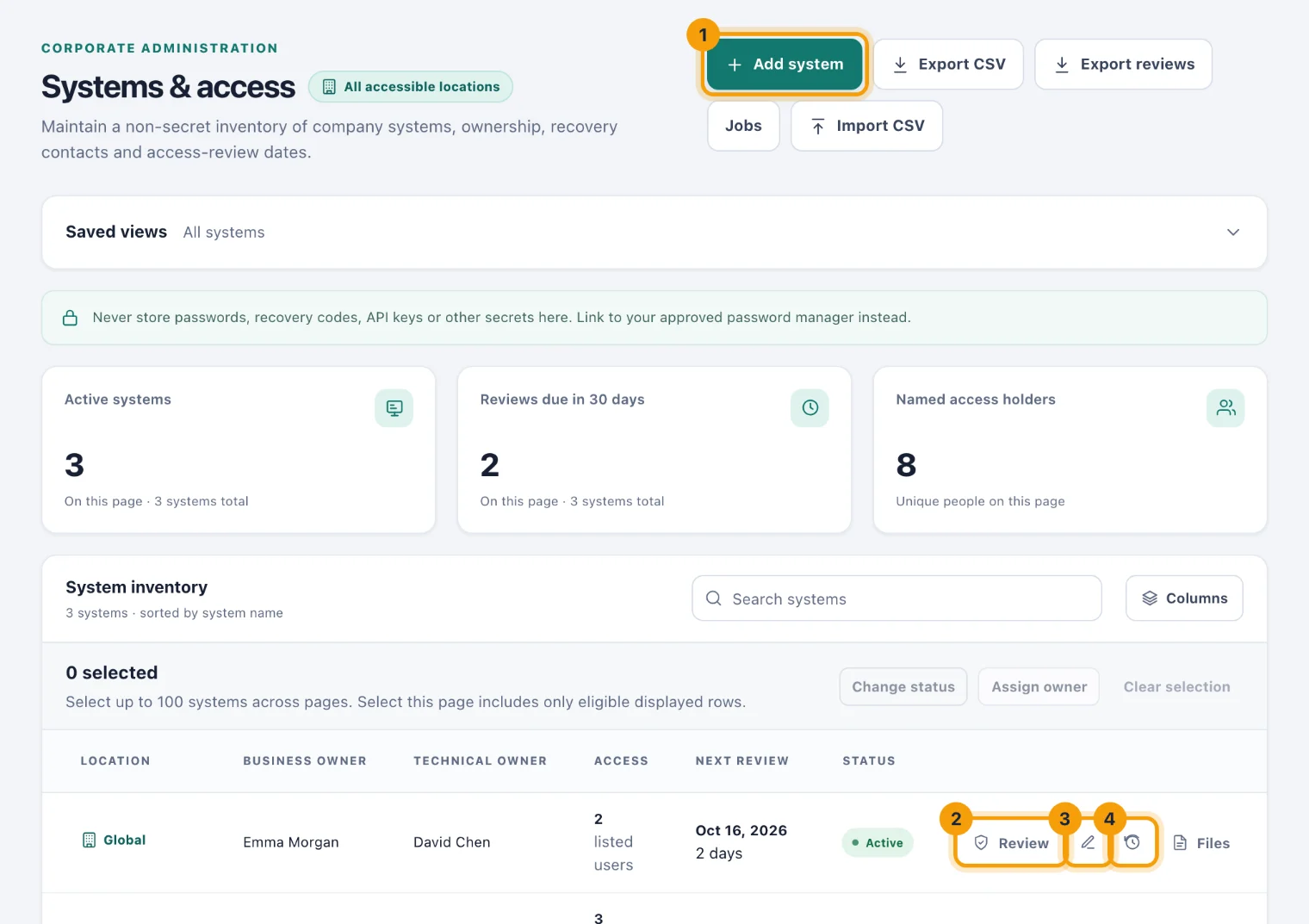
Add system (1), at the top of the page, records a new system. Each row has:
Review (2), to sign an access review. It is highlighted when the review is overdue, and absent on a retired system. See Review access to a system.
The pencil, Edit system (3), to change the system.
The clock, Access history (4), for its signed reviews and every grant and removal of access.
Files, for access review evidence and ownership records.
Add a system
Choose Add system (1). The Add company system page opens.
Enter the System name and a Category, such as Productivity or Finance.
Enter its Login or service URL, and choose a Location. Pick Company-wide / global for systems everyone shares.
Choose the owners. The Business owner decides who should have access. The Technical owner runs it. The Billing owner looks after what it costs.
Enter a Recovery contact, not a secret: the team address to contact if access is lost, such as an IT admins mailbox.
Set the Next access review date.
Under People with access, tick everyone who holds an account.
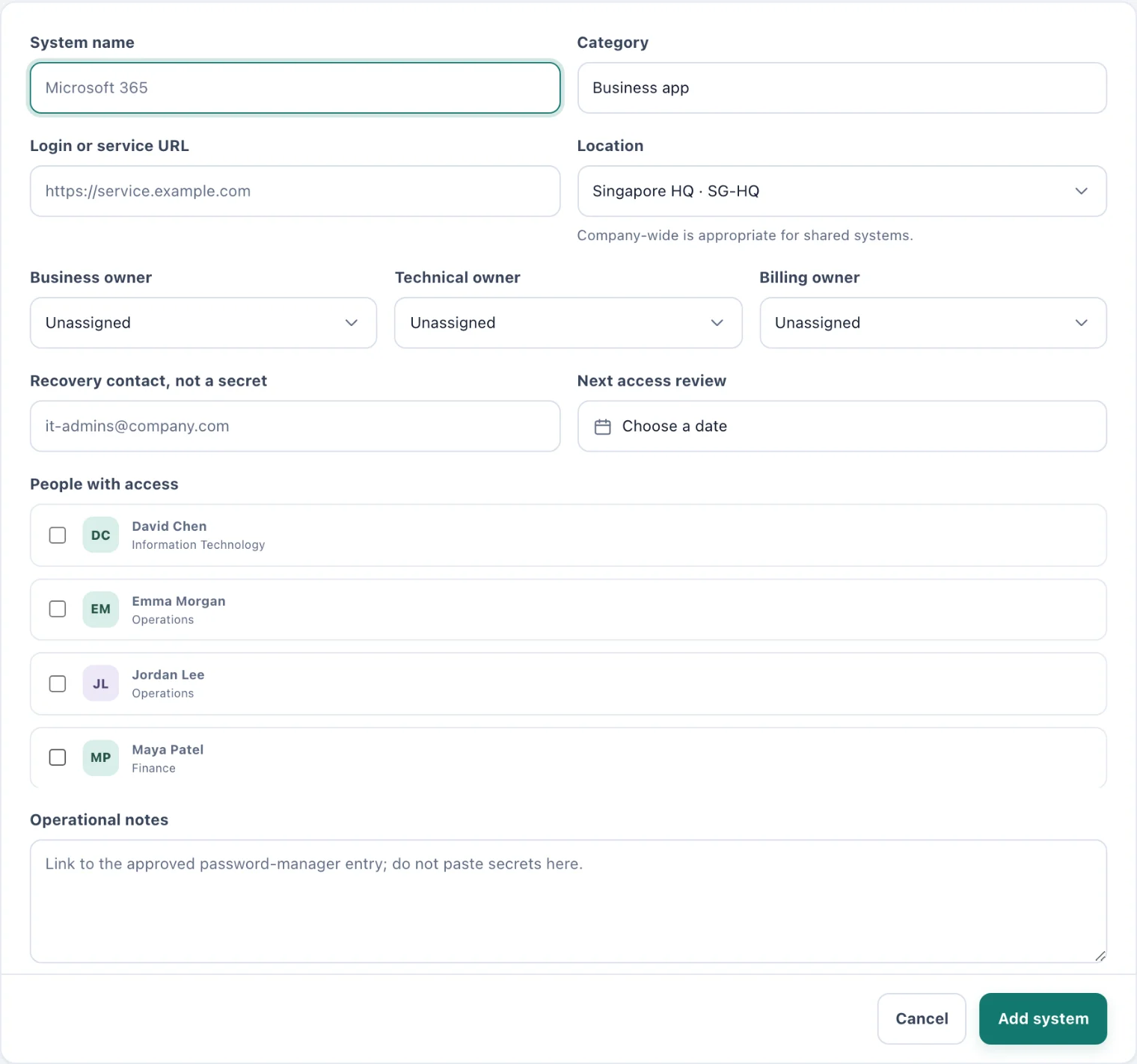
The system form records who owns it and who has access, and nothing secret. Use Operational notes to say where the credentials live, never to write them down.
Choose Add system.
Change a system
Choose the pencil on the row, Edit system.
Change what you need, and choose Save system.
The edit page also shows Last access review, which you cannot type in: it is set by signing a review. It adds a Status field: Active, Deprecated or Retired. A retired system has no access to review.
When you change People with access, each grant and removal is recorded in the system's access history, with who made it.
Access review reminders
For each active system with a next review date, a reminder named for the system, such as Access review due for CloudHost Pro, arrives 30 days before the date, again at 14, 7, 3 and 1 days, and on the day. While a review is overdue, a reminder follows every week, up to ten. Signing a review stops them.
They go to the system's business and technical owners, and to the Console users who can see systems at the system's location, under the bell and by email. The emails follow the Reminders setting in each person's profile.
Many systems at once
The tools for large registers work here as they do for vendors: saved views, a choice of columns, sorting by a column heading, and bulk changes. Bulk changes offer Change status and Assign owner, which sets the business, technical or billing owner of every system you select. See Work with many vendors at once for how each one works.
Export CSV exports the inventory you are looking at.
Export reviews exports the signed access reviews.
Import CSV adds systems from a file. Access lists are not imported: edit each system afterwards to add its people.
Who can do what
See the inventory. Admins by default; Owners and System Admins always.
Add, change and review systems. The same people by default. Add system, Review and the pencil appear only for people with this permission.
Employees. Portal users see the systems they own or hold access to, under My systems. See Your systems.