My handovers in the Employee Portal holds the handovers you are part of: the ones you created, the ones handed to you, and any with an action that is yours. Open it from My handovers in the sidebar.
Create a holiday handover
Before you are away, write down what someone else needs to keep going. Choose Create a holiday handover under Quick actions on My day, or New handover on My handovers.
The Create handover page opens with Holiday handover chosen as the Workflow type. Choose Shift handover or Role handover instead if that fits better.
Give it a Title, such as "September holiday handover".
Check the Location. It starts on your own.
Choose the Handover recipient: the person covering for you.
Set the Start date and End date of your time away.
In Summary, say what needs cover or follow-up.
Fill in Availability during absence, such as "Emergency SMS only", the Escalation contact for anything urgent, and the Return follow-up: what you will pick back up on your first day back.
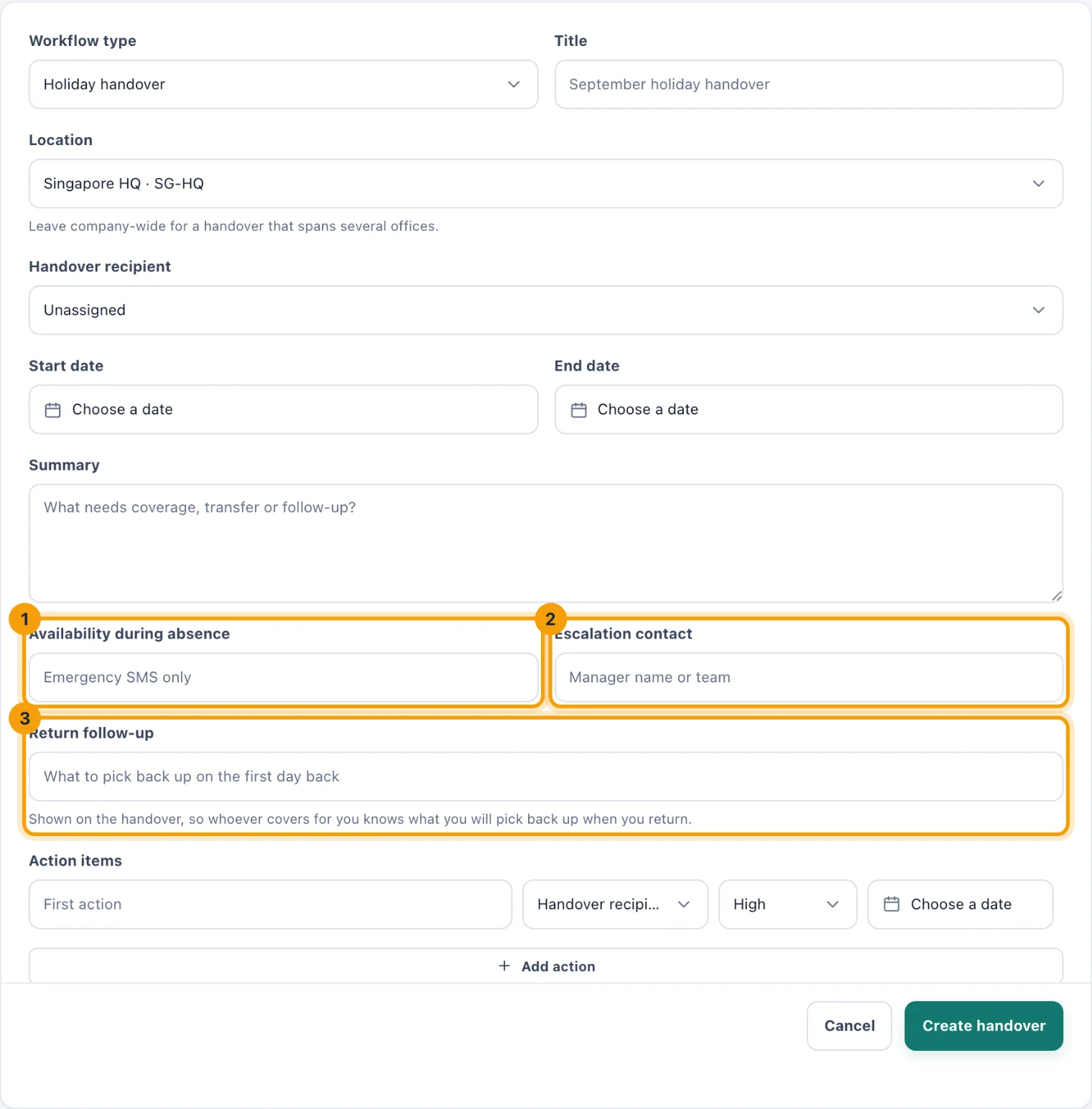
A holiday handover: how to reach you (1), who to escalate to (2), and what you will pick up on your return (3). Under Action items, add each piece of work. Give each its own owner if it is not for your recipient, a priority and a due date. Add action adds another row.
Choose Create handover.
The handover goes to your recipient straight away. They are told it is ready for review and get a task to review it, due on your start date, and each action's owner gets a task for their action.
Acknowledge a handover passed to you
When someone hands work to you, you are told under the bell, the review appears in My tasks, and My handovers shows the handover with Acknowledge (1).
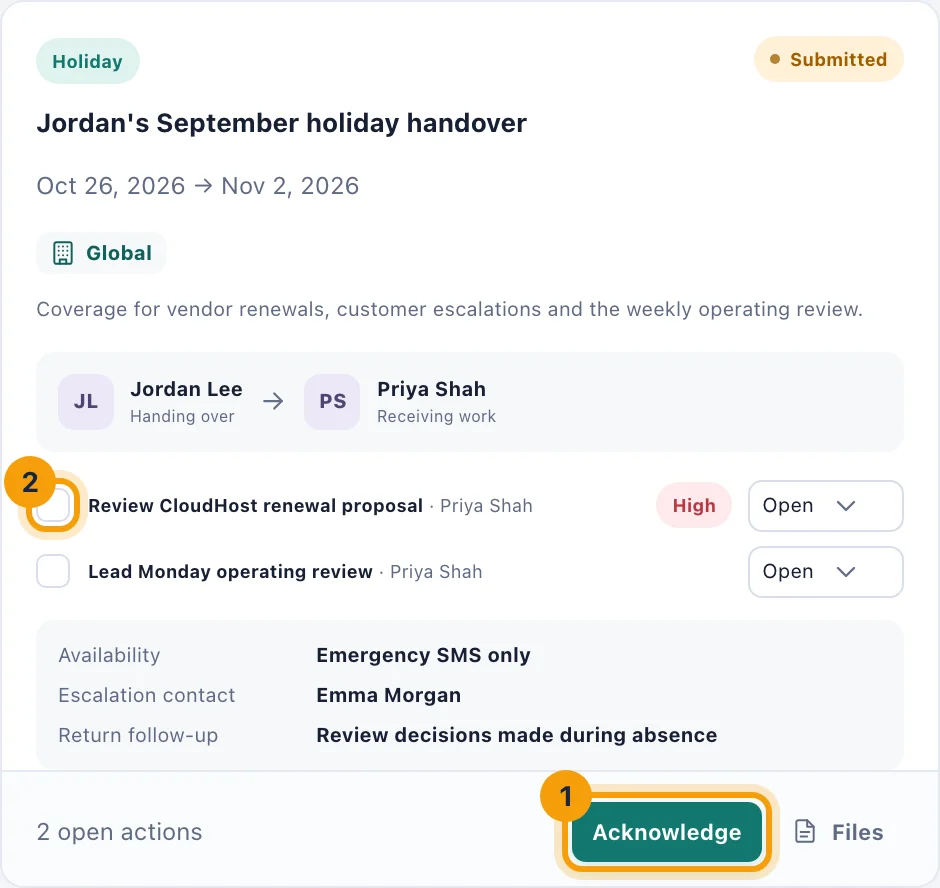
Read the summary, the actions and how to reach the person who is away, then choose Acknowledge. The handover becomes Acknowledged, your review task is completed, and the person who handed over and their manager can see that you have it.
You can acknowledge a handover while it is Submitted or In progress.
Work through the actions
Each action shows its owner and, when it matters, High priority. Tick the box beside an action (2) when it is done, or choose its status: Open, In progress, Blocked or Complete. You can update the actions you own, and as the recipient you can update every action on the handover.
Each action is also a task in its owner's My tasks. Ticking it off in either place completes it in both.
Follow a handover you created
If you created the handover, the buttons at the foot of its card move it on: Start work once the cover begins, Mark complete once it is over, or Close to file it away. Use Files for anything the person covering needs, such as a checklist.
A handover cannot be changed once it is created. If the plan changes, for example a different person will cover, close it and create a new one.