A handover passes work from one person to another for a while, or for good. Whoever creates it is shown as the person handing over. Creating handovers needs the Manage handovers permission at the location you choose. Employees create their own from the Portal; see Your handovers.
Create a handover
In Handover & continuity, choose New handover. The Create handover page opens.
Choose the Workflow type: Holiday handover, Shift handover or Role handover.
Give it a Title, such as "September holiday handover".
Choose the Location. It starts on your own location; choose Company-wide / global for a handover that spans several offices.
Choose the Handover recipient, the person receiving the work, and a Manager or reviewer if someone should oversee it. A reviewer is chosen from Console users.
Set the Start date and End date. The recipient's review task is due on the start date.
Write the Summary: what needs cover, transfer or follow-up. It is required.
For time away, fill in Availability during absence (for example "Emergency SMS only"), the Escalation contact, and the Return follow-up: what to pick back up on the first day back. All three are shown on the handover to whoever covers.
Add the Action items, as described below.
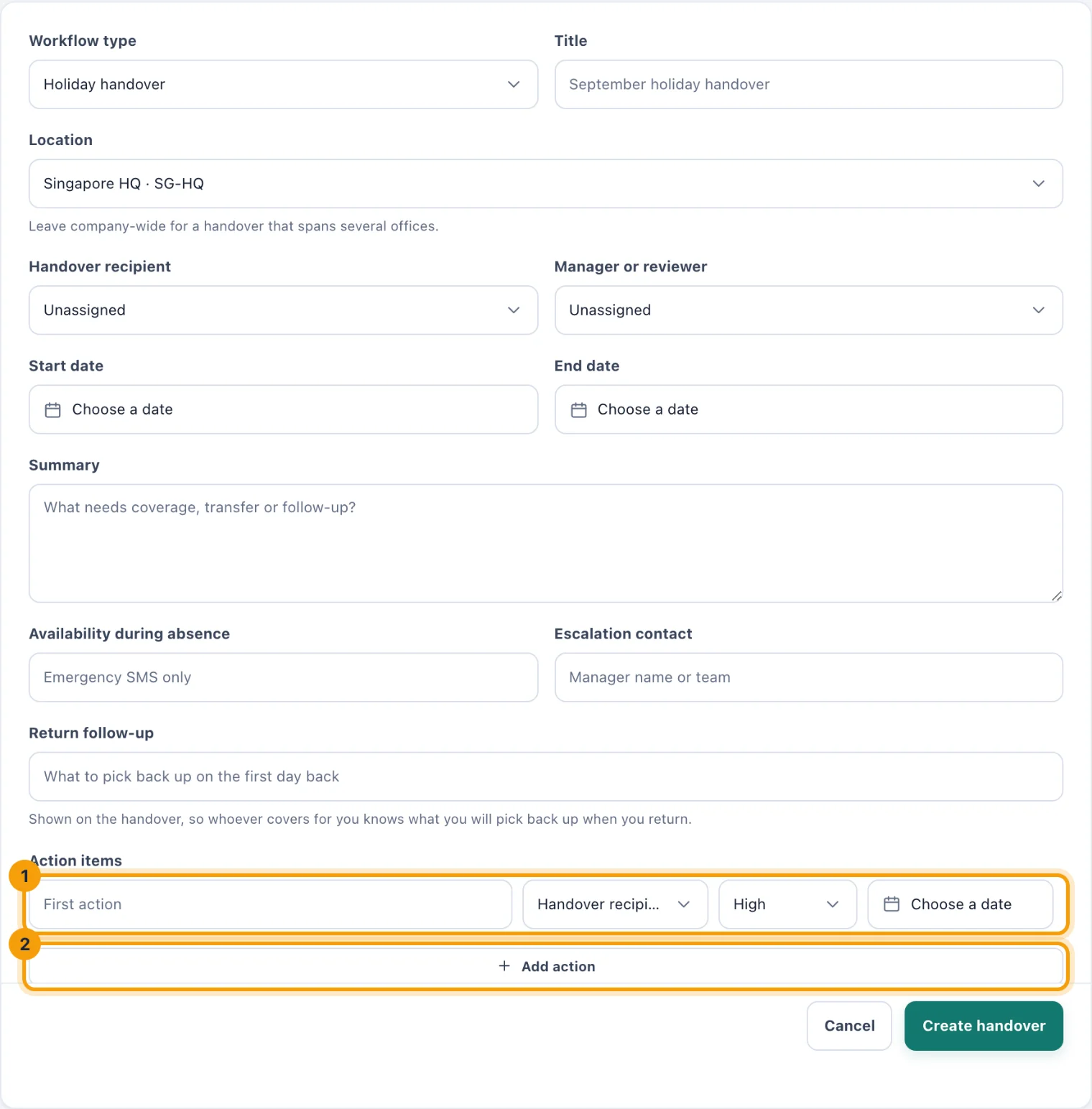
Create handover: the people, the dates, and a list of actions (1), with Add action (2) for more. Choose Create handover.
The handover starts as Submitted. The recipient is told it is ready for review and gets a task to review it, and each action's owner is told about their action and gets a task for it.
Action items
Each row (1) is one action:
The action itself, such as "Review the CloudHost renewal proposal".
Its owner. Leave it on Handover recipient to give it to whoever receives the handover, or choose anyone else. Actions can be split across several people.
Its priority: High, Normal or Low. The first row starts on High.
Its due date, which becomes the due date of the owner's task.
Add action (2) adds another row, and the cross at the end of a row removes it. A row left empty is ignored.
When a handover is refused
"Every handover participant must have access to the selected location". The recipient, the reviewer or an action's owner cannot reach the location you chose. Choose a location they all share, or Company-wide / global.
"End date cannot be before the start date". Check the dates.
"Handover action owners must be active workspace users". An owner has been deactivated since the page opened. Choose someone else.
If you leave the page with changes you have not saved, you are asked before they are discarded.