Large imports and exports run in the background, so you can carry on working while a file is checked or prepared. Jobs is where you follow them. Open it from Jobs under Workspace in the Console sidebar, or with the Jobs button on a register that has one. Processing carries on when you leave the page.
Jobs covers the registers whose files run in the background: Vendors, Assets, Systems, Workplace, Purchases and People, and the KPI definitions and results exports. You see the ones you can work with.
Follow your jobs
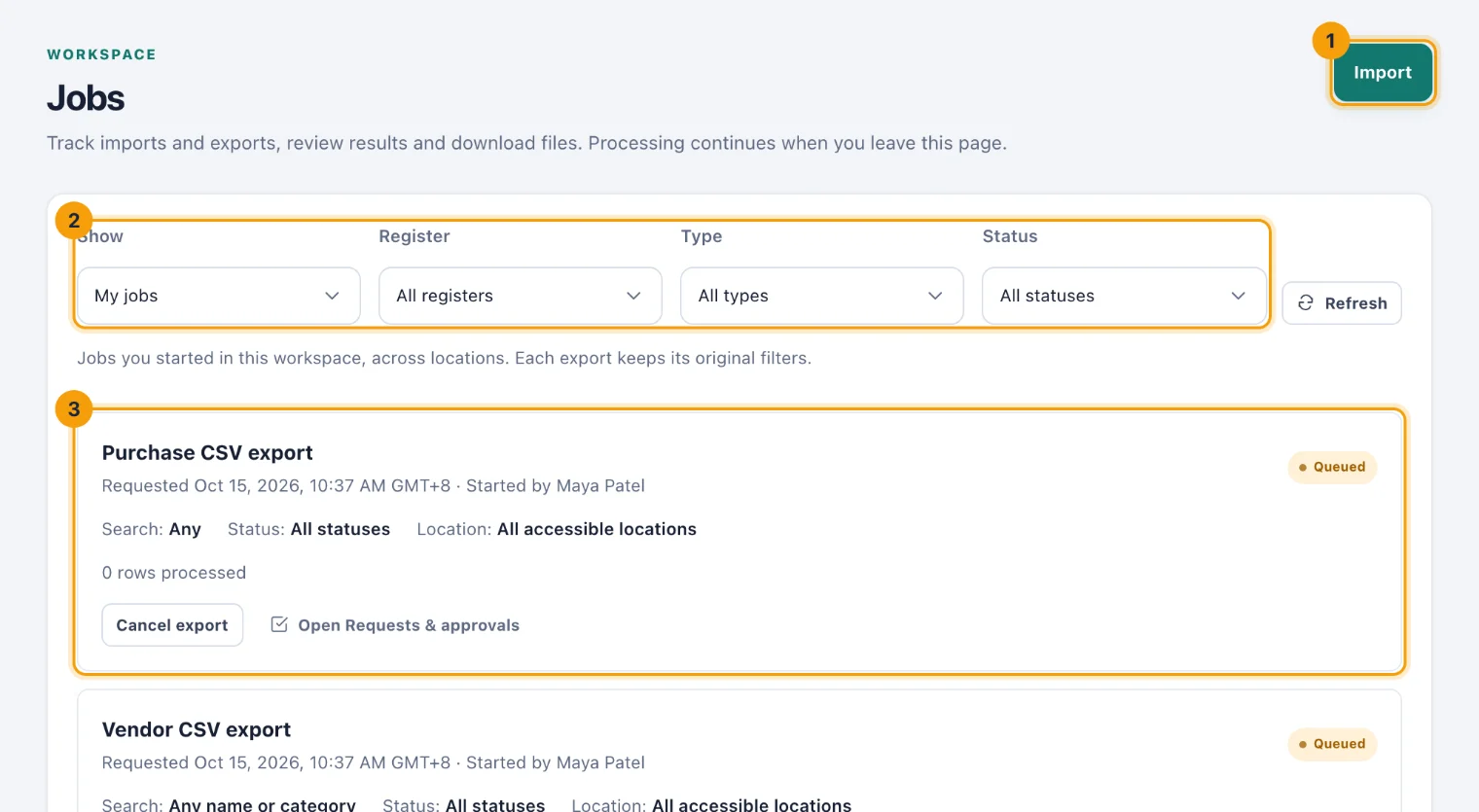
Each job (3) shows what it is, when it was requested and where it stands. An export moves through Queued and Preparing to Ready; an import through Scanning file, Validating, Ready for review and Importing to Imported. A job can also end Failed, Cancelled or Expired.
The filters (2) narrow the list by Register, by Type (Imports or Exports) and by Status (In progress, Needs review or Finished). Refresh reloads it, and Load older jobs reaches further back.
Export a register
In the register, set the search and filters you want. The file follows them, and the job lists them.
Choose Export CSV. You see Export queued.
Open Jobs. When the job says Ready, choose Download CSV.
A finished file is kept for a limited time; the job says when it expires. After that, export again. An export stops at 50,000 rows and says so; narrow the filters for a smaller file. Cancel export stops one that is still running, and Retry export tries a failed one again.
Import a CSV
Choose Import (1).
Choose the Import type, then Continue.
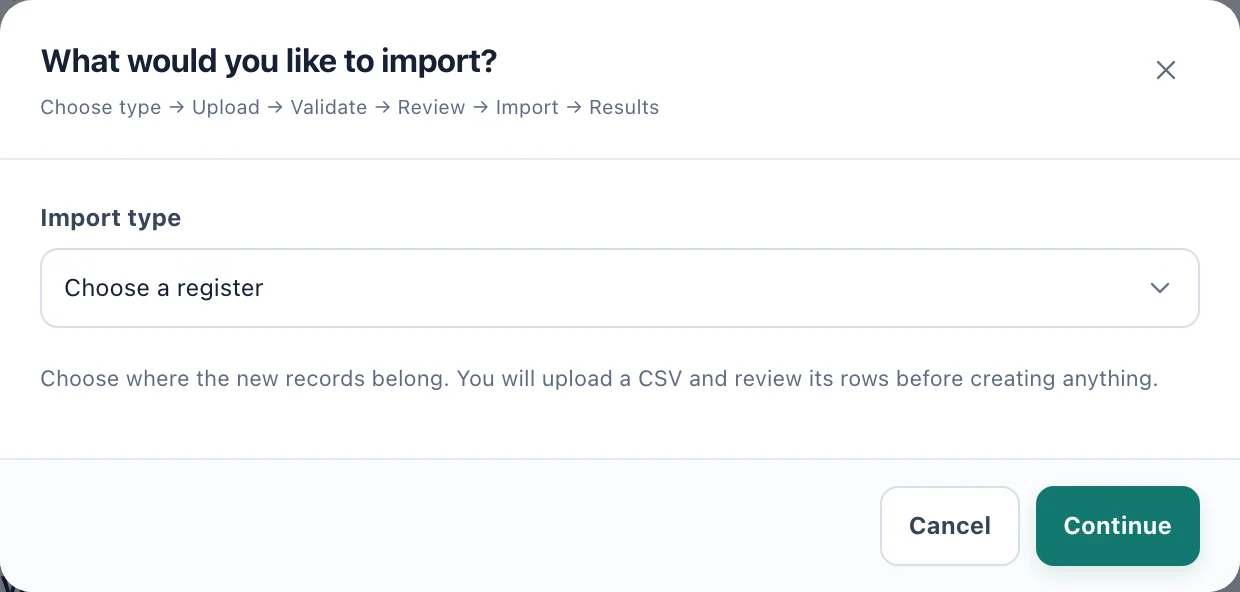
Choose the register the new records belong in. Choose the file and Upload and validate. CSV columns lists the columns the file needs. A file can be up to 2 MiB, in UTF-8, and up to 2,000 rows (250 for People).
When the job says Ready for review, choose Review import. You see how many rows are valid and invalid, a preview of the rows, and each problem by row.
If some rows are invalid, correct the file and import it again, or tick Import valid rows only to skip them.
Choose the button that names the count, such as Import 40 vendors. Nothing is written before this.
When the import has run, View results shows what was created, and Download errors gives the rows that were skipped and why. Assets and People can also update records that are already there, if you tick Update existing assets or Update existing people.
KPI definitions and results are imported on the KPI scorecard itself, not here. See Import and export KPIs.
Who can do what
Use Jobs. Anyone with a Console licence who can export or import at least one of these registers.
Import. Anyone who can manage that register: for example, Manage vendors for vendors. People imports need Import people, which Owners and System Admins hold.
See everyone's jobs. Choose Workspace jobs under Show. It is offered to Owners, System Admins and Admins with workspace-wide permission for the register and access to every location. Files and import reviews stay with the person who started each job.
A read-only workspace can still export, but cannot import. See The trial.