When you already keep KPIs in a spreadsheet, or have a quarter of results to catch up on, a CSV file saves typing them one at a time. Every import is previewed first, and nothing is written until you confirm a clean preview.
Open Configure KPIs on the scorecard, then the Import & export tab. It has two cards: KPI definitions for the KPIs themselves, and Period results for what was recorded against them.

Who can do what
Import definitions and the definitions template need Manage KPI scorecards.
Import results is for anyone who records KPIs. Each row must be a KPI you can record: one assigned to you, or any KPI where you manage KPIs.
Export definitions and Export results are for everyone who can see KPIs, and export only the KPIs they can see. The scorecard itself has Import results, Export results and Export definitions too.
Import KPI definitions
Choose Download template on the KPI definitions card. Its columns are
name,description,function_category,unit,cadence,target,direction,owner_emailandlocation_code.Fill in one row per KPI. Use the function names as the form lists them, such as Finance or Customer Service;
WEEKLY,MONTHLYorQUARTERLYfor the cadence;HIGHERorLOWERfor the direction; the updater's email address; and a location's code, or leave it blank for a company-wide KPI.Choose Import definitions, then choose the file or paste its text, and choose Preview CSV.
Read the preview. A clean one lists the valid rows and whether each is new, updated or unchanged. Otherwise it lists every problem by row and column; correct the file and preview again.
Choose the button on the clean preview that names the count, such as Import 12 rows, to write it.
A row with a KPI's id, in the metric_id column of an export, updates that KPI; a row without one creates a KPI. A blank cell keeps what is stored. So the quickest way to change many KPIs is to export them, edit the file, and import it back.
Import period results
Choose Download template on the Period results card. Its columns are
metric_id,period_start,actual,targetandnote.Take each KPI's id from Export definitions. Write
period_startas an ISO date, such as 2026-09-01, on the first day of the period. The period must have closed.Choose Import results (2), choose the file or paste its text, and choose Preview CSV.
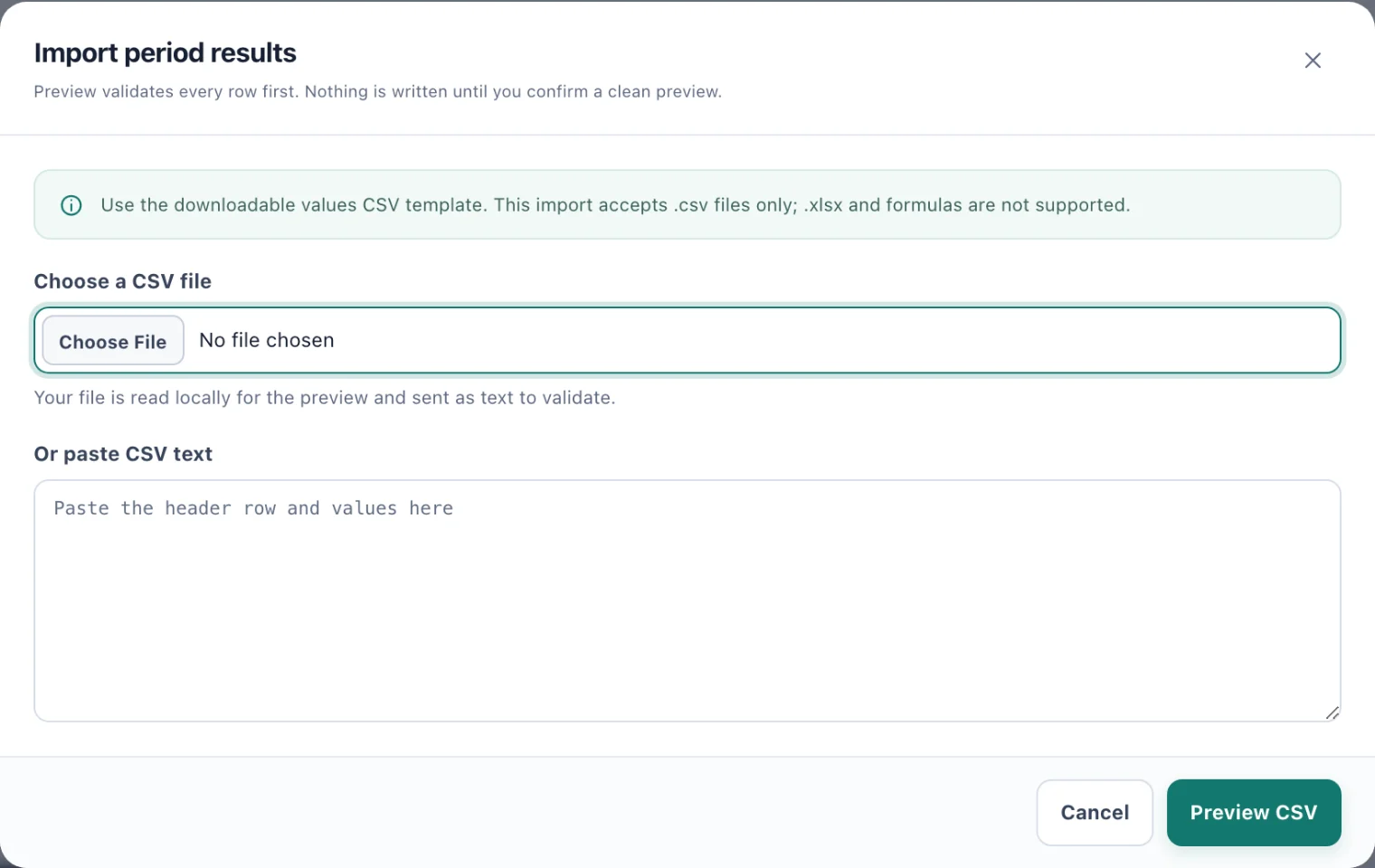
Import period results: choose a file or paste the text, then preview it. Read the preview and confirm it, as for definitions.
A row for a period that already has a result corrects it. Blank target and note cells keep what the period already has; a blank target on a new result uses the KPI's default target. A file may name each KPI's period only once.
The file must be a .csv of at most 2 MB. Excel workbooks and formulas are not read: save the sheet as CSV first.
Export
Export definitions exports every active KPI you can see, with its id first so the file can be imported back. Export results (3) exports the recorded periods of those KPIs, with each period's start and end, result, target and note.
Where exports run in the background, the file is prepared under Jobs, where you download it when it is ready. Otherwise it downloads straight away.