KPIs are set up on KPI configurations. Choose Configure KPIs on the scorecard to open it. Its four tabs are KPIs, Templates, Reporting rules and Import & export.
Setting KPIs up needs Manage KPI scorecards where the KPI is reported. Admins have it by default. Templates, reporting rules and company-wide KPIs need it for the whole workspace.
The KPIs tab
The KPIs tab lists every KPI you manage: Active, Archived or All, with how many of each. Find one with Search KPI names, or narrow the list by Function, Updater and Location.
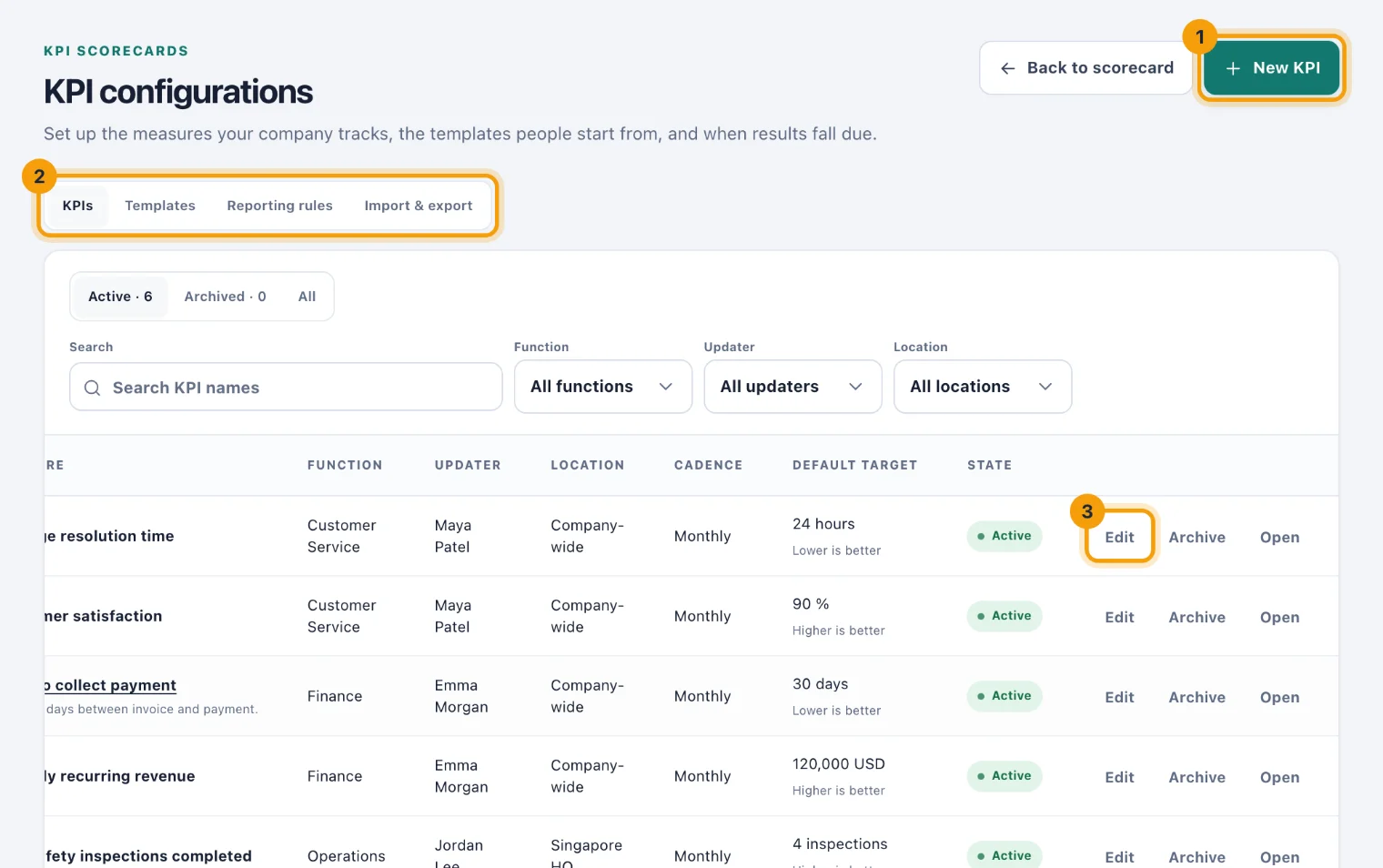
Each row shows the KPI's cadence, its Default target and whether higher or lower is better, and whether it is Active or Archived. Open goes to the KPI's own page.
Create a KPI
Choose New KPI at the top of KPI configurations. The form opens as a page of its own.
To start from a template, choose one in Start from a template (1). It fills in the fields, and you can change every value before saving. Leave Build from scratch to start empty.
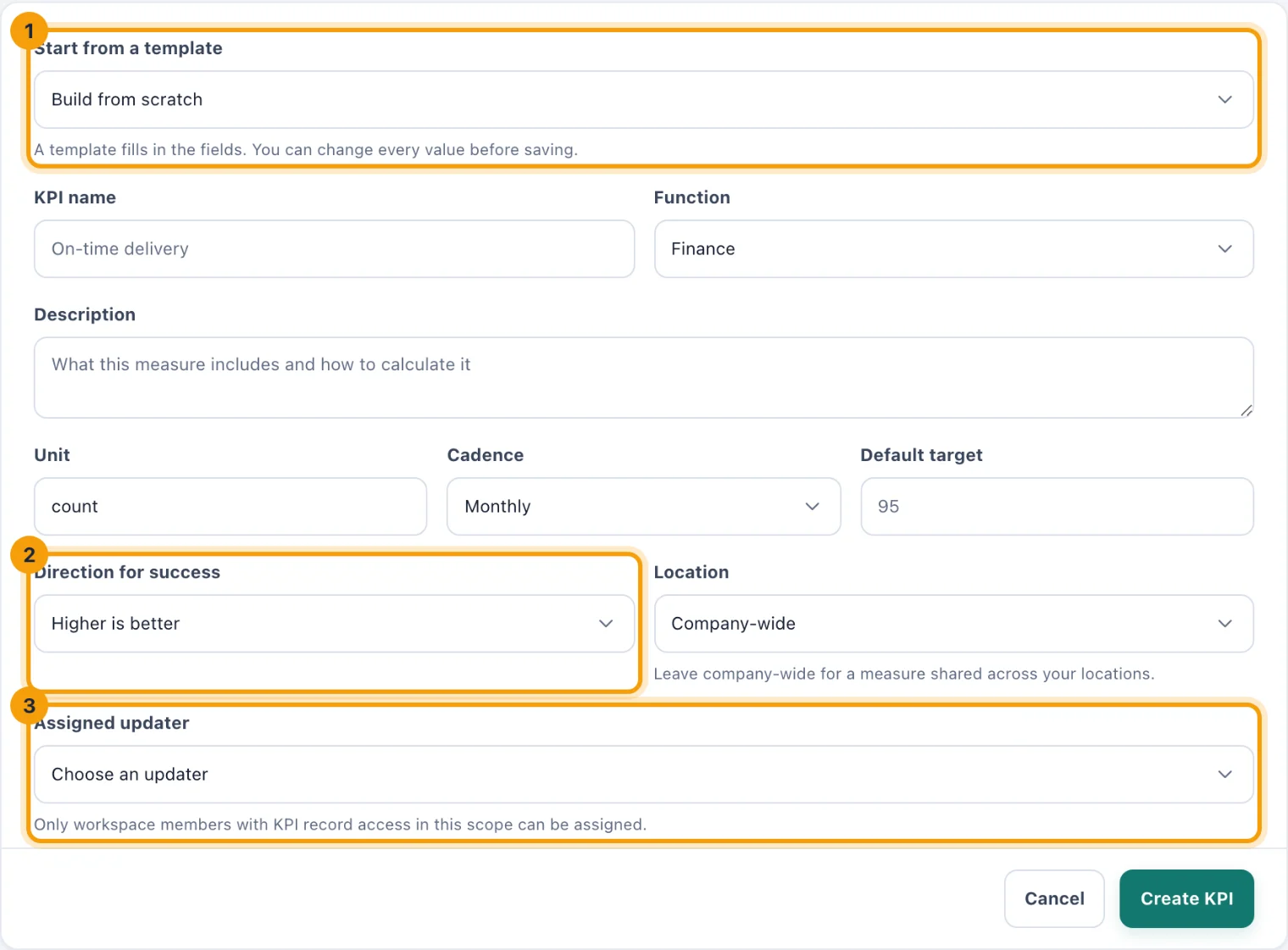
Create a KPI: a template to start from (1), which way is better (2), and who records it (3). Enter the KPI name and choose its Function: Finance, Sales, Operations, People, Customer Service or Other. The function groups the scorecard; it does not decide who can see the KPI.
Use Description to say what the measure includes and how to calculate it.
Enter the Unit, such as orders, % or USD. Choose the Cadence: Weekly, Monthly or Quarterly. Enter the Default target.
Choose the Direction for success (2): Higher is better or Lower is better.
Choose the Location it is reported for, or Company-wide for a measure shared across your locations.
Choose the Assigned updater (3), the one person who records it. Only people who can record KPIs where it is reported are listed, and changing the location refreshes the list. The updater can be a Portal user.
Choose Create KPI. It joins the scorecard, ready for its next closed period.
Change a KPI
Choose Edit on its row, or Edit KPI on its page, change what you need, and choose Save KPI. Every change is kept in the KPI's change log.
A new Default target applies to periods recorded from then on. Periods already recorded keep the target they were judged by.
The cadence cannot change once a KPI has results: archive it and create a new KPI instead.
If you leave the page with changes you have not saved, you are asked before they are discarded.
Archive and restore a KPI
Choose Archive on its row, then Archive KPI. It leaves the scorecard and stops taking results; its history stays, and so does its page.
To bring it back, open the Archived list and choose Restore, or choose Restore KPI on its page. If its updater has left, or can no longer record KPIs there, you are asked to choose a New updater first.
Change many KPIs at once
Tick the KPIs on the KPIs tab, or tick the box in the heading for every KPI on the page. A bar offers Assign updater, Move, Archive and Restore.
Each action lists the KPIs it will change and asks you to confirm. All of them change, or none do: if one cannot, for example because the new updater cannot record KPIs where it is reported, the dialog says which and why, and nothing is changed. When you move KPIs, each keeps its updater, who must be able to record KPIs at the new location.
Templates
The Templates tab holds the starting points people use when they create a KPI.
Your templates are your workspace's own, up to 100. Add template opens a page with the Template name, Function, Description, Unit, Cadence, Default target and Direction for success. A template has no updater or location: those are chosen when a KPI is made from it.
Built-in starters come with kitset.io and cannot be changed.
Use on any template opens a new KPI's form filled in from it.
Edit and Remove change your own templates. Removing one does not change the KPIs made from it: each keeps its own definition.
Reporting rules
The Reporting rules tab sets two rules for every KPI in the workspace.
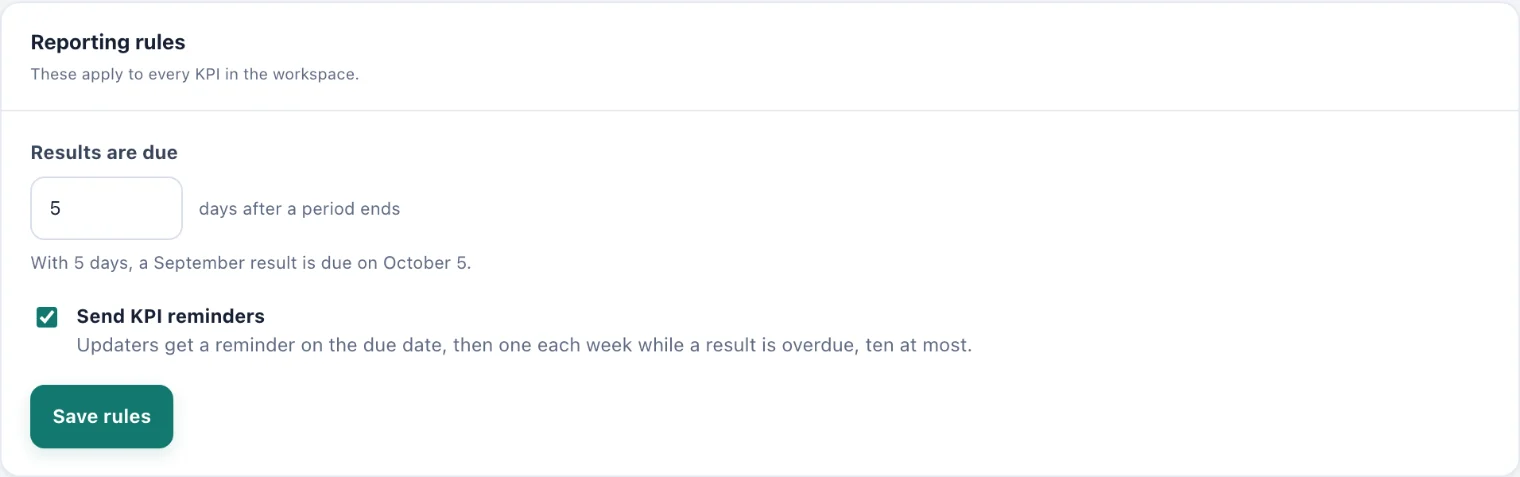
Results are due a number of days after a period ends, from 1 to 30. It is 5 to begin with. The note under it works an example: with 5 days, a September result is due on 5 October.
Send KPI reminders: updaters get a reminder on the due date, then one each week while a result is overdue, ten at most. Clear it to send none.
Choose Save rules. New due dates and reminders follow them from then on; a reminder that has already gone is not sent again.
For the Import & export tab, see Import and export KPIs.