Some measures your company tracks are reported by one person: you might count the safety inspections done at your site each month, or the orders shipped each week. When you are made the updater of a KPI, you record its result once each period closes.
Where to find them
My day shows a KPI updates due card while a result is waiting for you. Each line names the KPI and its period, and says when it is due: Due in 3 days, Due today, or how many days overdue it is.
My KPI updates in the Portal sidebar lists every KPI you update, and only those. My KPI updates on the card opens it too.

Record a result
Choose Record on the KPI's row in My KPI updates (1). From My day, Record opens the KPI's page: choose Record result there.
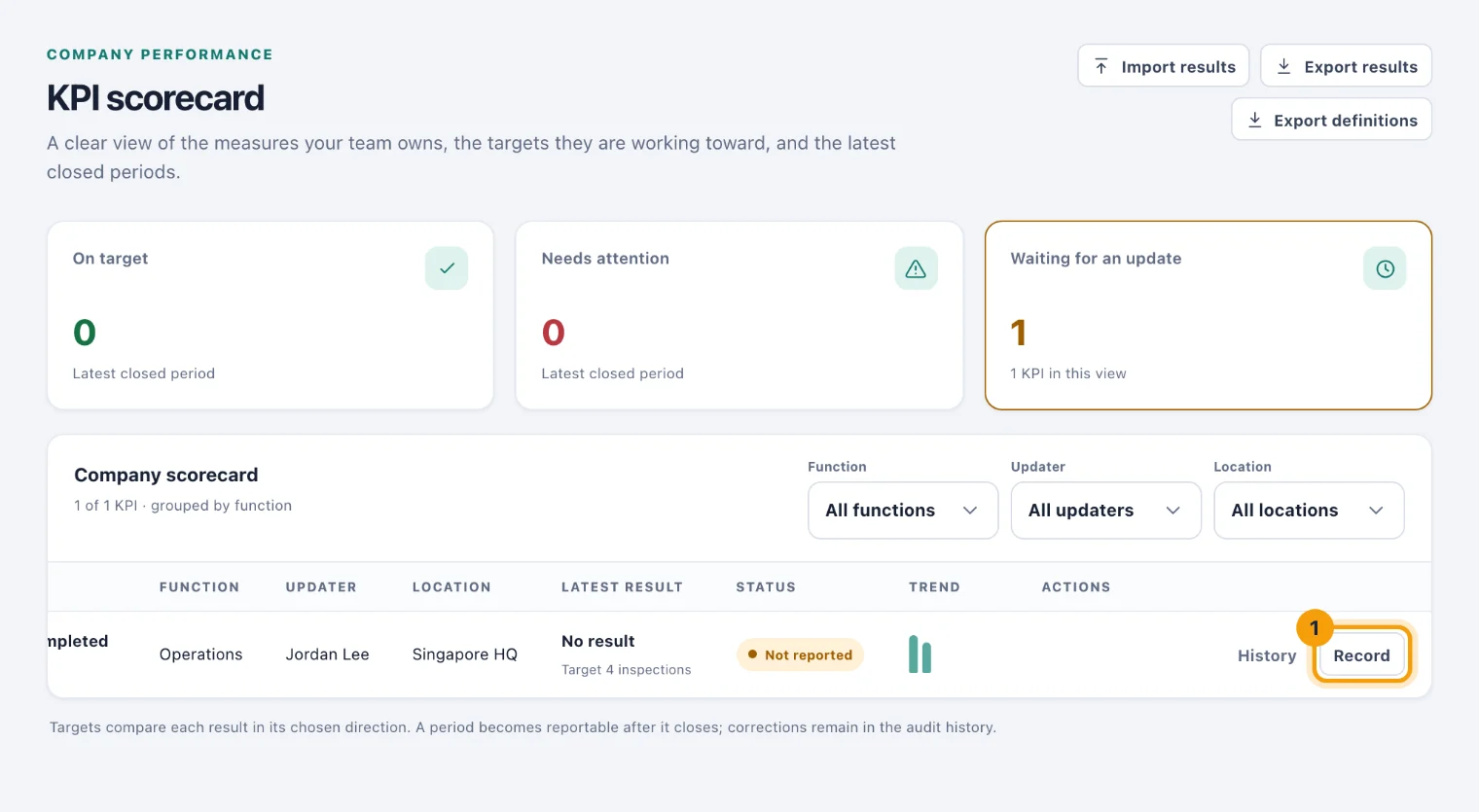
My KPI updates: each KPI you update, its latest closed period and its status. Check Period starts. It opens on the latest closed period, which is usually the one that is due. The date is the first day of the period: of the month, the quarter, or the week (weeks start on Monday).
Enter the Actual result, in the unit the KPI is measured in.
Leave Target for this period blank, unless you have been told the target for this period is different.
Add a Note if the number needs explaining, for example "One inspection moved to the first week of next month".
Choose Record result. The KPI's status shows whether it is On target or Missed target.
You can only record a period once it has ended. If you try a date before then, you are told the period must be closed first.
When a result is due
Your workspace decides how many days after a period ends its result is due: five, unless it has changed it. You are reminded on the due date, then once a week while the result is overdue, up to ten times. Each reminder links straight to the KPI's page.
Correct a result
Recorded the wrong number? Choose Update on the KPI's row to correct the latest period, or open the KPI and choose Correct on any period under Results. Change the result or the note, and choose Save correction. The period stays the one you recorded, and the change is kept in the KPI's Change log with your name.
A KPI's page
Choose a KPI's name, or History on its row, to open its page. It shows the latest closed period, the Default target and whether higher or lower is better, a Trend of the recent periods, every result recorded, and who changed what.
Export results downloads the results recorded for your KPIs as a CSV file, and Import results records many periods at once from one.