The KPI scorecard keeps the measures your company reviews in one place: what each one measures, who reports it, the target it is working toward, and how its latest closed period went. Open it from KPI scorecard in the Console sidebar, or go there now.
Who can do what
View KPI scorecards lets someone read KPIs, their targets and their history at the locations their access covers.
Record KPI results lets someone record and correct the results of the KPIs assigned to them.
Manage KPI scorecards lets someone set KPIs up, change and archive them, and record or correct any KPI's results where it is reported. Admins have all three by default.
Portal users see only the KPIs they are the updater of, under My KPI updates. See Your KPI updates.
To limit someone to one location's KPIs, see Scoping access.
Read the scorecard
Three cards at the top count the KPIs in view by their latest closed period: On target, Needs attention and Waiting for an update.
Below them, Company scorecard lists every KPI you can see, grouped by function. Narrow it with Function, Updater and Location, and choose Clear filters to see everything again. Each row shows:
Latest result: the result recorded for the latest closed period, with the target it was judged by. No result means nobody has recorded it yet.
Status: On target, Missed target or Not reported. A target is met in the KPI's own direction: at or above it when higher is better, at or below it when lower is better.
Trend: a small chart of the recent recorded periods. Point at a bar to see its period and value.
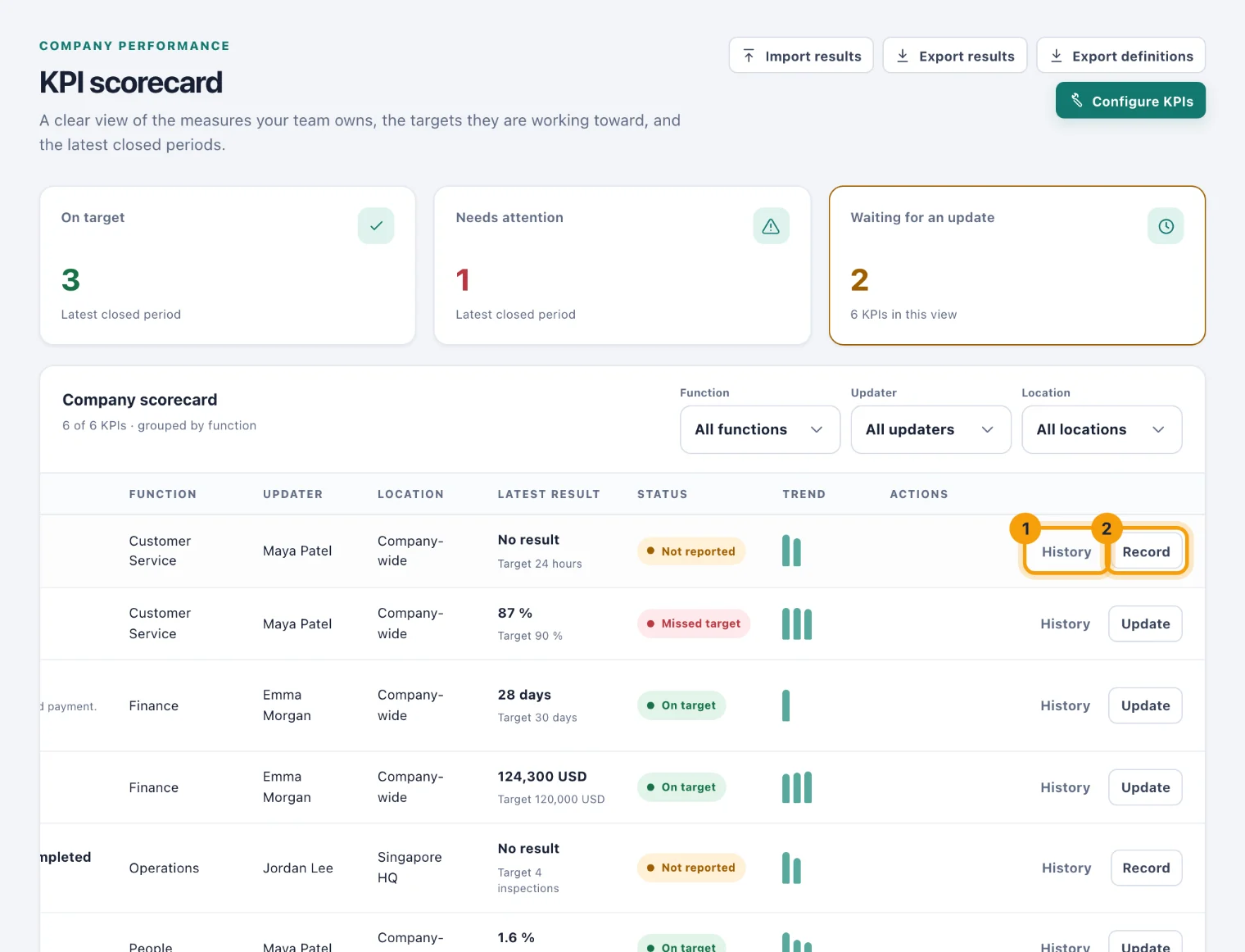
A period can be recorded once it has closed: a monthly KPI's September result from 1 October. Periods close at midnight where the KPI is reported, in its location's time zone, or the workspace's default location for a company-wide KPI.
Record a result
Choose Record on the KPI's row (2). Once the latest period has a result the button reads Update, and opens on that result so you can correct it.
Check Period starts. It opens on the latest closed period. A result covers a whole period, so the date is the first day of the month, the quarter, or the week (weeks start on Monday).
Enter the Actual result, in the KPI's unit.
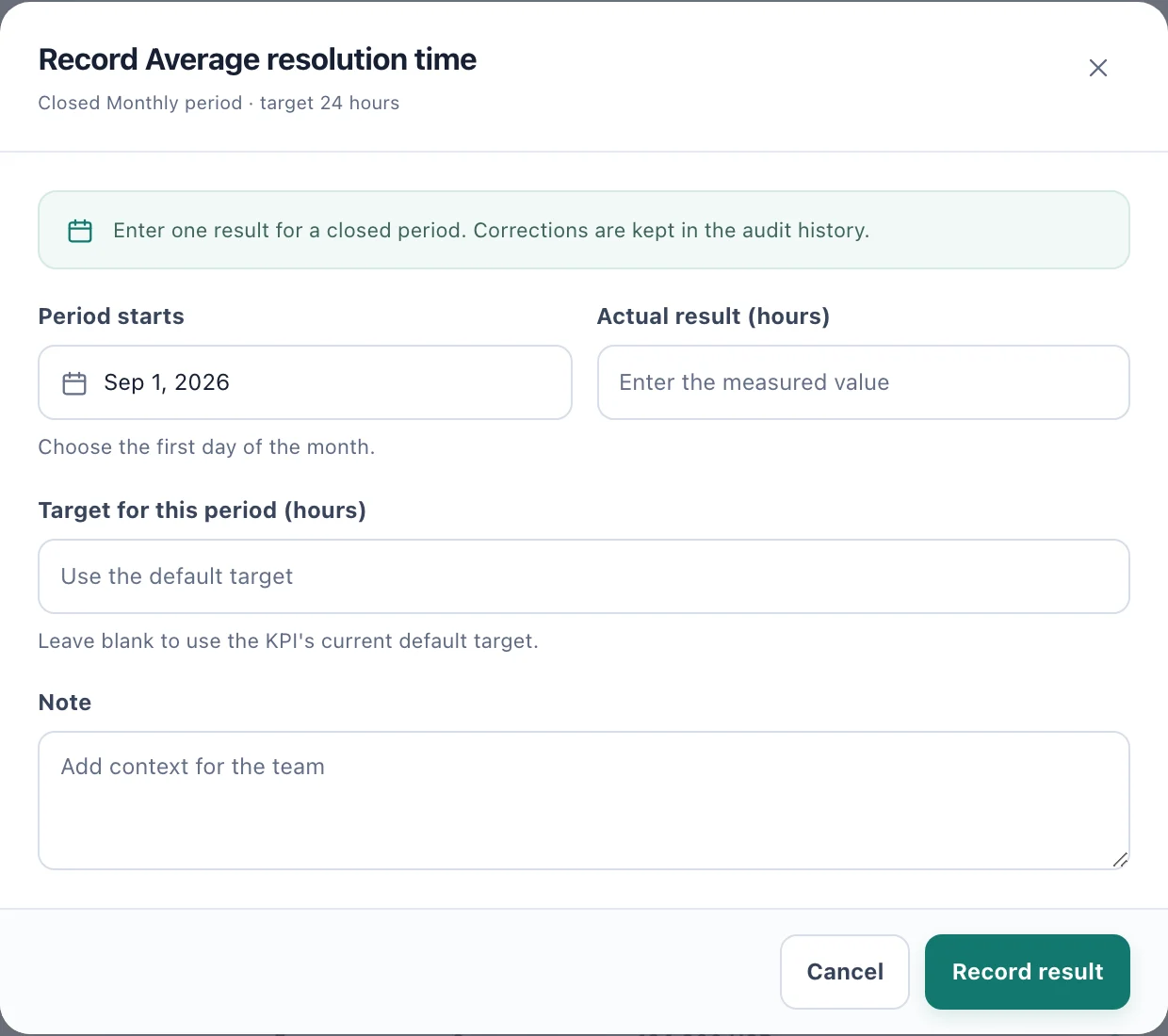
Record a result: one value for one closed period, with a note if it needs context. Leave Target for this period blank to use the KPI's default target, or enter the target this period should be judged by.
Add a Note for the team if the number needs explaining.
Choose Record result.
You can record a KPI if you are its assigned updater, or if you manage KPIs where it is reported. A period that has not closed yet, or a date that is not the first day of a period, is refused.
A KPI's own page
Choose a KPI's name, or History on its row (1), to open its page. The address can be shared with anyone who can see the KPI.
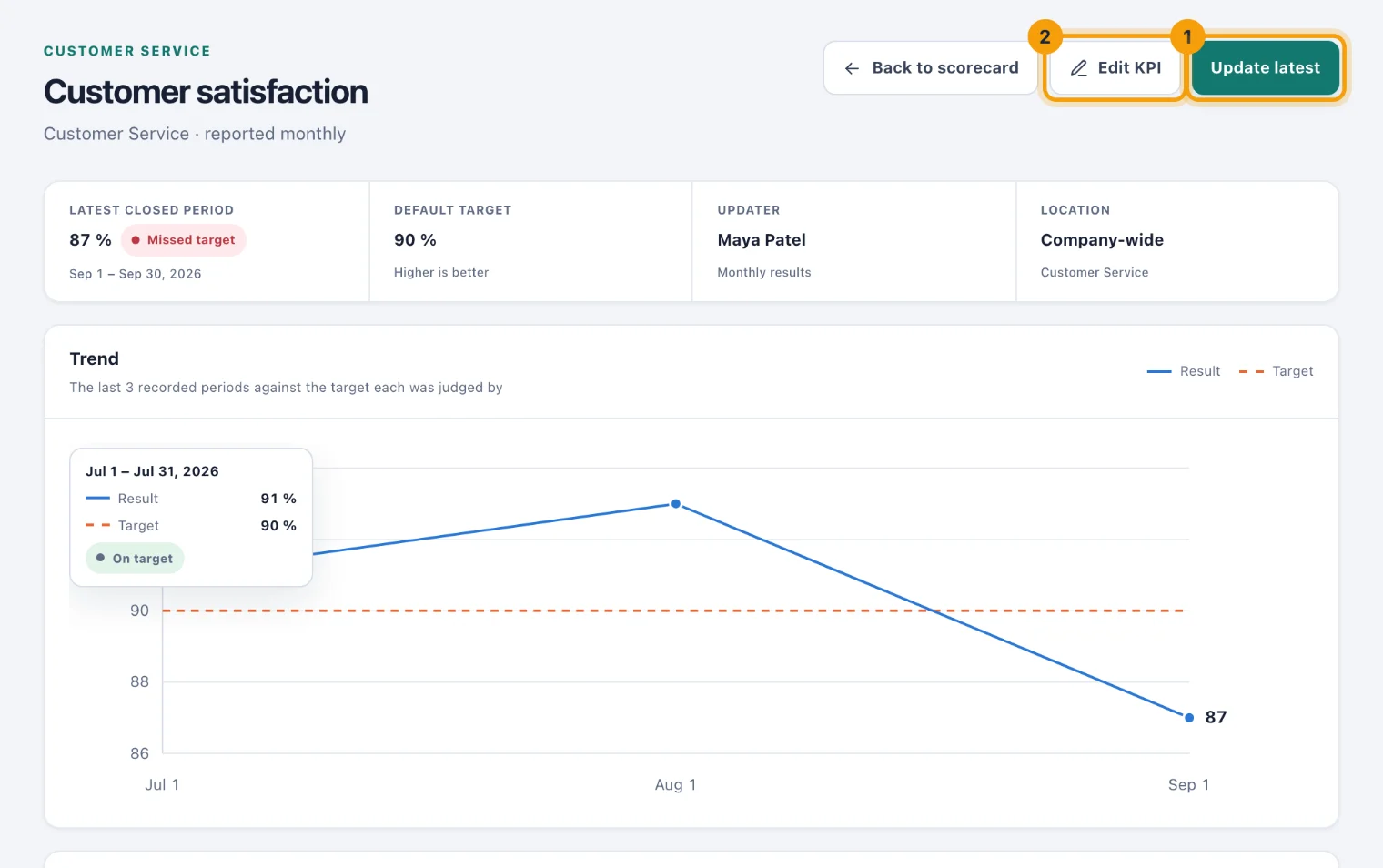
The strip at the top shows the Latest closed period, the Default target and which direction is better, the Updater and the Location.
Trend charts up to the last 12 recorded periods against the target each one was judged by.
Results lists every recorded period with its result, status, note and who recorded it.
Change log says who changed what: results recorded and corrected, and changes to the KPI itself. Notes and descriptions show as changed, not quoted.
Record result, or Update latest once the latest period has a result (1), records from here. Edit KPI (2) opens the KPI's form for people who manage it; see Set up KPIs.
Correct an earlier period
Choose Correct on a period under Results. The period stays the one it was recorded for: change the result, the target or the note, and choose Save correction. Leave the target blank to keep the one the period was recorded against. The correction appears in the change log and the audit history, with your name.
When results are due
A result falls due a set number of days after its period ends: five, unless your workspace changes it. The updater is reminded on the due date, then once a week while the result is overdue, ten times at most. People who manage KPIs for the whole workspace set this under Reporting rules; see Set up KPIs.
Your own updates that are due also appear on the Console Overview, under Your updates due on the KPI scorecard card.
Exports and imports
Export results and Export definitions export the KPIs you can see as CSV files.
Import results records or corrects many periods at once, from a spreadsheet.
Configure KPIs opens the set-up pages, for people who manage KPIs.