Requests & approvals replaces purchase approvals by email thread. A request says what is needed, from which vendor, for how much and why; the right people sign it in order; and every decision is kept with the request. Open it from Requests & approvals in the Console sidebar.
Employees raise requests from the Employee Portal, and Console users can raise them here with New request. See Submit a purchase request.
The register
Three figures sit at the top: Awaiting decision (pending requests across the workspace), Approved (on the page you are looking at) and Pending value (what the pending requests add up to, for each currency).
Below them, the Purchase request register lists the newest requests first. Search by title or vendor with Search requests, or choose a status: All, Pending, Changes requested, Approved, Rejected or Withdrawn.
The Approver column shows each signature a request needs, who it is with or who gave it, and where it stands.
Who signs a request
Every request needs one signature, at the Manager stage. Larger ones can need a second, at the Finance stage.
Manager. The requester's manager signs first, if they can approve requests at the request's location. If they cannot, the request goes to the approver chosen when it was raised, or to an administrator picked automatically.
Finance. If your workspace has a finance approval threshold, a request at or above it needs a second signature from finance after the manager's.
Never your own. Nobody can approve a request they raised.
Only the person a signature is waiting on sees the decision buttons. If nobody could be found for a signature, for example because the only person who could sign it is the requester, anyone allowed to approve requests at that location can sign it, and they are all told.
Decide a request
Find the request. A request waiting on you shows Approve (1), Request changes (2) and Reject (3).
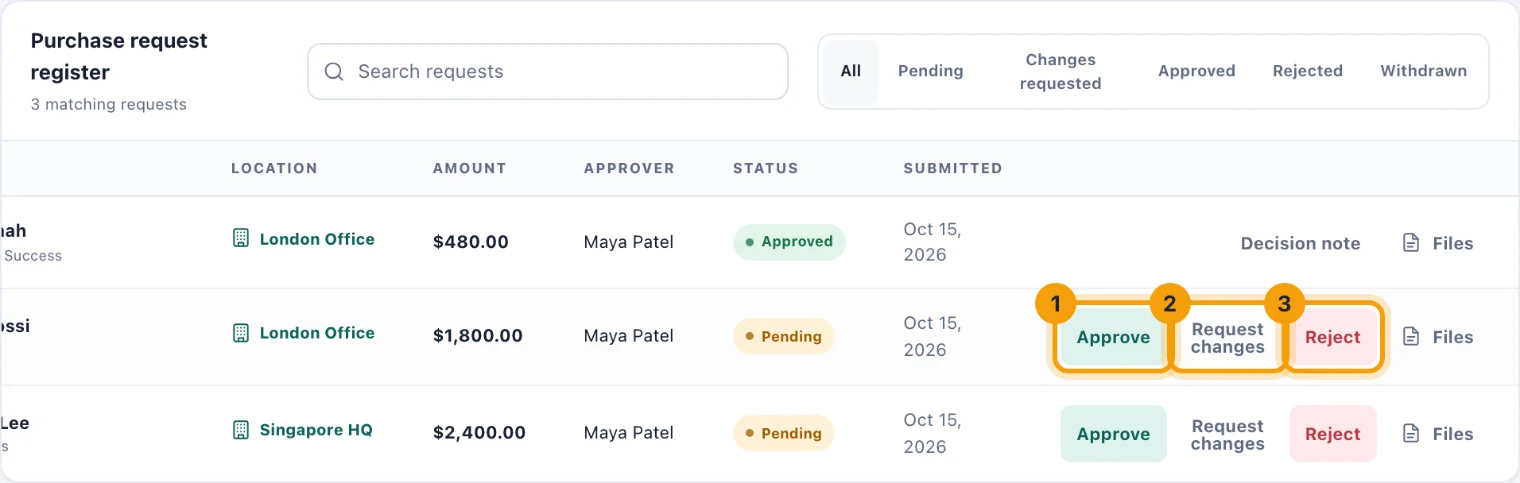
The register. The decision buttons only appear on requests waiting for your signature. Choose one. A dialog opens.
Write a Decision note. The requester sees it, so give a reason they can act on.
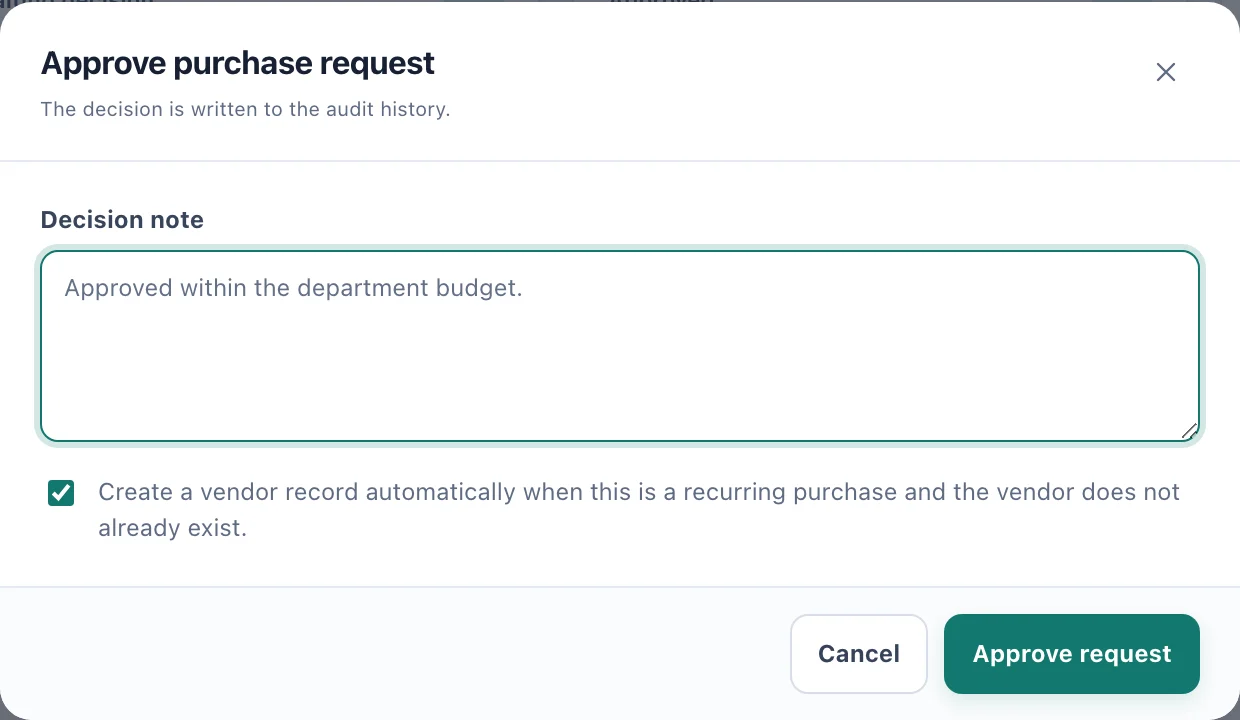
Approving. The note goes to the requester and into the audit history. When approving, leave the vendor record option ticked to add a recurring purchase to Vendors & renewals. See below.
Choose Approve request, Send back for changes or Reject request.
What happens next depends on the decision:
Approve. If finance still has to sign, the request stays Pending and goes to finance, who are told. Otherwise it is Approved.
Request changes. The request becomes Changes requested. The requester can revise it and resubmit it without starting again. A resubmitted request is routed again against its new amount, so a higher amount can now need finance.
Reject. The request is Rejected and nobody else is asked to sign.
The requester is told when their request is approved, rejected or sent back for changes. A manager's signature that only passes the request on to finance does not notify them; the Approver column shows it.
The vendor record option
When the final approval goes through on a monthly, quarterly or annual request that names a vendor, kitset.io can create that vendor in Vendors & renewals. It does so only if no vendor of that name exists yet. The new vendor is active, owned by the requester, at the request's location, with the amount converted to a monthly cost. Add its renewal date afterwards, so renewal reminders can start. See Vendors and renewals.
Reminders
Whoever a request is waiting on is told when it reaches them, under the bell and by email. If it is still waiting three days later, they get a reminder, then one a week, up to ten. A signature nobody was routed to reminds everyone who could sign it. The emails follow the Approvals setting in each person's profile.
Every message links straight to its request. The link opens that one request; Show all requests goes back to the register.
Files
Files on a row holds quotes and supporting documents. People who can approve requests can add files at any time. The requester can add files while the request is pending or changes are requested, for example a second quote.
Import and export
Export CSV exports the requests you are looking at, with the same search and status. Import CSV brings in requests that are still waiting for a decision. Imported requests start Pending with the signatures they need, and no messages are sent when they arrive. Approvers are reminded about any that are still waiting three days later.
Who can do what
See the register and raise requests. Admins by default; Owners and System Admins always.
Approve, reject and request changes. Admins by default; Owners and System Admins always. Custom access can limit this to some locations.
Withdraw or resubmit. Only the person who raised the request.