A purchase request asks for approval before money is spent: a one-off purchase, or a subscription that renews every month, quarter or year. Write it so the approver can decide without coming back to you with questions.
Open the request page
In the Employee Portal, choose Submit a purchase request under Quick actions on My day, or open My requests and choose New request.
In the Console, open Requests & approvals and choose New request.
Saving or cancelling brings you back to where you started.
Fill in the request
Under What do you need?, name the purchase in a few words, such as "Customer feedback platform".
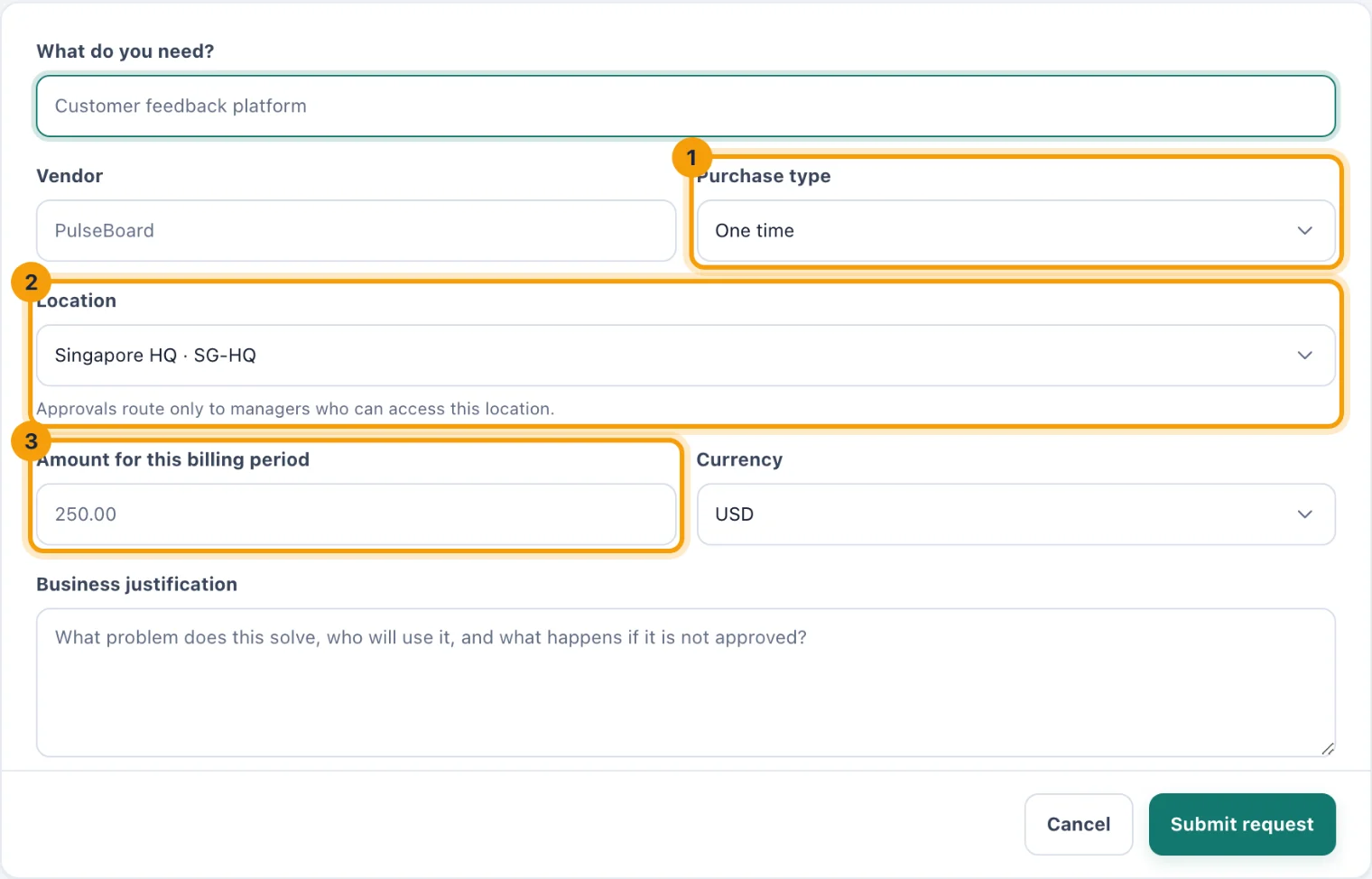
The request page, as an employee sees it in the Portal. Enter the Vendor, if you know who you would buy from.
Choose the Purchase type (1): One time, Monthly recurring, Quarterly recurring or Annual recurring.
Choose the Location (2) the purchase is for. Only managers who can access that location can approve it.
Enter the Amount for this billing period (3) and its Currency. For a recurring purchase, that is what one month, quarter or year costs, not the total over the contract.
Under Business justification, say what problem it solves, who will use it, and what happens if it is not approved.
Choose Submit request.
The request goes to its first approver straight away, under the bell and by email.
Choosing an approver in the Console
Console users also see an Approver field. Leave it on Auto-route to an administrator, or pick someone. Your own manager still signs first when they can approve requests at that location; the approver you pick is used when they cannot. Portal users have no choice to make: their manager, or an administrator, signs.
After you submit
Your request is Pending until it is decided. Follow it in My requests in the Portal, or in the register in the Console. You are told when it is approved, rejected or sent back for changes.
Revise and resubmit
When an approver chooses Request changes, your request shows Changes requested and a Revise & resubmit button.
Choose Revise & resubmit. The approver's note, if they left one, is shown at the top.
Change the Title, Vendor, Amount or Justification as asked.
Under What changed?, tell the approver what you did, such as "Attached the second quote."
Choose Resubmit for approval.
The request goes back to the approval queue, routed again for its new amount. Nobody has to start a new request, and the approver sees what changed.
Withdraw a request
If you no longer need something, withdraw the request rather than leave it waiting.
Choose Withdraw on the request. You can do this while it is pending or changes are requested.
Optionally say why under Why (optional).
Choose Withdraw request.
Whoever it was waiting on is told. It is recorded as withdrawn, not rejected, because nobody refused it.