When someone asks your company to delete their personal data, your company is the one that has to act on it. Erase removes that person's identity from kitset.io. It cannot be undone, and only the Owner can do it.
Most people who leave do not need erasing. Deactivate, on the same menu, signs them out, frees their seat and keeps everything, and they can be reactivated later. Erase is for a request to be forgotten.
What erasing does
The dialog says it before you confirm:
Removed: their name, email address, job title, sessions, two-factor enrolment and notifications. Assets they hold are returned, and their access to systems is revoked. Emails still waiting to be sent to them are cancelled.
Cleared: anyone reporting to them, and any department or team they manage, is left without a manager. Those people see the change on their own profile.
Kept: the audit trail and any training they completed, both pointing at a deleted user. Your workspace needs those as evidence. Audit events about them are rewritten, and say so.
Your choice: files they uploaded to company records, such as contracts, quotes and incident photos. Left alone, the files stay with their records and show a deleted user as the uploader.
Anything a colleague typed by hand, such as a handover note or a purchase justification, may still mention them by name.
Erase someone
Open People & access and find the person.
Open the row's menu and choose Erase.
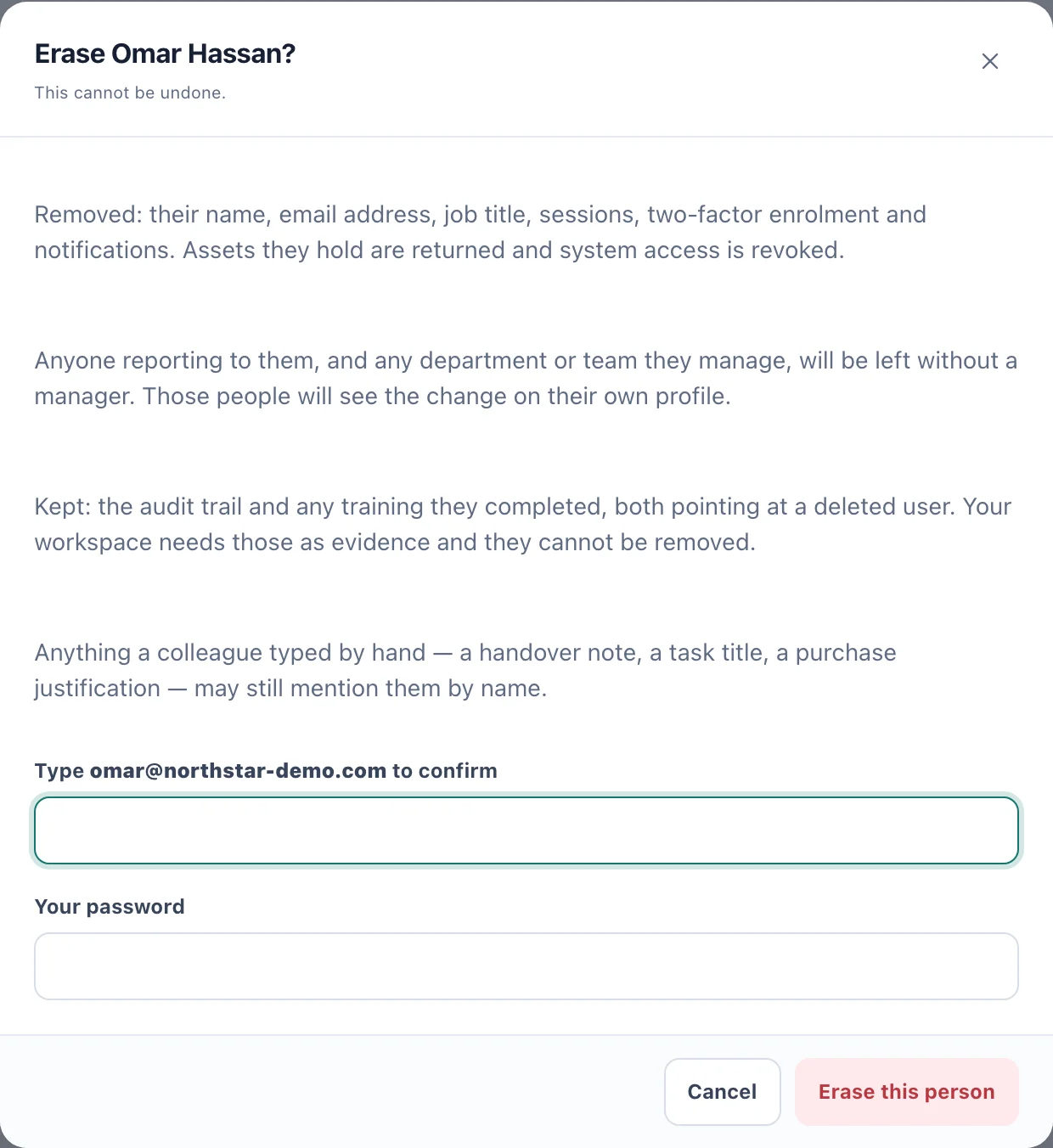
The Erase dialog says what goes and what stays before you confirm. Read the dialog. If they uploaded files to company records, a box beginning Also delete the says how many and how large; tick it to remove those files too.
Type their email address exactly, and enter your own password.
Choose Erase this person.
A message then lists what was done, such as the assets returned and the audit rows rewritten, and how many records written by somebody else may still mention them.
The row stays in People & access, marked Erased, with nothing left to press. Choose Erased in the account state filter to find erased rows.
Things to know
Only the Owner sees Erase, and it is not offered on the Owner's own row. An Owner who is leaving should transfer ownership first.
It cannot be undone. Check that you have the right person before you type their address.
Each erasure is recorded in the audit history as a person's record that was erased, without their details.