Laptop not charging, no access to a system, a broken chair at your desk? Raise a ticket, and the people who answer that kind of request are told. You can follow it to the end and talk to them on the ticket itself. Open Get help in the Portal sidebar.
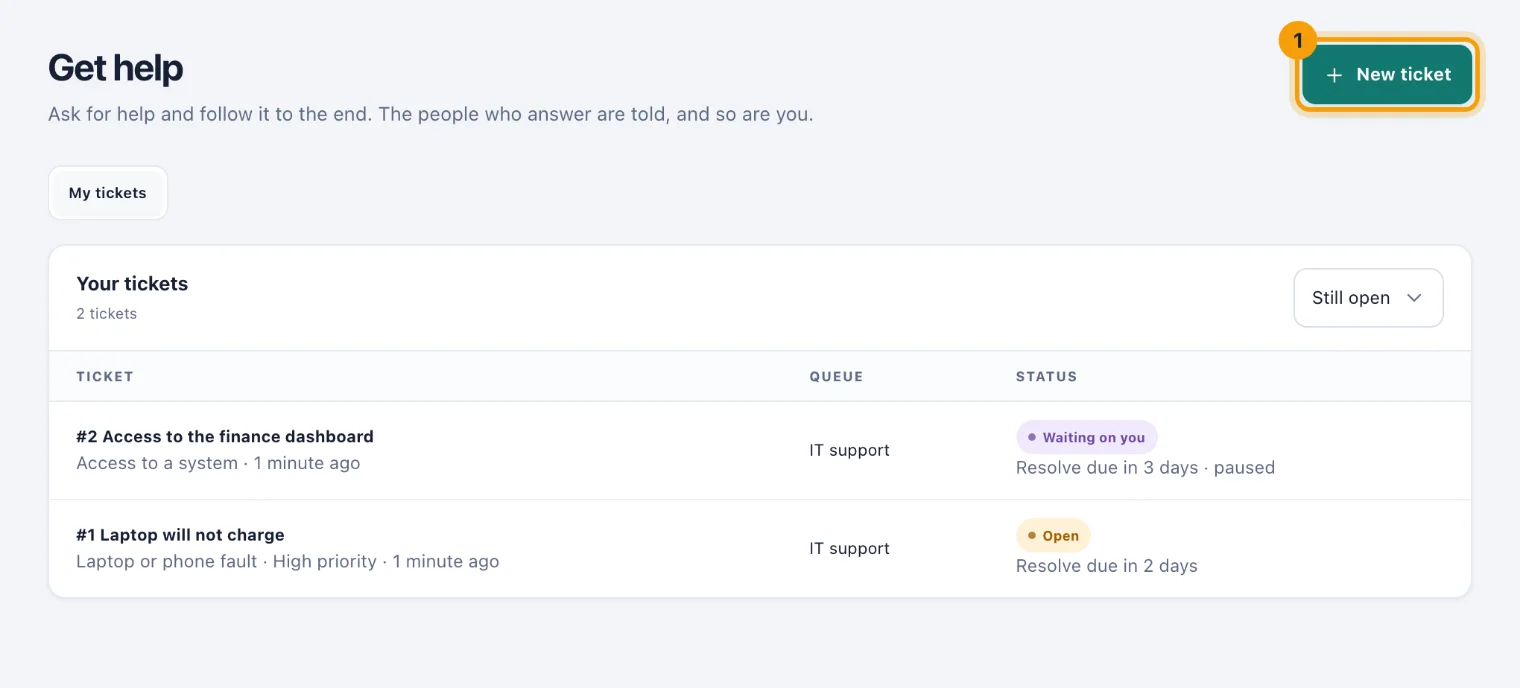
Raise a ticket
Choose New ticket (1).
In Who it is for, choose the queue, such as IT support or Facilities. You see the queues for your location and the ones for the whole company.
In What it is about, choose the kind of request. The choices depend on the queue.
If it is about equipment you hold, choose it in Which of your assets, or leave Not about one of them.
Say what you need in In a line, for example "Laptop will not charge". Add more in More detail (optional) if it helps.
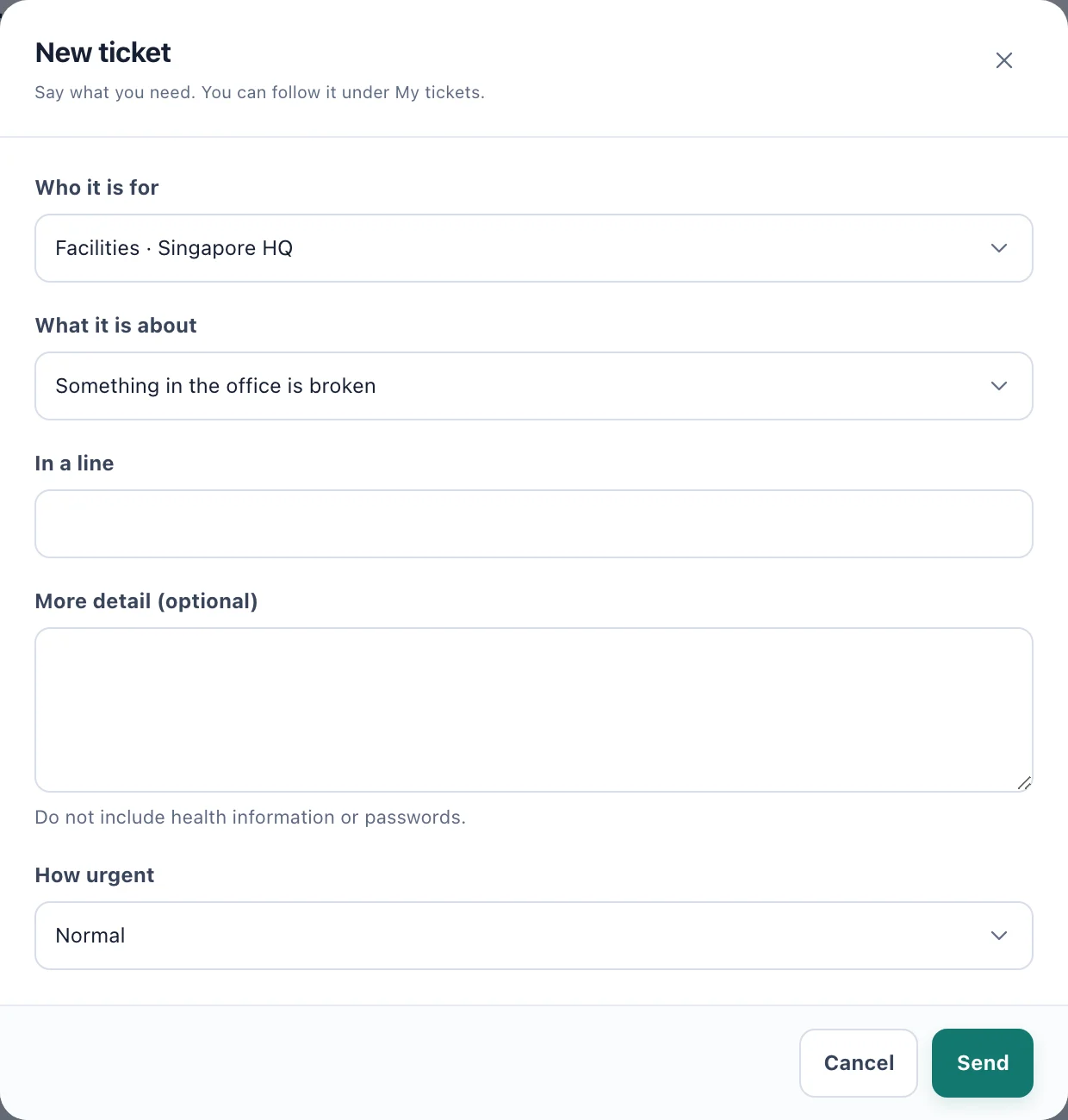
New ticket: where it goes, what it is about, and what you need. Choose How urgent it is: Low, Normal, High or Urgent.
Choose Send. The ticket gets a number, such as #12, and the desk is told.
If you are told there is nowhere to send it yet, no queue takes tickets from your location. Ask whoever looks after the service desk.
Follow your tickets
Your tickets lists what you have raised, newest first. It shows the tickets that are Still open; choose Resolved, Closed or All to see the others. Choose a ticket's number and subject to open its page, where you see the whole conversation, who it is with, and its status:
New: nobody has picked it up yet.
Open: someone is working on it.
Waiting on you: the desk needs an answer from you. Waiting on a supplier: it is waiting for someone outside your company.
Resolved: the desk thinks it is sorted.
Closed or Cancelled: it is finished.
You are told, under the bell and by email, when the desk replies and when your ticket is resolved, closed or cancelled. Every message links straight to the ticket.
Reply to the desk
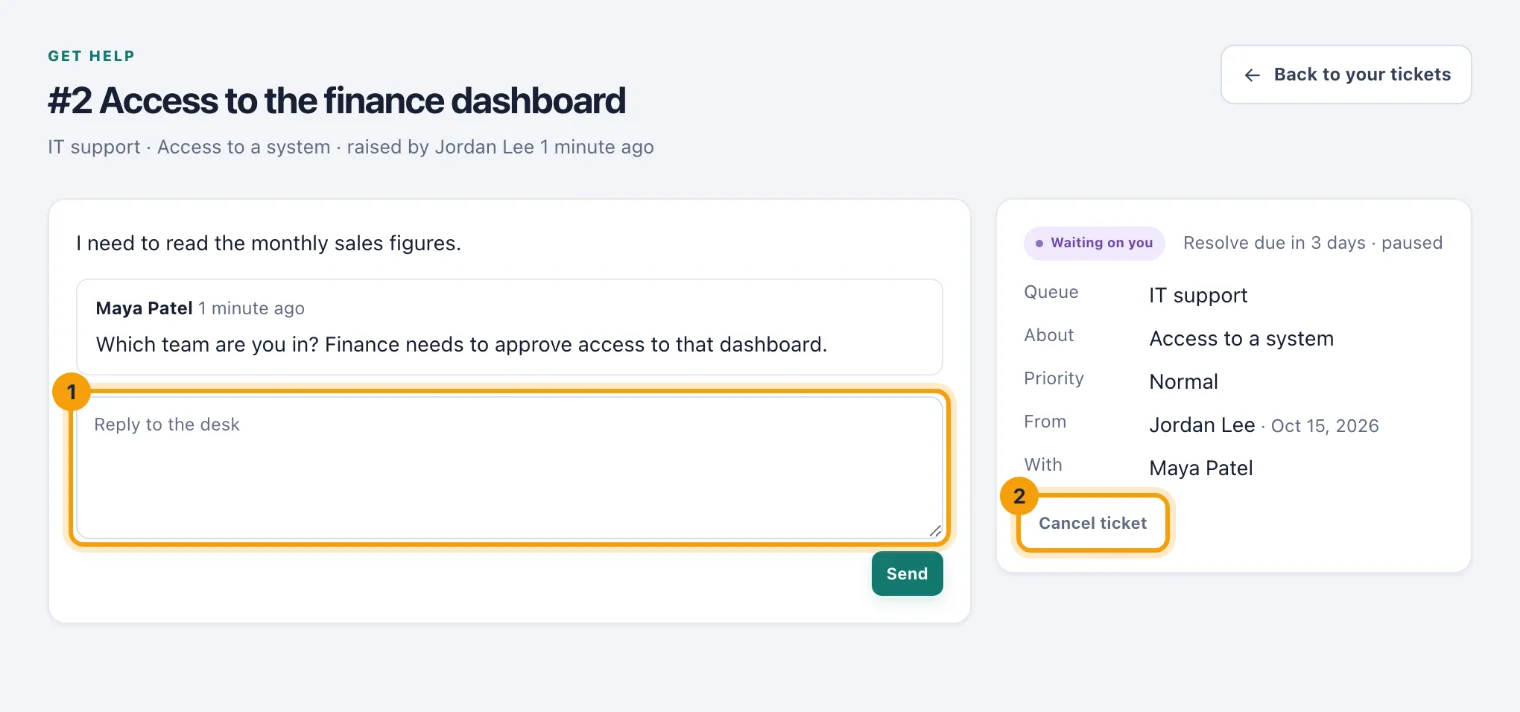
Write your answer in the reply box (1).
Where your workspace allows files, choose Attach to add a photo or a document.
Choose Send.
Replying to a ticket that is Waiting on you, or Resolved, puts it back with the desk as Open.
When it is sorted
When the desk resolves your ticket, its page asks you to confirm:
It is sorted — close closes it.
It is not sorted — reopen sends it back to the desk.
Under How did it go?, choose a score from 1 to 5, and say more in Anything to add (optional) if you want to. You can rate each ticket once.
Cancel a ticket
No longer need help? Choose Cancel ticket (2) on any ticket that is not yet resolved. Once a ticket is closed or cancelled it is finished: raise a new one if you need more help.
If your workspace sends equipment problems to the service desk, a problem you report from My assets becomes a ticket here too. See Your equipment.