When you are bringing a whole company in, a CSV file saves inviting people one at a time. Every row is checked first, and nothing is created until you have reviewed the result and confirmed it.
You need Import people. Owners and System Admins always have it; an Admin needs it given with custom access. Set up your locations, departments and teams first, because the file refers to them by code.
Prepare the file
One row per person, with these columns: name, email, license_type, role, job_title, department_code, team_code, manager_email, cost_center, primary_location_code, additional_location_codes and all_locations_access.
license_typeisPORTALorCONSOLE. Left blank, it isPORTAL.roleisEMPLOYEEorPARTICIPANTfor Portal,ADMINorSYSTEM_ADMINfor Console. Left blank, it isEMPLOYEEfor Portal andADMINfor Console. Nobody can be imported as the Owner, and only an Owner or System Admin can import a System Admin.Departments, teams and locations are named by their codes, as shown on Organization and Locations. Separate several additional locations with semicolons. A blank primary location means your default location.
manager_emailis the manager's work email address.all_locations_accessistruefor a Console user who should manage every location.
Save it as a UTF-8 .csv file of at most 2 MiB and 250 rows.
Import it
Open People & access and choose Import CSV. The Import accounts dialog opens.
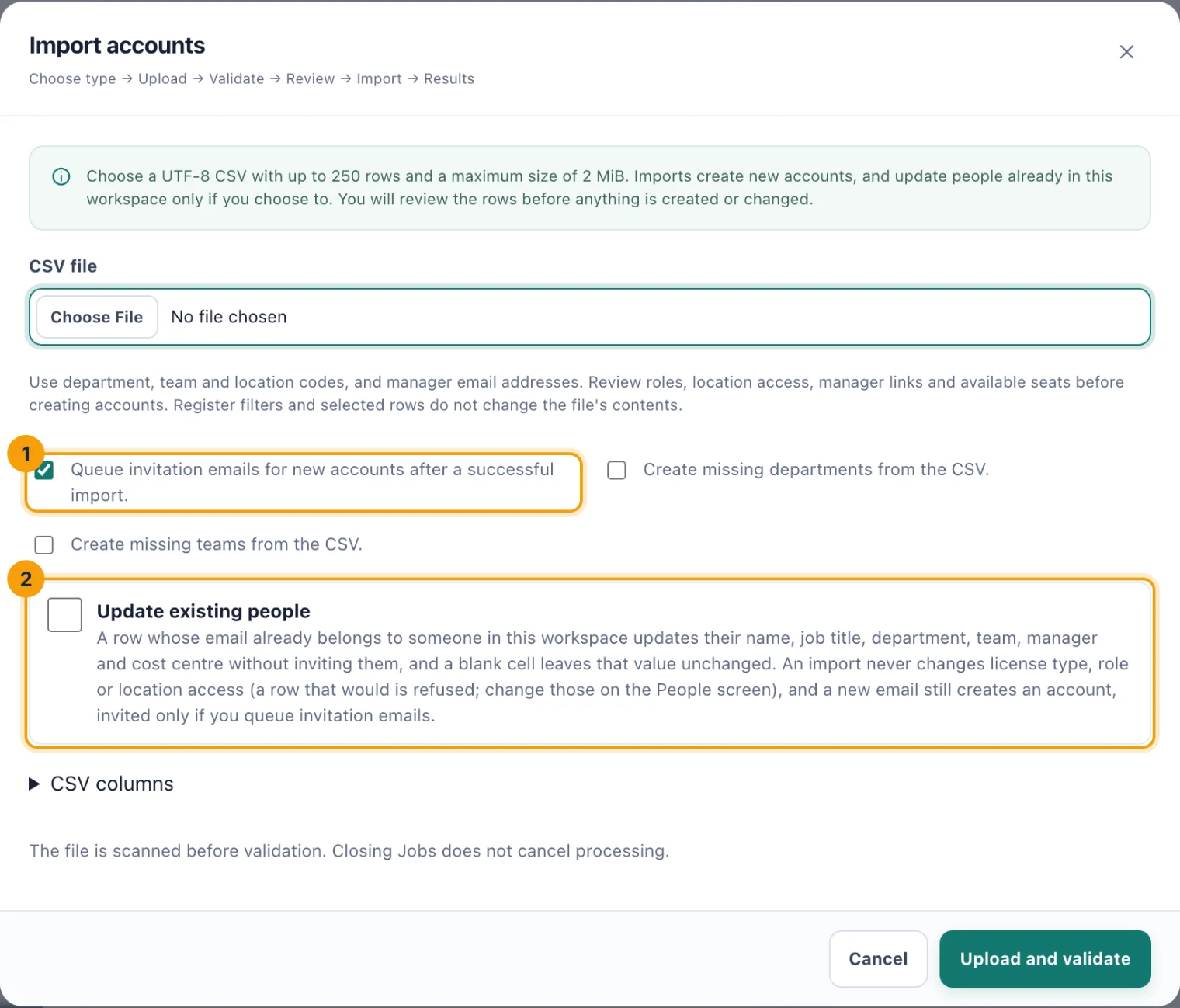
Import accounts: whether to invite the new people (1), and whether to update people already here (2). Choose the file in CSV file. CSV columns lists the header it expects.
Choose your options: - Queue invitation emails for new accounts after a successful import. (1) Clear it to create the accounts without emailing anyone yet; invite them later from their rows. - Create missing departments from the CSV. and Create missing teams from the CSV. create any code the file names that does not exist yet. They need Manage organization settings. - Update existing people (2), below.
Choose Upload and validate. The file is scanned and checked in the background; you can close the dialog and carry on.
Open Jobs on People & access. When the import is ready, choose Review import.
Read the review. It counts the valid and invalid rows, lists each problem by row and column, shows the seats each licence type would use, and lists any departments and teams it would create. Tick the option to import valid rows only if you want to skip the rest.
Confirm the import. The new people appear on People & access, pending until they accept their invitations.
Update people already here
Tick Update existing people to let the file correct people who already have an account. A row whose email belongs to someone in this workspace updates their name, job title, department, team, manager and cost centre. A blank cell leaves that value as it is, and nobody updated is invited again.
An import never changes a licence type, role or location access. A row that would is refused: change those on the person's own page. A row with a new email still creates an account.
The review marks each row New, Update or Unchanged, and says what each update changes.