A location is a place your company works from: an office, a site, a branch or a warehouse. People are assigned to locations, records belong to them, and access can be limited to them. Open Locations under Administration in the Console sidebar.
Every Console user who can view locations sees the list. Adding and changing locations needs Manage locations: Owners and System Admins always, an Admin only with custom access.
The list
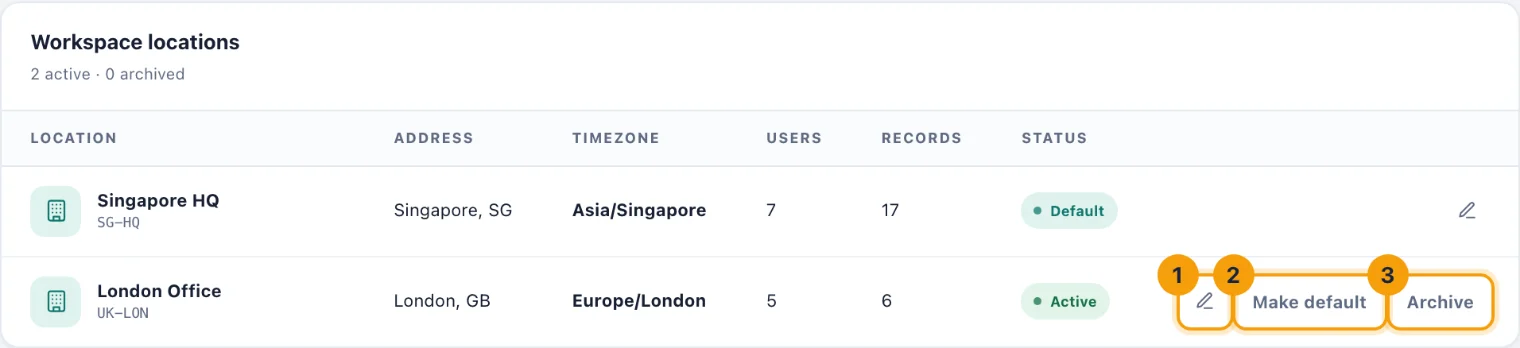
Three figures sit at the top: Active locations, Location memberships (one per person per location, so someone at two sites counts twice) and Scoped records. Workspace locations lists each place with its address, Timezone, how many Users and Records it has, and whether it is Default, Active or Archived.
Add a location
Choose Add location. The Add workspace location form opens as a page of its own.
Enter the Location name, and a short Location code such as SG-HQ (1). Leave the code blank and one is made from the name. Codes are unique in the workspace, and imports use them.
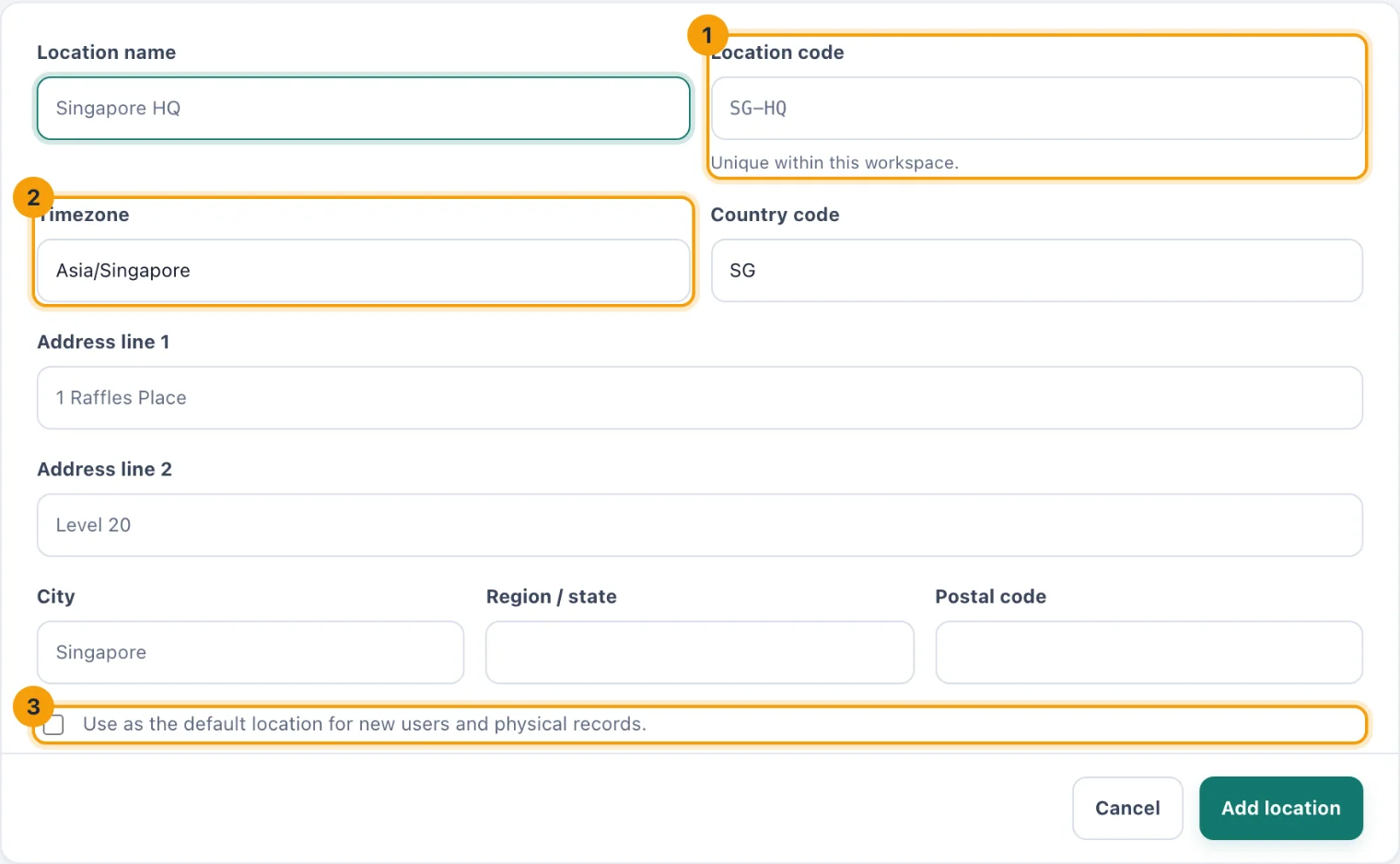
Add workspace location: its code (1), its time zone (2), and whether it is the default (3). Enter the Timezone (2) as a real time zone name, such as Europe/London or Asia/Singapore. Reminders, due dates and reports at this site follow it.
Enter the two-letter Country code and, if you like, the address.
Tick Use as the default location for new users and physical records. (3) to make it the default.
Choose Add location.
To change a location, choose the pencil on its row (1), change what you need and choose Save location.
The default location
One location is the default. People invited without a primary location get it, and so do records created without one. Its time zone is also the workspace's own clock, for example for scheduled automations.
The first location you add becomes the default on its own. To move the default, choose Make default (2) on another location, or tick the default option on its form.
Archive a location
Choose Archive (3), check how many people and records still point at it, and choose Archive location. An archived location keeps its history, but nothing new can be assigned to it. Move active people and open work to another location first if the site is closing for good.
You cannot archive the default location: make another one the default first.
A workspace keeps at least one active location.
Reactivate on an archived location makes it available again.