Everyone joins a workspace by invitation. You fill in who they are and what they may reach, kitset.io emails them a single-use link, and they choose their own password. To add many people at once, see Import people.
You need Manage people. Owners and System Admins always have it; an Admin needs it given with custom access.
Invite someone
Open People & access and choose Invite user. The Invite workspace user form opens as a page of its own.
Enter their Full name and Work email.
Choose the License type (1): Portal user for the Employee Portal, Console user for the Management Console. The note under it says how many seats of each are in use.
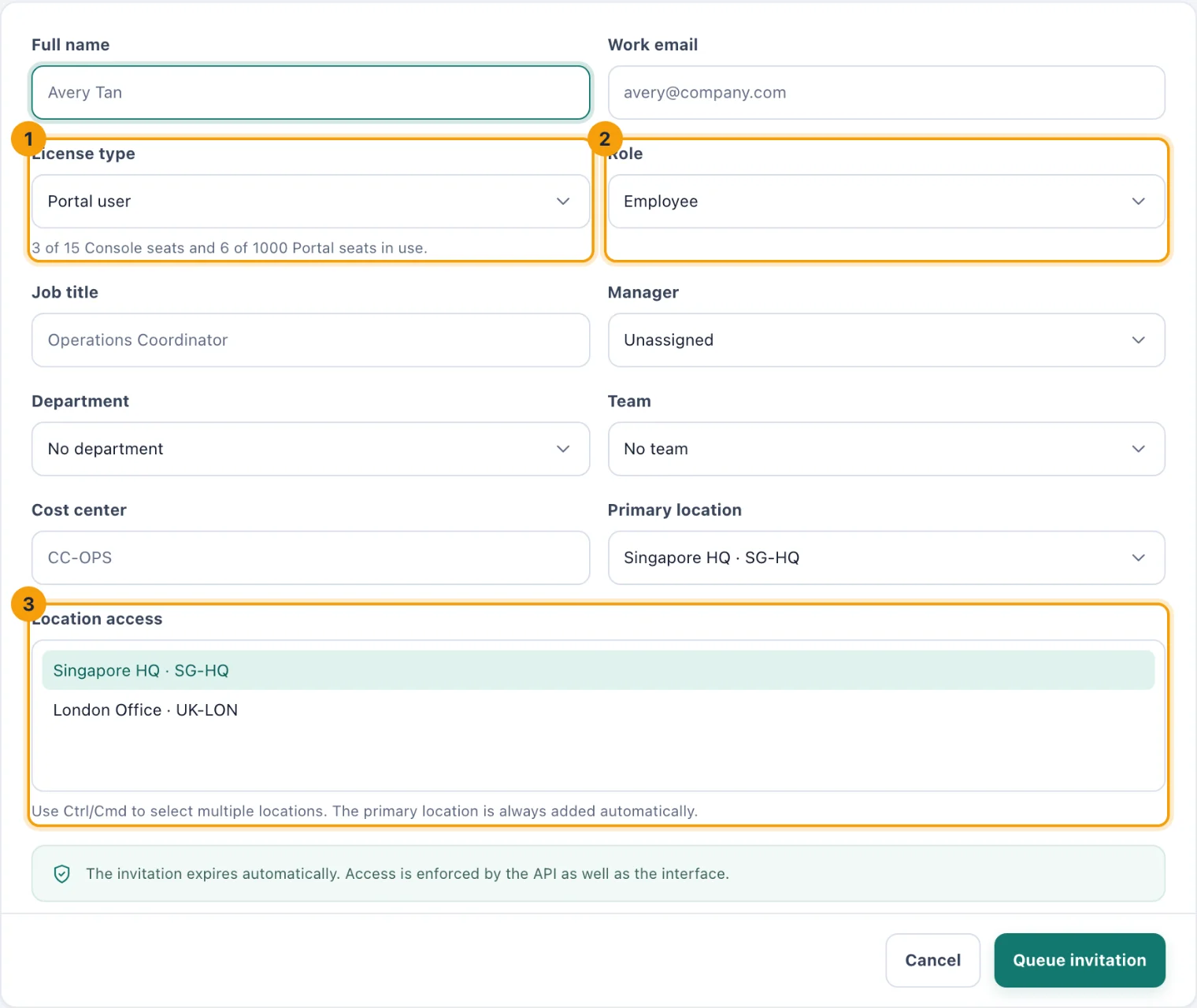
Invite workspace user: the licence (1), the role (2) and the locations they can reach (3). Choose the Role (2). A Portal user is an Employee or a Participant; a Console user is an Admin or a System Admin. See Licences and roles.
Fill in what you know: Job title, Manager, Department, Team and Cost center. Choosing a department narrows Team to that department's teams.
Choose the Primary location, and any others they work at in Location access (3). The primary location is always included.
For a Console user who should manage every site, tick Allow this Console user to manage every current and future location.
Choose Queue invitation.
The invitation is emailed straight away. Until they accept it, they show as Invitation pending: they take a seat, but cannot sign in or be given work. If the email does not arrive, use Resend invite or Copy link on their row; see People and access.
Change someone's details
Choose the pencil on their row, change what you need, and choose Save changes. Changes take effect on their next request; nobody has to sign out.
Licence and role. Moving someone to a licence type that is full is refused until a seat is free.
Work email. You can correct it only while their invitation is still pending. Correcting it cancels the invitation already sent and emails a new one to the right address. Once they have accepted, the address is their sign-in and cannot be changed here.
What you cannot change
Your own licence, role or location access. Ask another Owner or System Admin.
The Owner. The Owner cannot be made anything else; ownership moves only with Transfer ownership.
System Admins. Only an Owner or System Admin can give someone the System Admin role, or change a System Admin's account.
People outside your locations. If your own access is limited to some locations, you can invite and change only people within them.