People & access is the workspace directory: everyone with an account, their licence and role, where they sit in the organization and what they may do. Open it from People & access in the Console sidebar.
Seats
Two cards sit at the top. Console users and Portal users each show how many seats are taken of how many your plan has, and how many are available.
An invitation that has not been accepted yet takes a seat. A note under the cards counts them when there are any.
A deactivated or erased account does not take a seat.
When a licence type is full, inviting, importing or reactivating someone on it is refused until a seat is free.
Find someone
Workspace users lists everyone, active people first. Type in Search people to find a name or email address, or narrow the list by department, team, licence and account state: Active, Invited, Inactive or Erased.
Access says whether the person uses Role defaults or Custom access.
Status is Active, Invitation pending, Inactive or Erased.
Export CSV downloads the people you are looking at, with the same search and filters.
What you can do on a row
The pencil on a row edits the person; see Invite or change a person. Everything else is in the row's More actions menu.
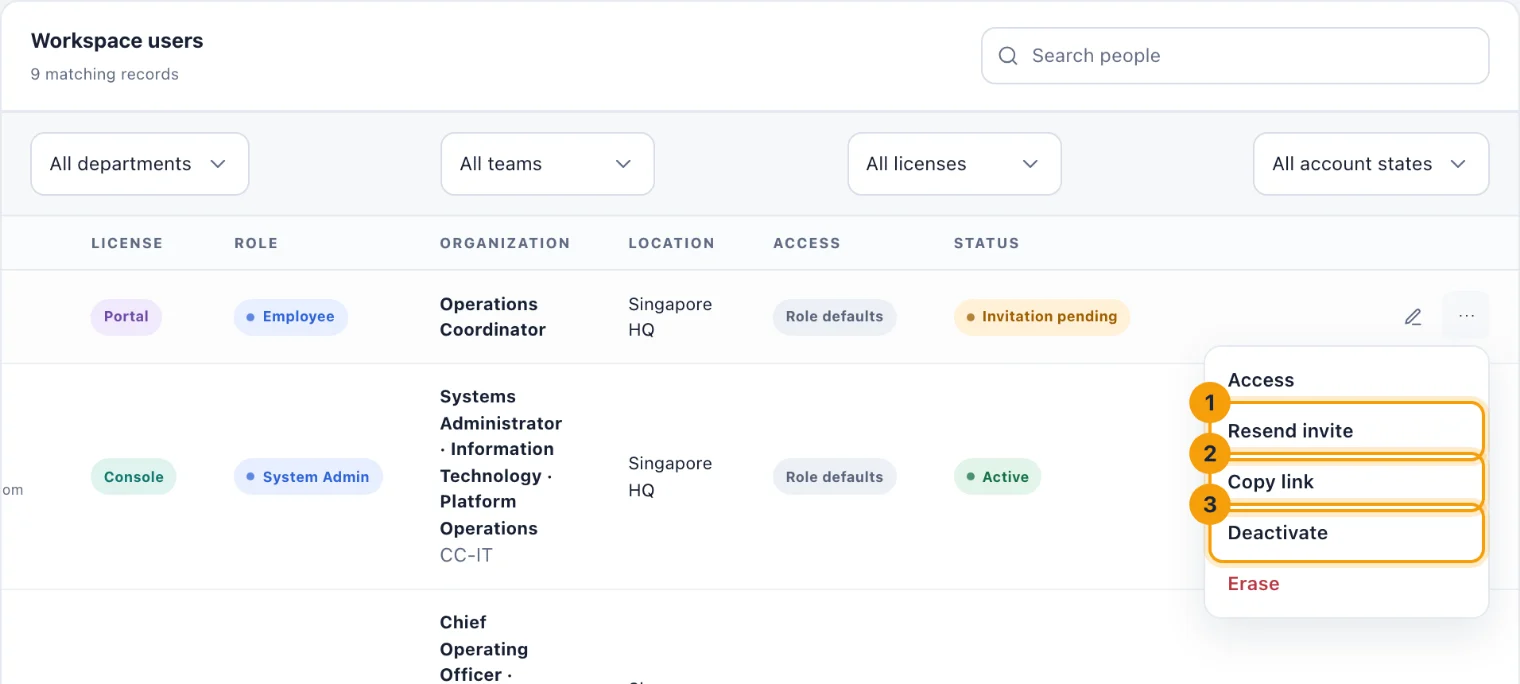
Access opens the person's custom access. See Scoping access.
Resend invite (1) emails a new invitation. Only the newest link works: every link sent before it stops working.
Copy link (2) shows the invitation link itself, so you can give it to the person directly when the email has not arrived. It replaces every earlier link, and a fresh invitation email goes too. The dialog says how long the link lasts.
Deactivate (3) and Reactivate, below.
Transfer ownership hands the workspace to another Console user. You become a System Admin.
Erase removes a person's identity for good, below.
Deactivate and reactivate
Choose Deactivate, read the dialog and choose Deactivate. The person is signed out of every device at once, without being told why, and cannot sign in again. Rooms and desks they had booked are released for everyone else. Their record, history and training are kept, and their seat is freed.
Reactivate brings the account back, if a seat of their licence type is free. If somebody took the seat in the meantime, you need another before they can come back.
Erase someone
When a person asks for their data to be deleted, the Owner chooses Erase on their row. The dialog says what is removed (their name, email address, job title, sessions, two-factor enrolment and notifications) and what is kept: the audit trail and completed training, both pointing at a deleted user. Assets they hold are returned and their system access is revoked. You can also delete the files they uploaded to company records.
Type the person's email address and your password, then choose Erase this person. It cannot be undone.
Who can do what
See the directory. Console users with View people: Admins by default, Owners and System Admins always.
Invite, edit, deactivate and resend invitations. Manage people. Owners and System Admins always have it; give it to an Admin with custom access.
Import and export. Import people and Export people, the same way.
Copy link, Access and System Admin accounts. Owners and System Admins only.
Transfer ownership and Erase. The Owner only.