Organization holds the shape of your company: departments, the teams inside them, and audience groups of people you assign work to together. Open it from Organization in the Console sidebar. It is not an HR system: payroll, leave, pay and performance stay outside kitset.io.
Anyone with View organization settings can see it, which Admins have by default. Adding and changing anything needs Manage organization settings: Owners and System Admins always, an Admin only with custom access.
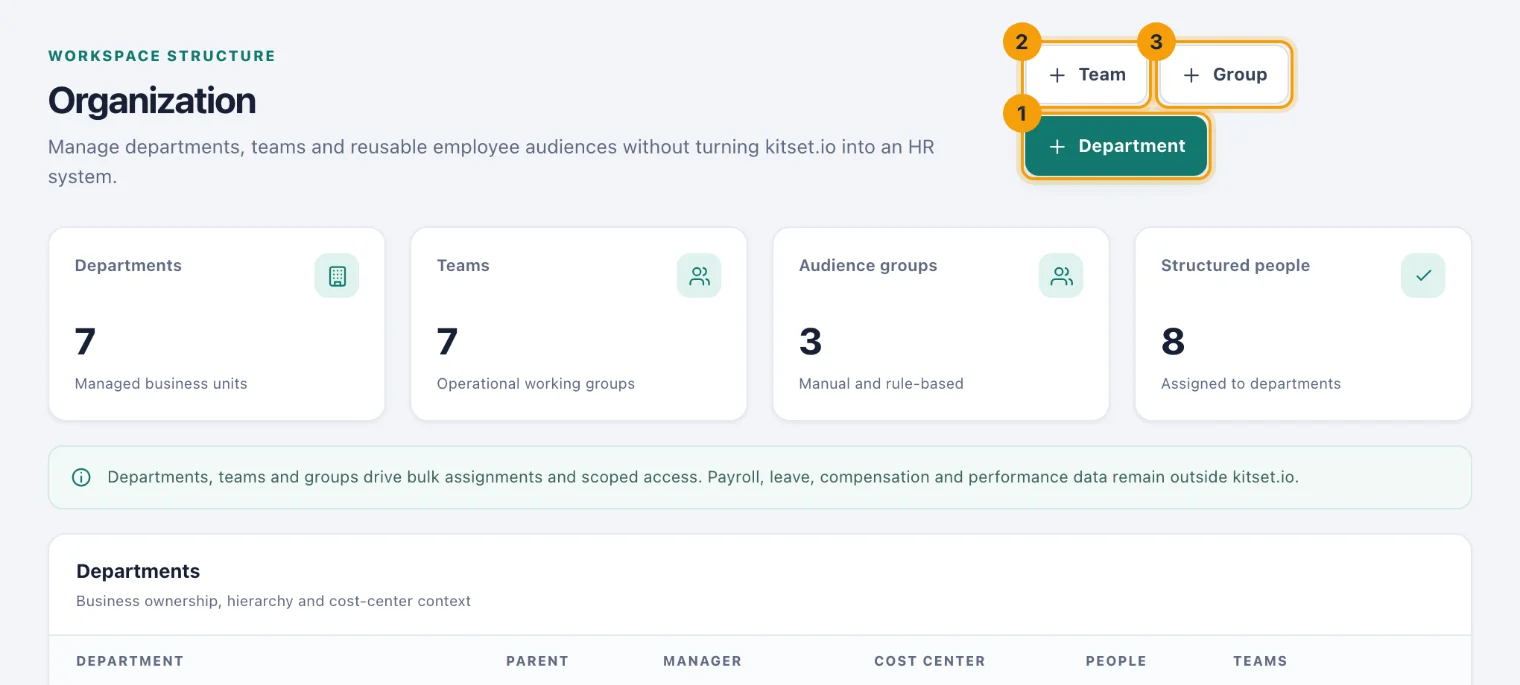
Departments
A department is a business unit, such as Finance or Operations, with a code, an optional parent department, a manager and a cost centre.
Choose Department (1). The Create department dialog opens.
Enter the Name and a short Code, such as OPS. Leave the code blank and one is made from the name. Codes are unique, and imports and filters use them.
Choose a Parent department to nest it, or leave it at Top level.
Choose the Manager and enter the Cost center. A person given this department starts with its cost centre unless their own is set.
Choose Create department.
The pencil on a row changes it. To retire one, clear Department is active and available for new assignments. and choose Save department. Move its active people to another department first: a department with active people cannot be retired. A department cannot sit inside itself, directly or further down.
Teams
A team is a working group, usually inside a department. Choose Team (2), enter the Name and Code, choose its Department or leave it an Independent team, choose a Manager, and choose Create team. Teams are retired the same way, with Team is active and available for new assignments., once nobody active is in them.
People are placed in a department and team on their own page; see Invite or change a person. Departments and teams are also scopes for custom access: an Admin can be allowed to manage only the people in one of them.
Audience groups
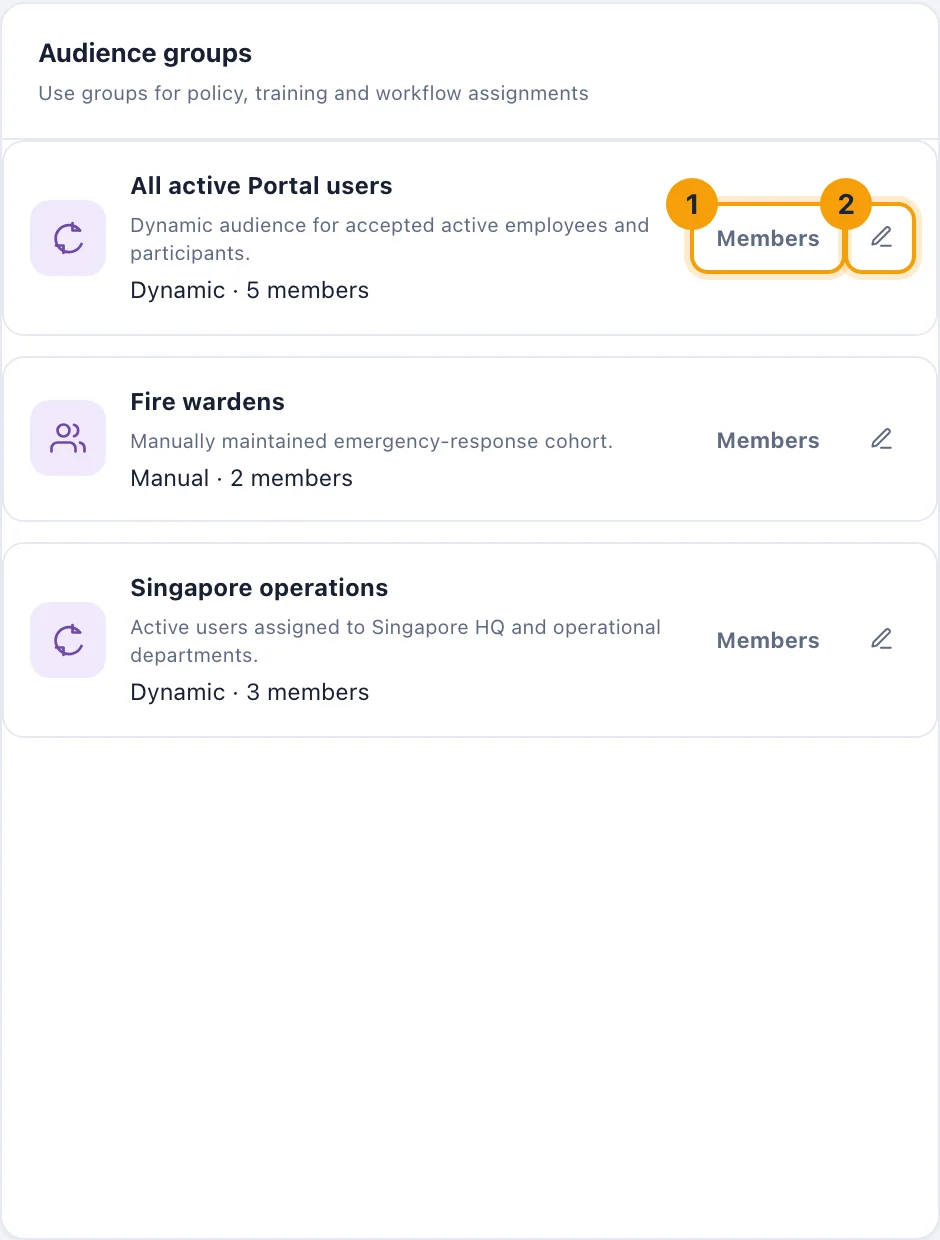
An audience group is a named set of people to assign work to in one go, for example when assigning learning. Audience groups lists each group with its type and how many members it has now.
Make a group
Choose Group (3). The Create audience group form opens as a page of its own.
Enter the Name and, if it helps, a Description of what it is for. Group names are unique.
Choose the Group type: - Manual: pick the people in Members. The group changes only when you change it. - Dynamic rule: choose any of Departments, Teams, Locations, Account state, Roles and License types. The group is everyone who matches, worked out afresh each time it is used, so joiners appear and leavers drop out on their own.
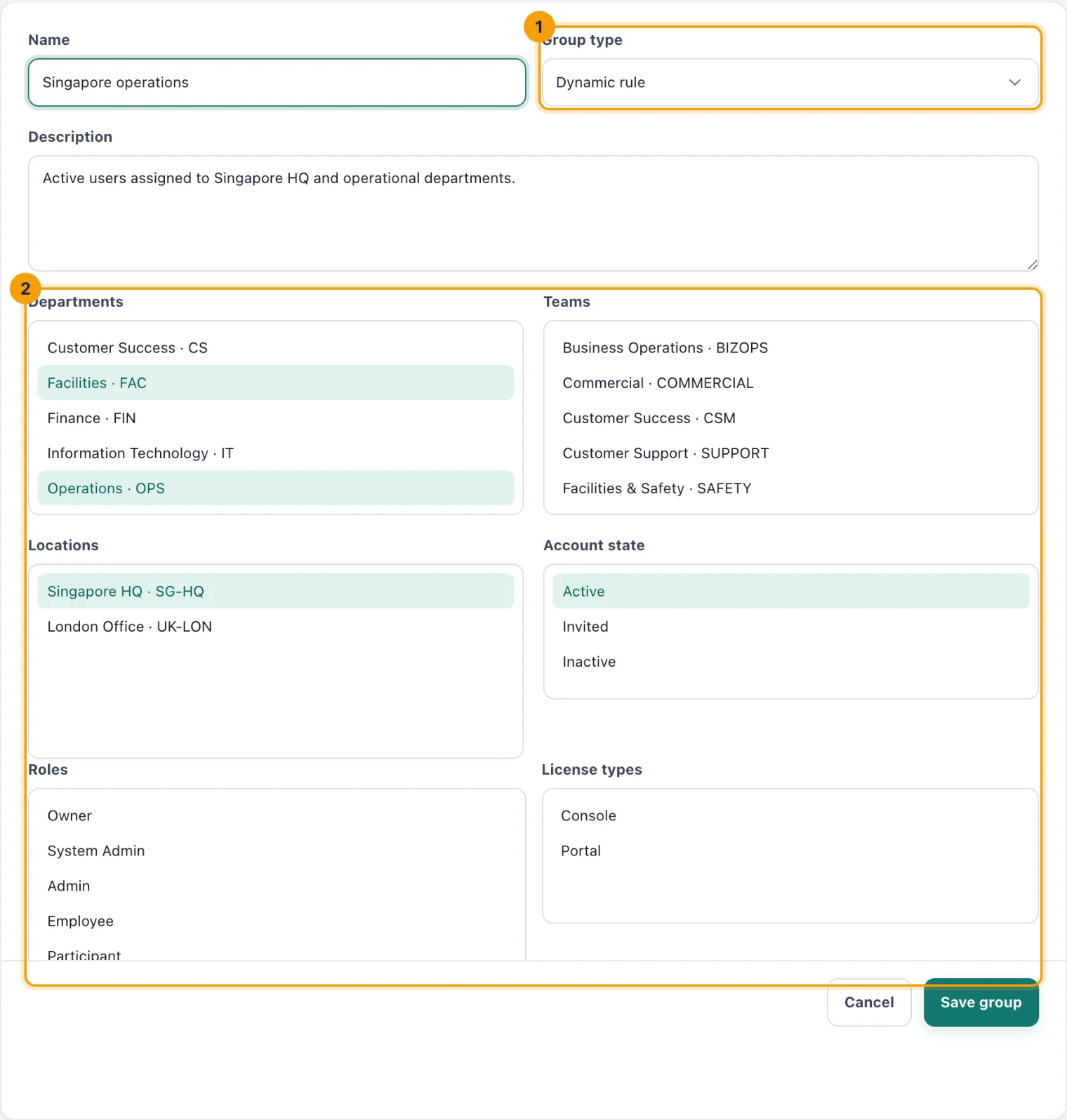
A dynamic group: the type (1), and the rule its members are worked out from (2). Choose Create group.
In a rule, a person has to match every list you filled in, and any one entry within a list. "Singapore HQ" in Locations and "Operations" and "Facilities" in Departments means people at Singapore HQ who are in Operations or Facilities. A location also matches Console users who manage every location. Account state is Active unless you choose otherwise, so invited and inactive people are left out.
See and change a group
Members (1) opens the group's own page, listing everyone in it now, a hundred to a page. The pencil (2) opens the group to change it; choose Save group. To retire a group, clear Group is active and can be used for assignments. An inactive group can no longer be chosen for new assignments.