Publishing a policy or course makes it ready; assigning it is what asks people to complete it. Assigning needs the Assign learning content permission, and only published content can be assigned.
Assign content
Choose Assign on the published item's card in Learning & compliance. The Assign page opens, titled with the item's name.
Set the Due date and time. Leave it empty and the assignment is due two weeks from today.
Choose who it is for, from the fields described under Choosing the audience below.
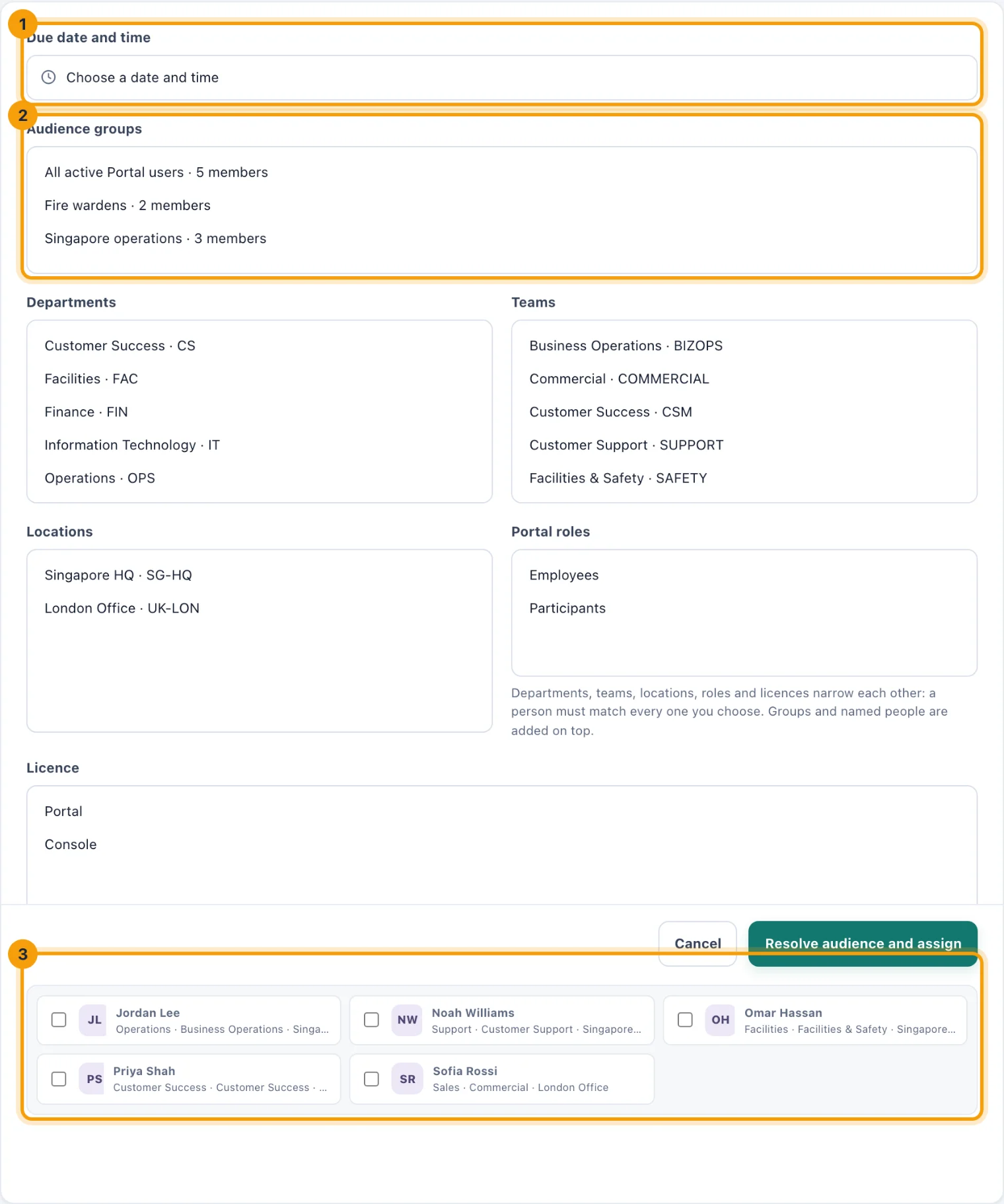
Assigning: a due date (1), an audience group (2), or named people (3). Choose Resolve audience and assign.
Choosing the audience
Audience groups: the groups your workspace has defined in Organization.
Departments and Teams.
Locations: the people based at the locations you choose, and anyone with access to every location.
Portal roles: Employees, Participants or both.
Licence: Portal, Console or both. Choose Console to include Console users, who are not in the list of individuals. A compliance policy usually applies to administrators too.
Individual Portal users: ticked one by one.
Groups and named people add up: everyone in any group you chose, plus everyone you ticked. Departments, teams, locations, roles and licences narrow each other instead: a person must match each kind you use, though any one of several departments, or of several locations, will do. Choosing the Finance department and the London location reaches the people in Finance who are at London, not everyone in Finance and everyone at London. Each person is assigned once, however many of your choices include them. People who have not yet accepted their invitation are not assigned.
The Audience resolved dialog then lists who it reached. Each person gets a task and a notification, Policy acknowledgement assigned or Training assigned, with the due date.
If anyone you chose cannot reach the content's location, nothing is assigned and you are told: "Every assignee must have access to the content location". Choose only people who can reach that location. A content item keeps the location it was created with.
Assigning someone again
Assigning content to someone who already has it starts their assignment again. It goes back to Assigned with the new due date and the version published now. Use this after publishing a new version, because people are not re-assigned automatically. Their earlier completions are kept in the evidence.
New joiners
When you assign by a rule (a group, department, team, location, role or licence) rather than only by name, the rule is kept. Anyone who joins later and matches it is assigned automatically, with the due date you chose, or two weeks from when they are picked up if you left it empty. The card says Assigns itself to anyone who joins and matches, followed by the rule.
To stop it, choose Stop auto-assigning on the card, then Stop auto-assigning again to confirm. Nobody loses an assignment they already have.
Withdraw an assignment
Withdraw on a row of the Assignment report removes an assignment that should not have been made, for example one sent to the wrong team. Confirm with Withdraw assignment. The person's task is removed and they are told. No completion is recorded, because none happened.
An assignment that has any completion behind it, including a completion of an earlier version, cannot be withdrawn: that record has to stay.
Read the evidence
The evidence for an assignment is the record of every time that person completed it, kept even when the assignment is started again.
Find the person and the item in the Assignment report. Search narrows it to one policy or course.
Choose Evidence on the row. The evidence page opens, titled with the item's name.
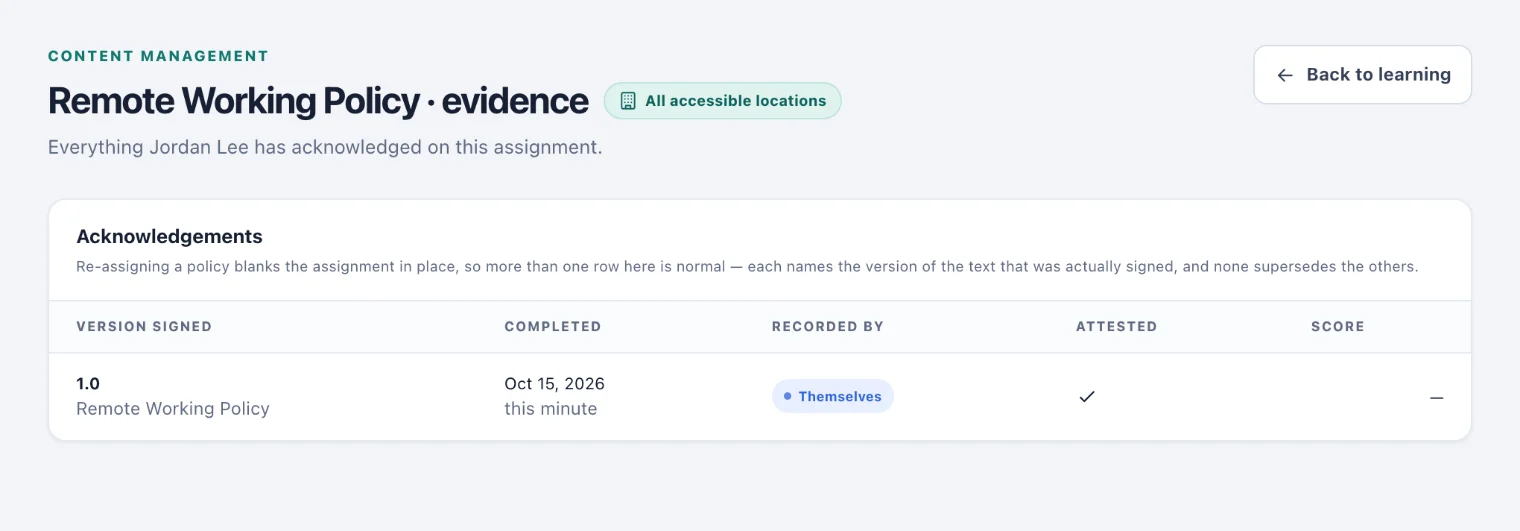
One person's evidence: the version they signed, when, by whom and their score.
Each row is one completion:
Version signed: the version number and its title at the time.
Completed: the date and time.
Recorded by: Themselves, or the name of whoever recorded it on their behalf.
Attested: a tick when the person confirmed they had read and completed it.
Score: the quiz score, for a course with questions.
More than one row is normal for a policy acknowledged every year: each names the version that was actually signed.
Export the evidence
Export evidence, at the top of the page, downloads every completion as a CSV file, following the search you have typed.
Evidence on a content card downloads the completions of that one policy or course: what an auditor usually asks for.
Record a completion on someone's behalf
Sometimes a policy is acknowledged where kitset.io could not record it: on paper at an induction, or before the person had an account. Record completion on their row records it.
Choose Record completion on the row. A dialog says what recording it means.
Choose Record completion in the dialog to confirm.
The completion is timestamped now and attributed to you, and Recorded by shows your name with on their behalf. For a course, it skips the quiz the person would otherwise have to pass. The person is told it was marked complete for them.