Everything in Learning & compliance starts as a draft. A policy is text that people read and acknowledge. A training course can also carry a lesson: text, images, video and questions, worked through one step at a time, with a pass mark. Creating drafts needs the Create learning content permission; publishing needs Publish learning content.
Create a draft
Choose Create content. The Create policy or training page opens.
Choose the Content type: Policy or Training course.
Check the Version. It starts at 1.0; you can use the numbering your documents already have.
Choose a Location, or Company-wide / global for content everyone should be able to receive. Content for one location can only be assigned to people who can reach it, and the location cannot be changed later.
Enter the Title and a Short description of what people will learn or acknowledge.
Write the policy, or the course's introduction, in Content.
Add an Optional video or lesson URL if the material lives elsewhere. It must be a web address starting with http or https.
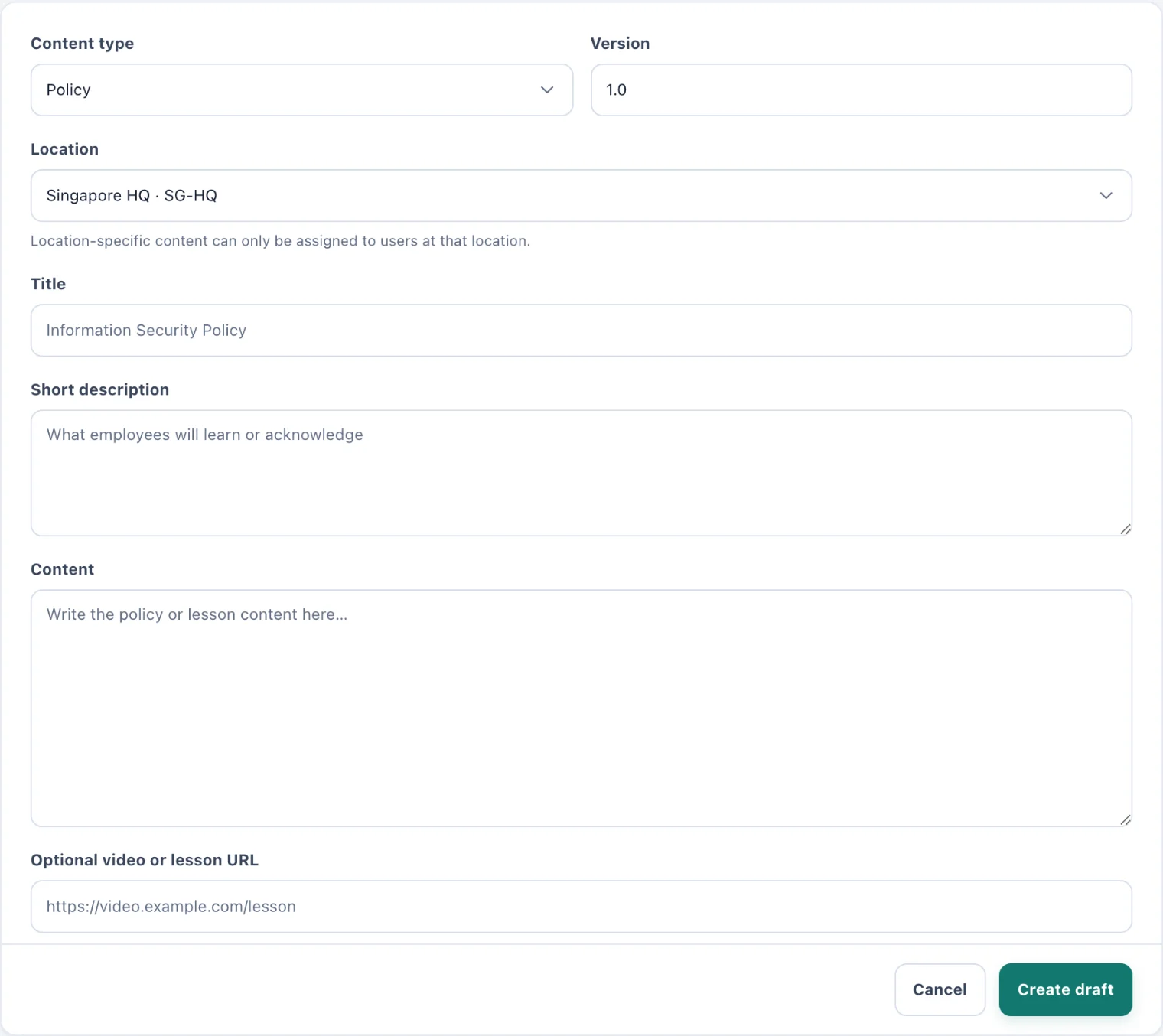
Create policy or training: a type, a version, a location and the text. Choose Create draft. The draft joins the content library.
To change a draft, choose the pencil on its card (Edit content), change the text and choose Save draft.
Build a course's lesson
A training course can be more than one page of text. Choose Lesson on a draft course's card to open its lesson builder.
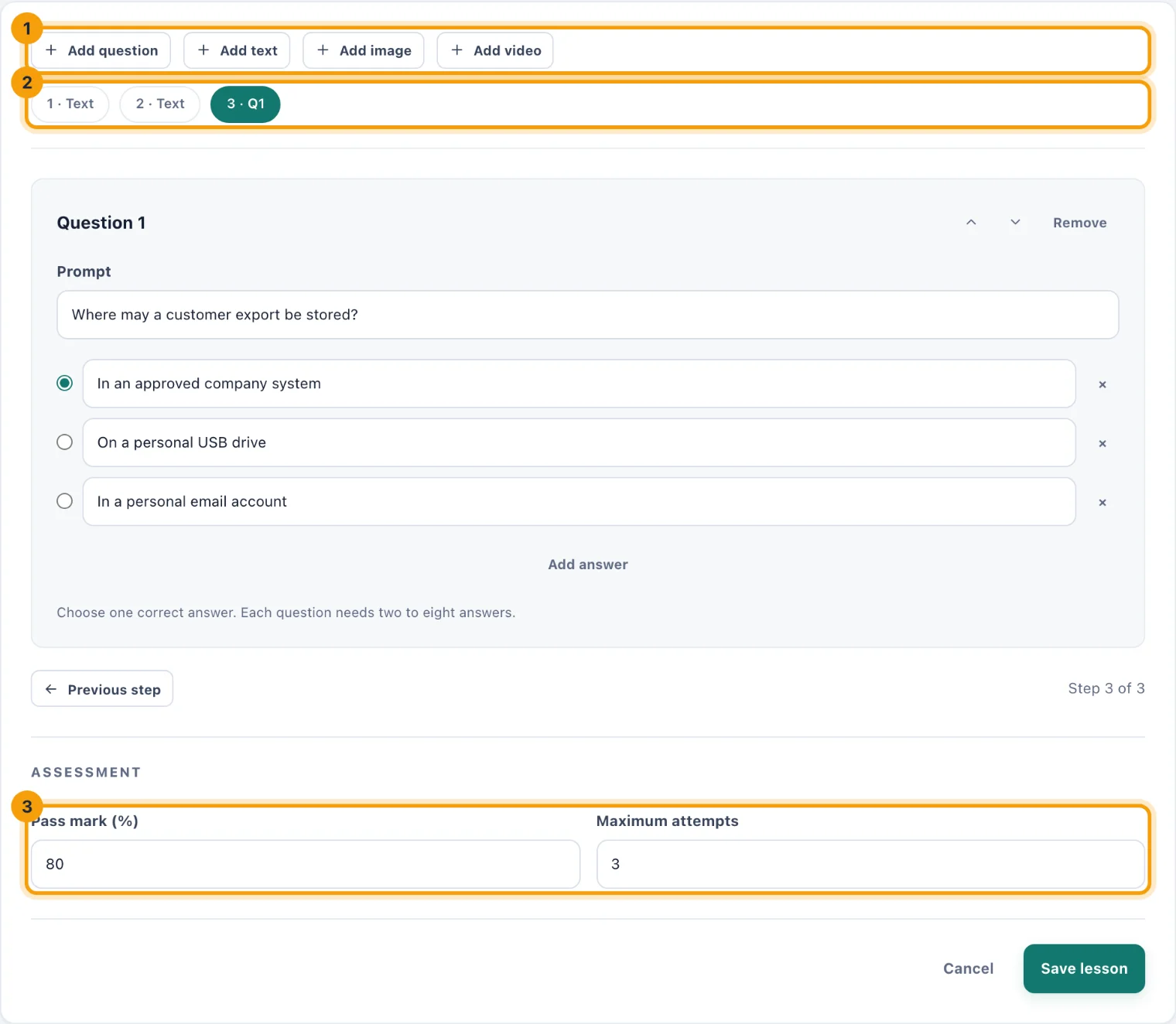
Add steps with the toolbar (1): Add text, Add image, Add video and Add question. A lesson can hold up to 200 steps.
The outline (2) lists every step, such as 1 · Text or Q1. Choose one to open it. The builder shows one step at a time, with Previous step and Next step below it.
Fill each step in, as described under Kinds of step below.
Reorder a step with its up and down arrows, or take it out with Remove.
Under Assessment (3), set the Pass mark (%), 80 unless you change it, and the Maximum attempts. Leave attempts empty for unlimited. These settings appear once the lesson has a question.
Choose Save lesson.
Kinds of step
Text has a Title and a Description: the words the learner reads.
Image and Video take an Uploaded file or Or a web address. Upload a new one with Add a file to this course, where your workspace has file uploads. An uploaded image is shown inside the course; a pasted image address is shown as a link instead. Video plays inside the course either way.
Question has a Prompt and two to eight answers. Choose the one correct answer with the button beside it, and use Add answer for more.
A course with no questions is completed by the learner confirming they have finished it. A course with questions is completed only by passing them. Answers are marked by kitset.io, and learners never receive the correct answers.
If you leave with changes you have not saved, you are asked before they are discarded.
Preview
Preview on a card shows the content as a page: its description and, for a course, every step of its lesson. Use it to read a draft through before you publish it.
Publish
Choose Publish on the draft's card. The text, and a course's lesson and quiz, are frozen together as that version, and the card offers Assign in place of Publish. Nothing is sent to anyone until you assign it.
Revise published content
Published content cannot be edited, so that everyone who acknowledged it keeps a record of the text they agreed to. To change it:
Choose Revise on its card. A dialog explains what happens.
Choose Create new draft version. The draft takes the next version number, for example 3.1 becomes 3.2, and starts from the published text, lesson and questions.
Edit the draft and choose Publish when it is ready.
Versions
Versions on a card lists every published version, newest first: its Version, its Title at publication, when it was Published and how many people it was Acknowledged by. A version is never changed or removed once published.
Supporting files
Files on a card holds the documents behind a policy or course, such as a signed original or a source document. Files uploaded in the lesson builder also appear here.