Phone notifications put what lands under your bell on your phone's lock screen, or on your computer: a shift that moved, an open shift you could take, a clock-in you missed, a request waiting for you. You turn them on in each browser you use, and you choose what comes.
Turn them on
Open My profile in the sidebar.
Under Phone notifications, choose Turn on (1).
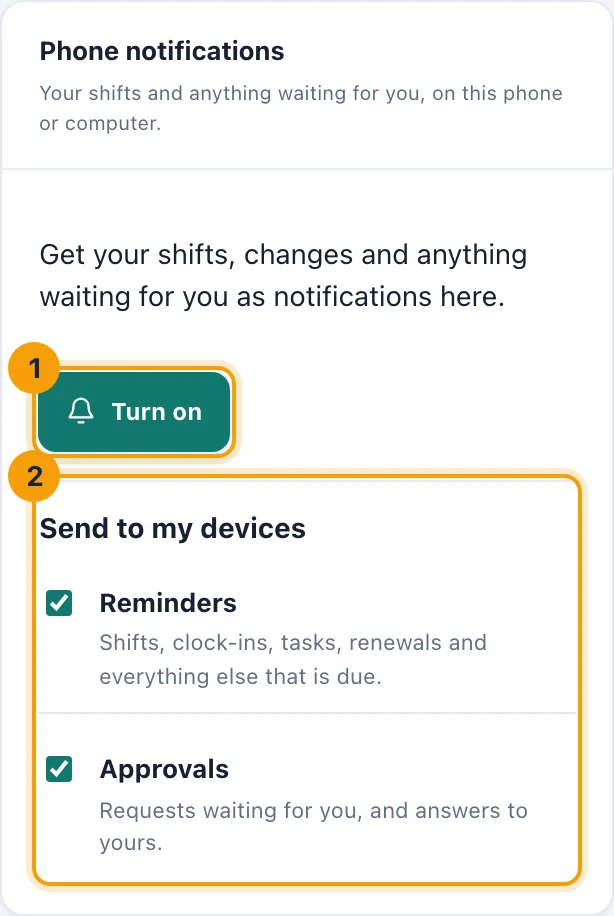
Phone notifications: turn them on in this browser (1), and choose what comes to your devices (2). Your browser asks whether kitset.io may send notifications. Choose Allow.
Choose Send a test. A notification arrives within a few seconds.
On My shifts, a card offers the same: Turn on, or Not now to hide it.
On an iPhone or iPad
An iPhone or iPad shows notifications from kitset.io only once you have added it to your Home Screen (iOS 16.4 or later):
Open kitset.io in Safari and sign in.
Tap Share, then Add to Home Screen, then Add.
Open kitset.io from its new icon on your Home Screen, and sign in if asked.
Turn phone notifications on in My profile, as above.
Until then, the card says how.
Choose what comes
Under Send to my devices (2), untick a kind to stop it reaching your phone:
Reminders: shifts, clock-ins, tasks, renewals and everything else that is due.
Approvals: requests waiting for you, and answers to yours.
Billing (Owners): failed payments.
These are separate from your email choices, so you can have shift alerts on your phone and not by email. Messages about your account's security always come, as they do by email. Everything still appears under the bell.
Turn them off
In this browser: choose Turn off here.
On another device: under Your other devices, choose Remove beside it.
Signing out of a browser turns its phone notifications off too, and so does Sign out of every other browser on your security page, a password change, or your account being deactivated.
What a phone notification shows
A title and a line or two, and tapping it opens kitset.io where it points. It reaches your device through your browser's push service (Apple's, Google's, Mozilla's or Microsoft's), encrypted so only your browser can read it.
If your workspace has turned phone notifications off, the card says so. An Owner or System Admin can turn them on again in Workspace settings.