Workspace settings holds policy for the whole workspace, as opposed to your own account. Open it from Workspace settings under Administration in the Console sidebar.
A setting appears here once the app it belongs to is installed. Today that is one setting, for Requests & approvals. Without that app the page says Nothing to configure yet.
Set the finance approval threshold
Every purchase request needs one signature, from the requester's manager. With a threshold, a request at or above it also needs a signature from finance.
Open Workspace settings. The Purchase approvals card says what the rule is now.
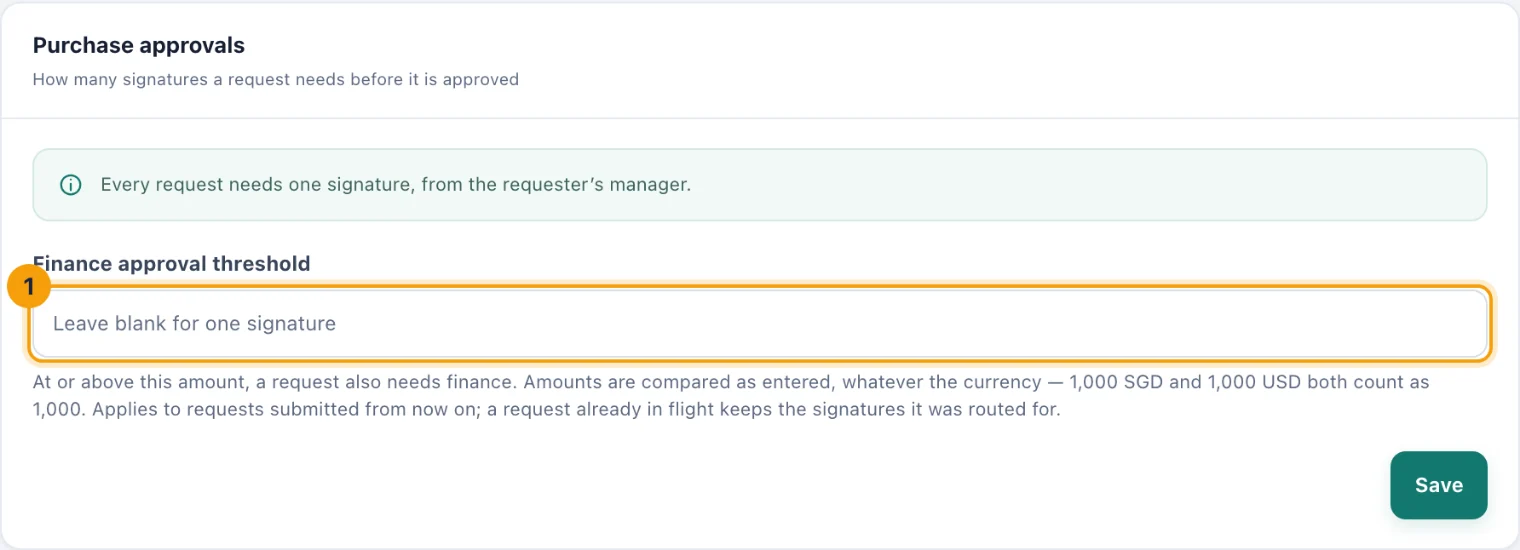
Purchase approvals: the threshold field (1). Leave it blank for one signature. Enter an amount in Finance approval threshold (1).
Choose Save. The card updates to say which requests now need finance.
To go back to one signature, choose Turn off, or clear the field and save.
Some things to know before you change it:
Amounts are compared as entered, whatever the currency. 1,000 SGD and 1,000 USD both count as 1,000.
It applies from now on. A request already waiting keeps the signatures it was routed for.
Every change is recorded in the audit history, with the old and new amounts.
How the signatures are routed is explained in Requests and approvals.
Who can do what
See the settings. Admins by default; Owners and System Admins always. An Admin sees the policy with the line You can see this policy but not change it.
Change the settings. Owners and System Admins. An Admin can be given Manage organization settings at workspace scope with custom access; a grant for one location does not reach a workspace-wide policy.