With two-factor sign-in, signing in asks for a six-digit code from an app on your phone as well as your password. Google Authenticator, 1Password, Authy or any TOTP app works.
Turn it on
Open Security & sessions in the sidebar.
In the Two-factor authentication card, choose Set up authenticator (1).
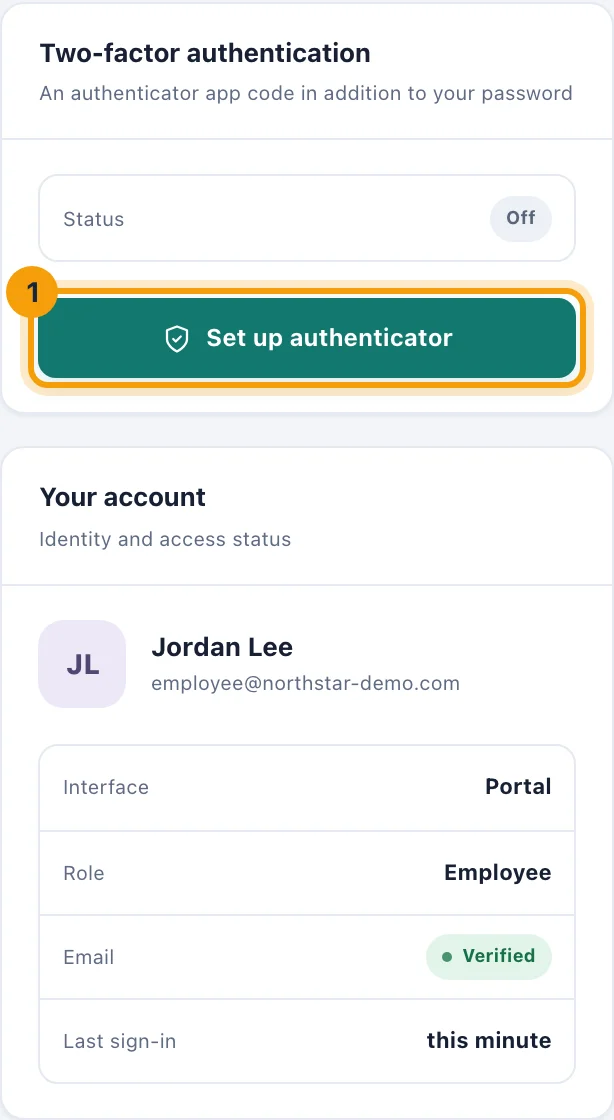
Security & sessions: the Two-factor authentication card. Enter your password and choose Continue.
Scan the code with your authenticator app, or type the setup key into it by hand.
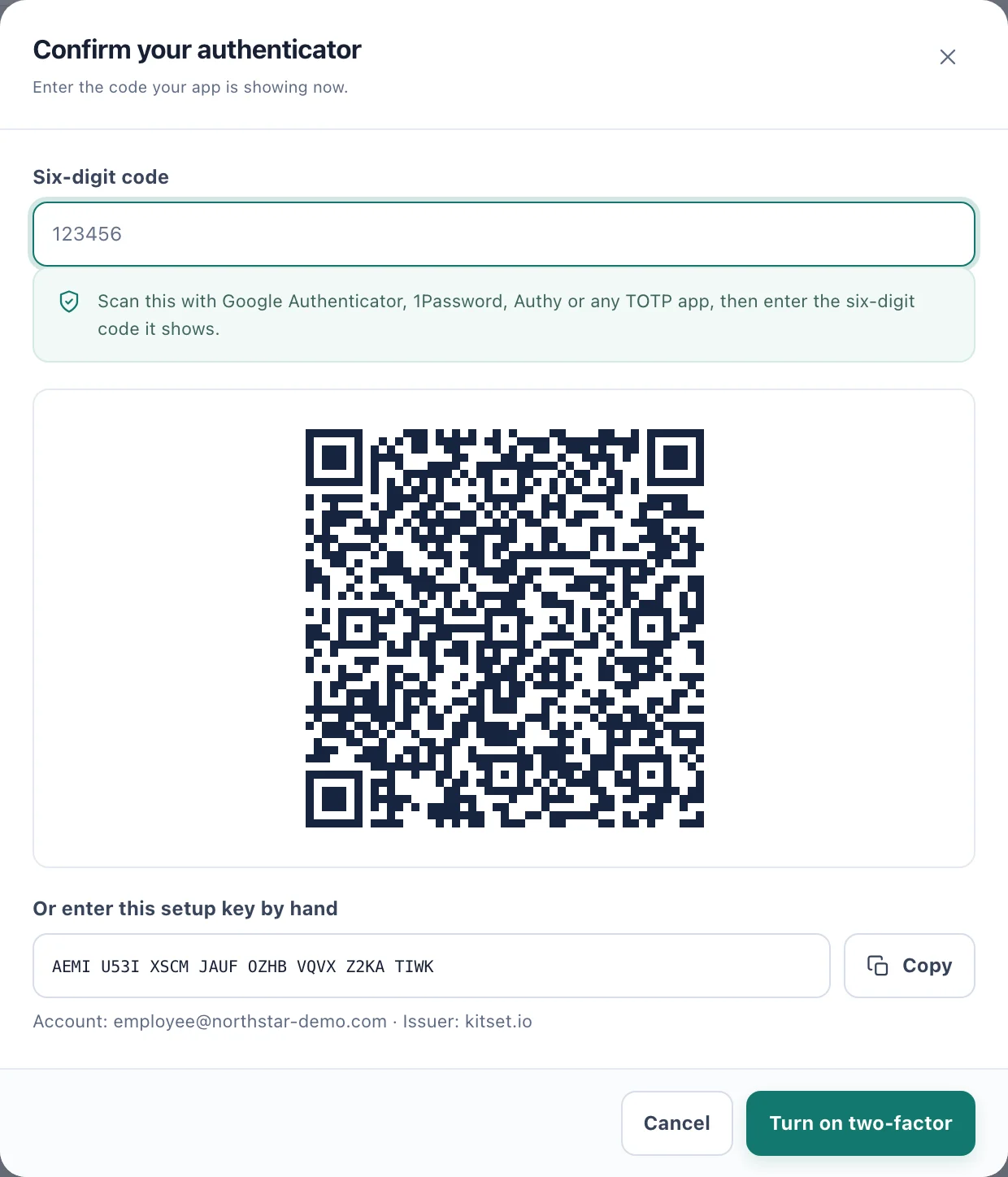
Scan the code, then enter the six digits your app shows. Enter the six-digit code your app shows and choose Turn on two-factor.
Save your recovery codes somewhere you can reach without your phone. Each works once, and this is the only time they are shown.
Turning it on signs out your other sessions, so anyone else using your password is signed out too.
Signing in
After your password, enter the code your app is showing. Lost your phone? Enter one of your recovery codes instead.
Recovery codes and turning it off
New recovery codes in the same card replaces the old set. Turn off asks for your password and a current code; it is not offered when your role requires two-factor sign-in.