A file in kitset.io always belongs to a record: a vendor's contract, the quotes behind a purchase request, a photograph of a workplace incident, an asset's receipt. It stays with that record, so whoever opens the record finds the paperwork beside it.
Open a record's files
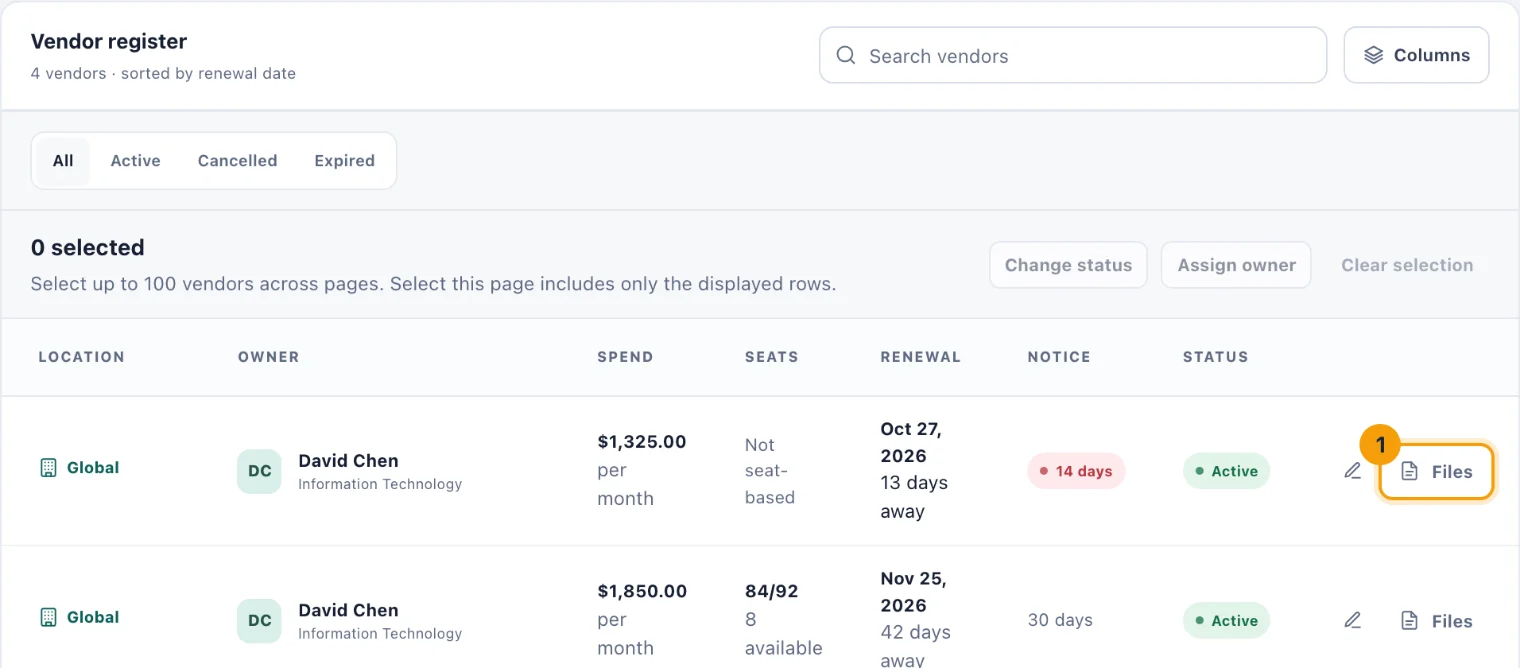
Choose Files on the record's row (1). It is on vendors, purchase requests, systems, learning content, handovers, assets and workplace records. A panel opens with the record's name and what its files are for, such as Contracts, quotes and renewal paperwork.
Each file shows its name, its size, who added it and when, and its status. Choose Download to save a copy. Only files marked Available can be downloaded.
Add a file
Open the record's files.
Under Add a file, choose the file. The note under the field gives the size limit.
Wait for the bar to fill. The file is listed when it has arrived.
You can add PDFs, images (PNG, JPEG and WebP), plain text and CSV files, Word, Excel and PowerPoint files, and MP4 video.
Every file is checked for malware before anyone can download it. Until the check is done it shows Waiting for a malware scan result. A file the check withholds says so, and cannot be downloaded by anyone.
Who can add and remove files
Anyone who can see a record can see and download its files. Adding and removing them depends on the record:
Vendors, systems, assets and workplace records. People who can manage that app.
Learning content. People who can create learning content.
Purchase requests. People who can approve requests, at any time. The requester, while the request is pending or changes are requested.
Handovers. In the Console, people who can manage handovers or transitions. In the Employee Portal, the people taking part in the handover.
In the Employee Portal you can remove only files you added yourself.
Remove a file
Choose the delete button (bin) beside the file, then Delete file.
A file that a published course shows in one of its steps is kept. To remove it, revise the course and take out the step that uses it first. See Create and publish learning content.
Quarantine a file
If a file turns out to be harmful, an Owner or a System Admin can choose Quarantine instead of deleting it. Nobody can download it any more, but the file and its record are kept, so there is something to hand an investigator.