Workplace operations is one log for what happens on site: incidents and hazards, visitors, and things lost and found. Every record belongs to a location, can be given to someone to follow up, and keeps its changes in the audit history. Open it from Workplace operations in the Console sidebar, or go there now.
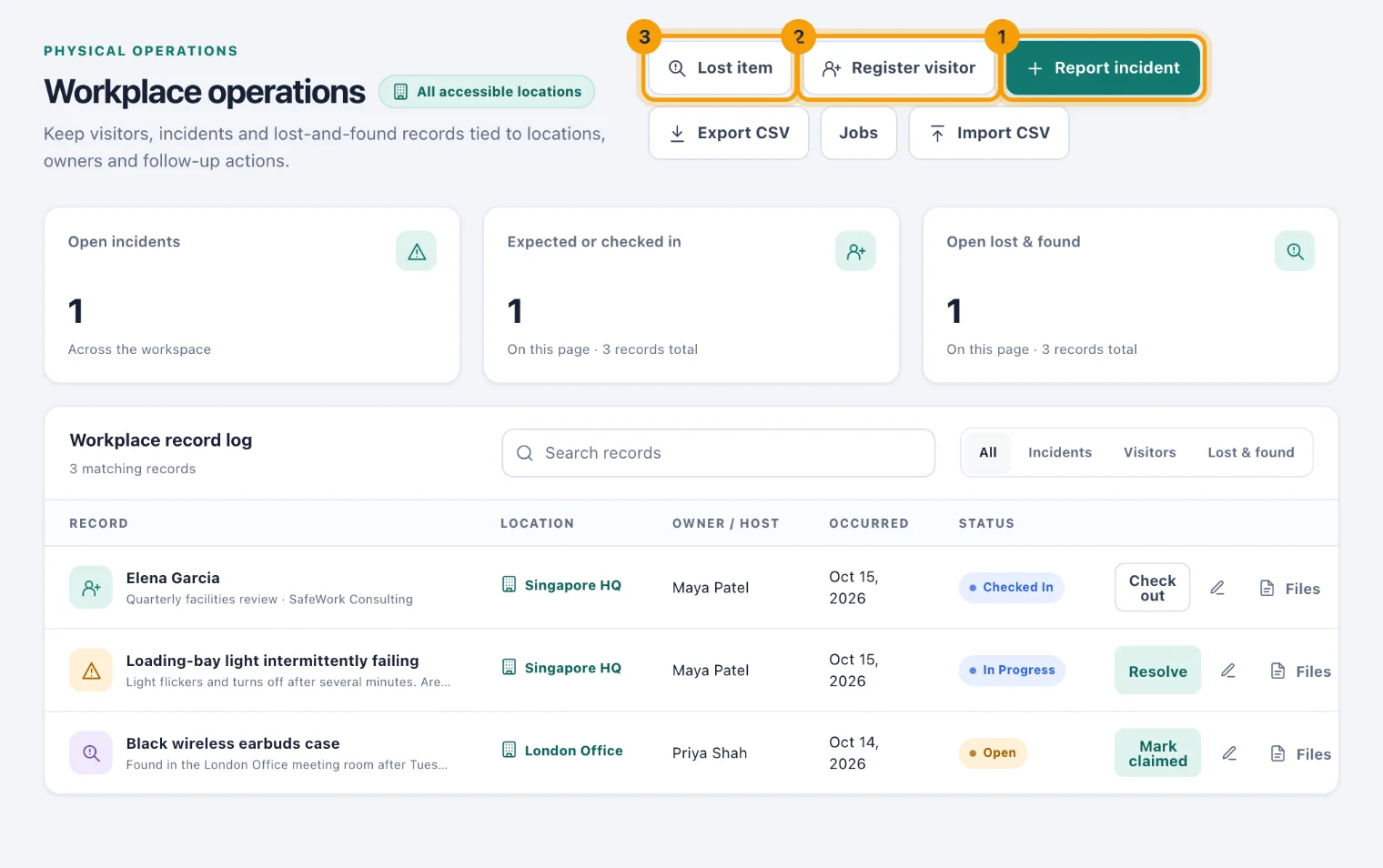
The three kinds of record
Each kind has its own statuses.
Incidents (1): Open, In progress, Resolved, Closed.
Visitors (2): Expected, Checked in, Checked out, Cancelled.
Lost & found (3): Open, Claimed, Closed.
To add one, see Record an incident, visitor or lost item.
Who can do what
View workplace records lets someone read the log at the locations their access covers.
Manage workplace records lets them add records, change them and move them through their statuses. Admins have both by default.
Portal users can report incidents and lost items, and register their own visitors. They see only the records connected to them. See Report a workplace issue.
Read the log
The cards at the top count open incidents across the workspace, and the visitors expected or checked in and the open lost items among the records on this page. The Workplace record log below lists the newest first, by when each thing happened.
The tabs All, Incidents, Visitors and Lost & found narrow the log to one kind. Once you choose a kind, a second row of tabs narrows it by that kind's status.
Search records looks through titles and descriptions.
Owner / host shows who is following the record up, or, for a visitor, who they are here to see.
Move a record along
The most common next step has its own button on the row:
Check in when an expected visitor arrives, and Check out when they leave (1).
Resolve an incident that is dealt with (2).
Mark claimed when a lost item goes back to its owner (3).
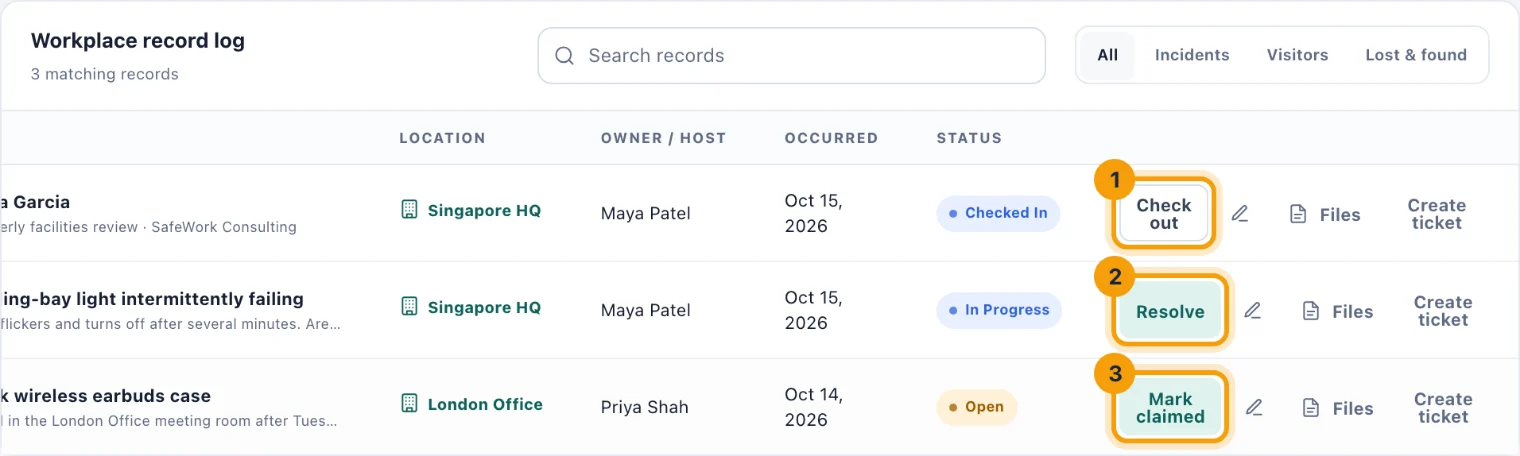
For any other status, such as putting an incident in progress, reopening it or cancelling a visit, choose the pencil button on the row (its label is Edit record) and change Status.
Whoever reported a record is notified each time its status changes, so nobody reports an incident and never hears of it again.
Follow-up dates
A record with a Follow-up due date sends reminders as the date approaches and once it has passed, to the person assigned, the person who reported it and the people who can view workplace records at that location. Reminders stop once the record is resolved, closed, checked out, cancelled or claimed.
Files, tickets and exports
Files on a row keeps photographs and supporting documents with the record.
Create ticket appears when the Service Desk is installed and you answer one of its queues. Choose the Queue and Category, then Create ticket. The ticket is raised for whoever reported the record, and they can follow it and reply.
Export CSV exports the log as it is searched and filtered. Import CSV brings in an older register: each row names its record type as INCIDENT, VISITOR or LOST_FOUND, with a status valid for that type, and keeps its own dates.