Every record in the workplace log starts the same way, from one form. Adding and changing records needs the Manage workplace records permission at the record's location.
Add a record
In Workplace operations, choose Report incident, Register visitor or Lost item. The form opens as a page of its own, with Record type already set to Incident or hazard, Visitor or Lost & found.
In Title or person name, give the incident a short title, or enter the visitor's name.
In Description or visit purpose, say what happened, what was found, or why the visitor is coming.
Choose the Location. For a visitor, add Visitor company, if applicable.
To hand the follow-up to someone, choose them in Assign follow-up to. They are notified. Leave it as Unassigned otherwise.
For a visitor, choose the Visitor host (1): the colleague they are here to see. It starts as you. The host is notified, the visit appears in their own list, and they must have access to the location.
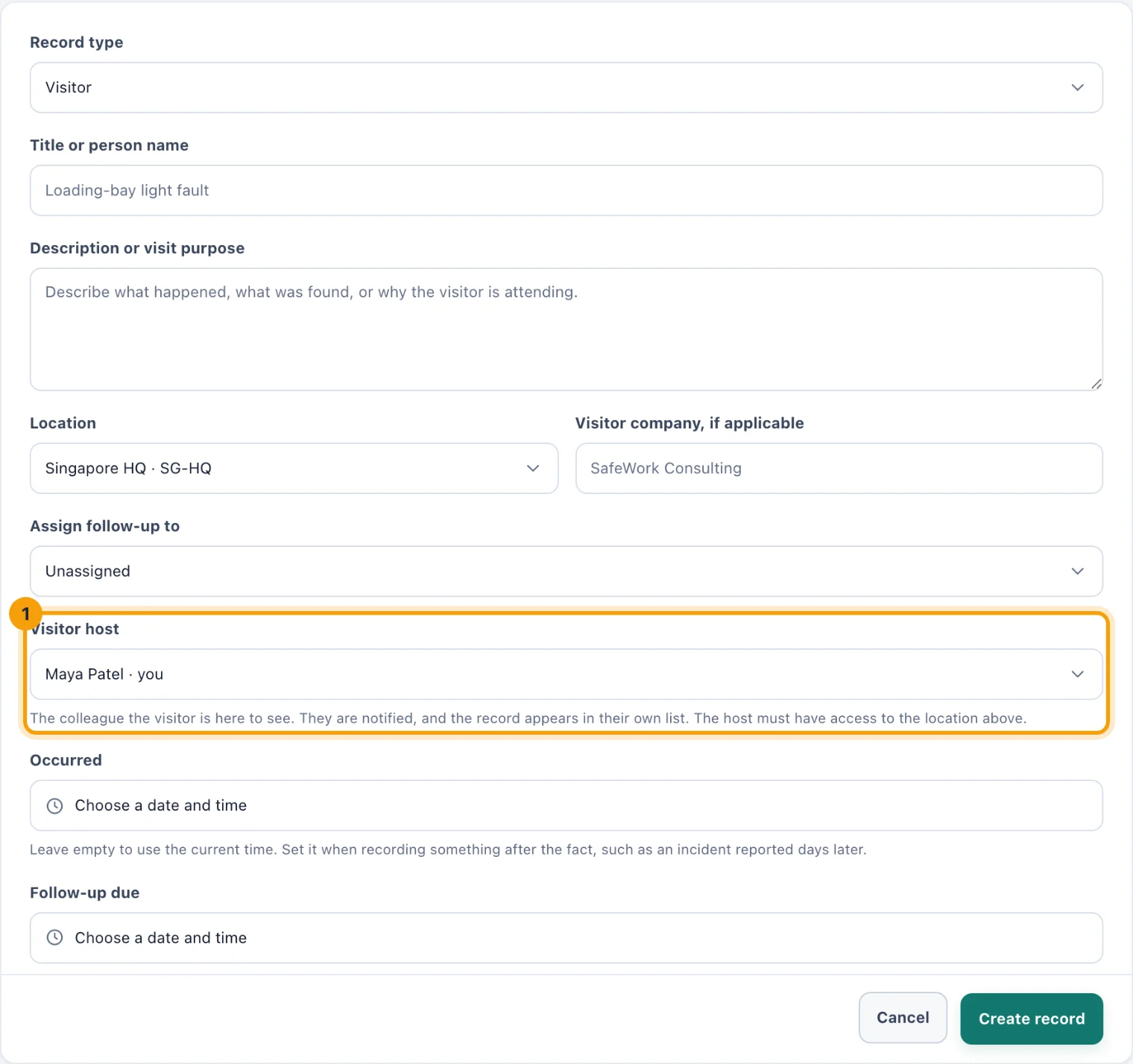
Register visitor: the host is told, and sees the visit in their own list. Leave Occurred empty to use the current time. Set it when you record something after the fact, such as an incident reported days later.
Set Follow-up due if something has to happen by a date. Reminders go out as it approaches.
Choose Create record.
A new incident or lost item starts as Open. A new visitor starts as Expected, ready to Check in from the log when they arrive.
Change a record
In the log, choose the pencil button on the record's row (its label is Edit record).
Correct the title, description, location, company, assignee or dates. The form now also has Status and Occurred.
Choose Save record. The change goes into the audit history.
When the status changes, whoever reported the record is notified. When you give the follow-up to someone new, they are notified too.
Statuses for each kind
Incident or hazard: Open, In progress, Resolved, Closed.
Visitor: Expected, Checked in, Checked out, Cancelled. Checking a visitor out records the time they left.
Lost & found: Open, Claimed, Closed.