Every file added to a record in any app counts toward your workspace's storage. Files & storage shows how much is in use, what is using it, and every file in one list, so you can see where the space went and free some up. Open it from Files & storage in the Console sidebar.
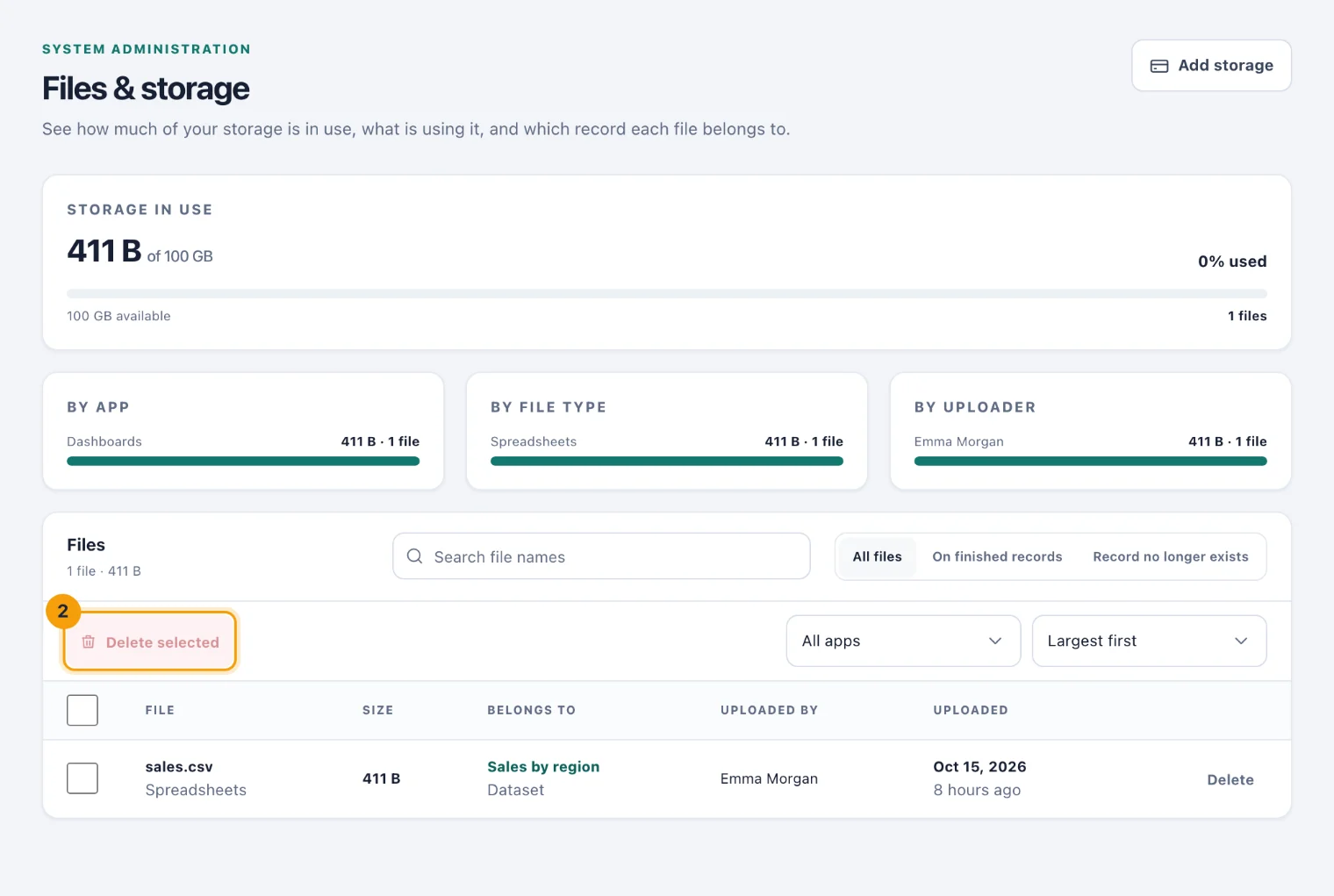
Storage in use
The top card shows the storage in use against what your plan includes, and how much is still available.
If the workspace holds more than its plan includes, the card says so. Every file is kept, but new uploads are refused until files are deleted or storage is added.
Quarantined files, which nobody can download, still count until they are deleted.
An upload that was started and never finished is removed automatically a day after its upload link expires.
Under it, By app, By file type and By uploader show where the space goes, largest first.
Find files
The Files list shows every file in the workspace, whichever app it belongs to, with its size, the record it belongs to, who uploaded it and when.
Search by file name with Search file names.
Choose All files, On finished records (records that are closed or complete, a likely place for files nobody needs) or Record no longer exists.
Narrow to one app with All apps, and sort (2) by Largest first, Newest first or Oldest first.
Choose the record's name in Belongs to to open it in its app.
Delete files
Tick the files to delete, or tick the box at the top of the list for every file on the page.
Choose Delete selected (1). Or choose Delete on one file's row.
The confirmation lists the files and how much space comes back. Choose Delete file, or Delete followed by the number of files.
Files that are part of a published course are kept, and the message after deleting says which were kept and why.
Deleting works even when the workspace's subscription has lapsed or it is over its storage, so you can always get back under your plan.
Who can use this page
People with Manage files and storage: Owners and System Admins. It can be given to other Console users, for the whole workspace only, because the list names files and records from every app, including ones they could not otherwise open. See Scoping access.