A workflow is three things: when something happens, only if some conditions hold, then do one or more things in order. You build all three on one page. Owners and System Admins build workflows; nobody else sees Automations.
Make a workflow
Open Automations and choose New workflow. The builder opens as a page of its own.
Enter a Name that says what it is for, such as "Tell IT about urgent tickets".
Choose the event in When (1). The line under it says exactly when that event happens.
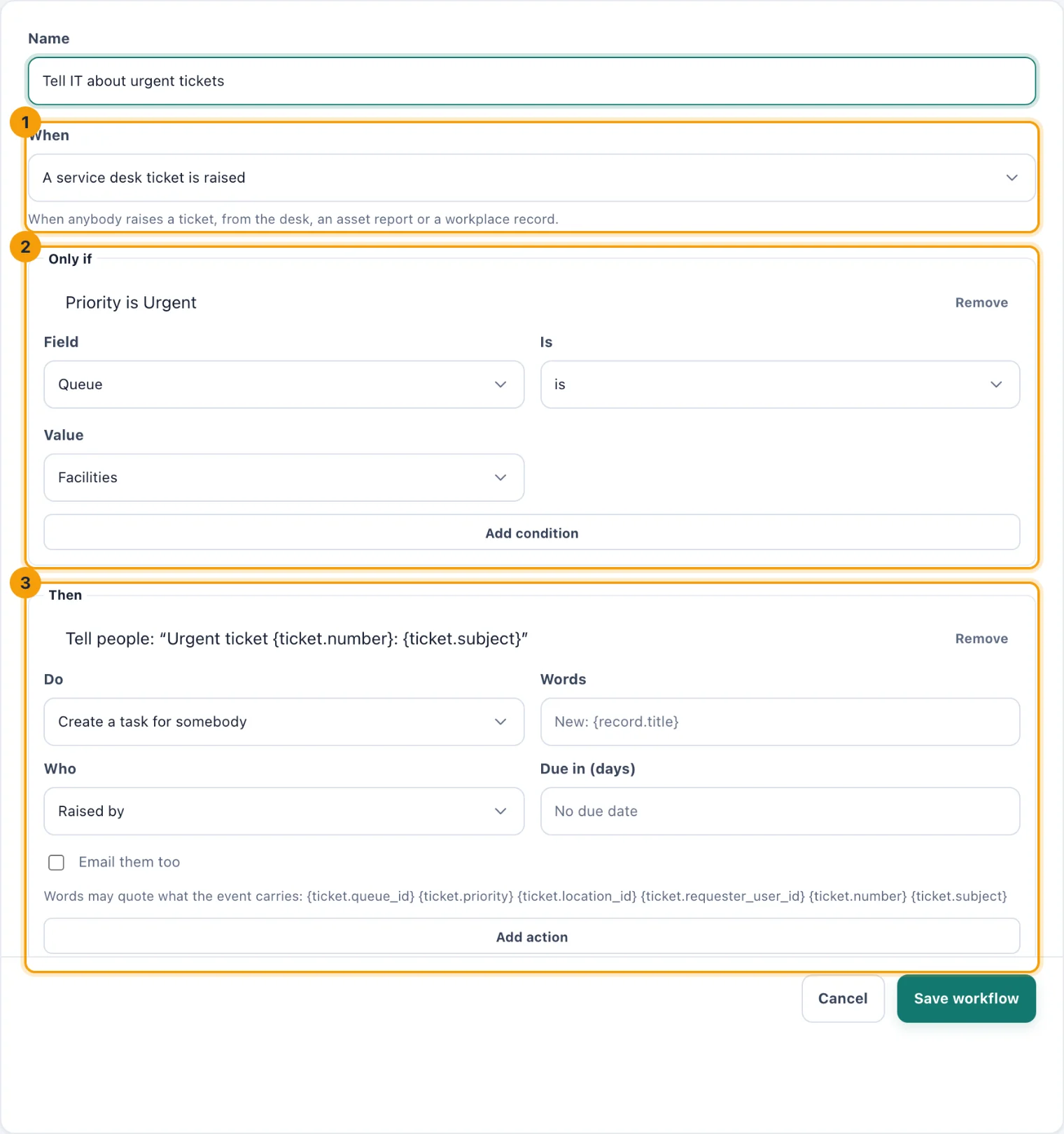
The builder: the event it listens for (1), its conditions (2) and its actions (3). Under Only if (2), add any conditions. Leave it empty to act every time the event happens.
Under Then (3), add at least one action.
Choose Make workflow. It is active straight away and acts on the next event it hears.
Events
Something is added or changes: An asset is added, A vendor is added, A system is added, An asset is assigned, An asset is returned, A problem with an asset is reported, A purchase request is submitted, A purchase request is decided, A handover is acknowledged, An onboarding or offboarding starts, An onboarding or offboarding is completed, Learning is acknowledged, A service desk ticket is raised, A booking is confirmed and A workplace record is reported.
A date is coming up: An asset's date is coming up, A task is coming due, A vendor's notice deadline is coming up, A vendor renewal is approaching, A system's access review is coming up and A workplace follow-up is coming up. Most of these happen once a day from thirty days before the date, carrying how many days are left, so a condition picks the day you want.
On a schedule happens every hour, on the clock of your default location. Conditions turn it into a timetable.
Conditions
Each condition is a Field, how it Is compared, and a Value. Choose them and then Add condition.
The fields are the ids, statuses and numbers the event carries: a location, a person, a queue, a priority, a decision, an amount, days until a date. Free text, such as a title, cannot be compared.
Every condition must hold for the workflow to act. Add up to ten.
Remove takes one off the list.
For example, on An asset's date is coming up, the conditions Which date is Warranty and Days until it is 14 act once per asset, two weeks before its warranty ends. On On a schedule, Day of the week is Mo and Hour of the day (0-23) is 9 act on Mondays at nine.
Actions
Choose what to do in Do, fill in what it needs, and choose Add action. Actions run in the order they are listed, up to ten. Remove takes one off.
Tell people, in the product and optionally by email. Writes your Words under the bell of each person in Who. Tick Email them too to email them as well.
Create a task for somebody. Creates a task, titled with your Words, for each person in Who. Leave Due in (days) blank for no due date, or enter 0 to 365.
Put an all-day event on the calendar for people. Puts an event titled with your Words on the calendars of the people in Who, today or On the day, in (days) from now.
Raise a service desk ticket. Raises a ticket in the Queue you choose, with your Words as its subject, for a person the event names. If the queue has categories, choose one in Category. Offered once the Service Desk has a queue.
Send the event to one of the workspace's webhook endpoints. Choose the Endpoint. Offered once the workspace has a webhook endpoint; see Connect your own systems.
On A service desk ticket is raised, three more act on that ticket:
Give the ticket to one of its queue's agents. Choose the agent under A person in Who. Someone who is not one of the queue's agents makes the run fail.
Move the ticket on. Choose where in Move it to: Open, Waiting on a supplier, Resolved or Cancelled.
Add an internal note to the ticket. Your Words become a note only agents see.
Who
Who has two kinds of choice. Named by the event picks whoever the event is about, such as the person who raised a ticket or the person an asset was assigned to, so the action follows each event. A person picks one named person every time. A ticket can be raised only for somebody the event names.
Words
Words can quote what the event carries. The note under the action lists what this event offers, written in braces, such as {ticket.number} and {ticket.subject}: "Urgent ticket {ticket.number}: {ticket.subject}" becomes the real number and subject each time.
What a workflow may do
Below the actions, the builder lists what the workflow may do, such as notifications:send or tasks:write. kitset.io works it out from the actions you chose and checks it again every time the workflow runs: a workflow can never do more than its own list says, whoever made it.
Change a workflow
Choose Edit on its row on Automations, or on its runs page. Change what you need and choose Save workflow. The change applies from the next event it hears; runs already recorded stay as they were.