A workflow waits for one thing to happen in your workspace and then does something about it: tells people, creates a task, raises or moves a service desk ticket, puts an event on the calendar, or sends the event to one of your webhook endpoints. Open Automations under Administration in the Console sidebar.
The list
Automations lists every workflow in the workspace by name.
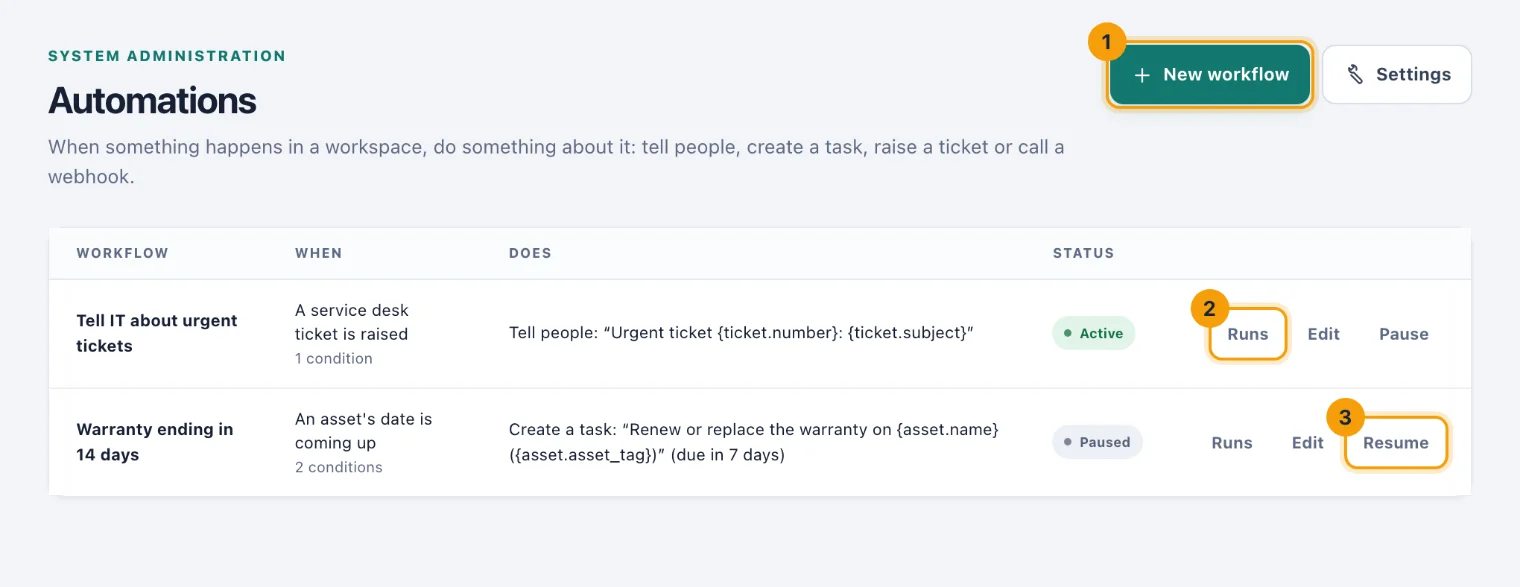
Workflow is its name.
When is the event it listens for, with how many conditions it checks.
Does lists its actions, in the order they run.
Status is Active or Paused. When kitset.io paused a workflow itself, the reason is written underneath.
Each row has Runs, Edit and Pause or Resume. To make a workflow, choose New workflow (1); see Build a workflow.
What a workflow did
Choose Runs (2) on its row. The workflow's page sums it up at the top: what it listens for, what it checks and what it does. Below, Runs lists every time it heard its event, newest first, fifty to a page.
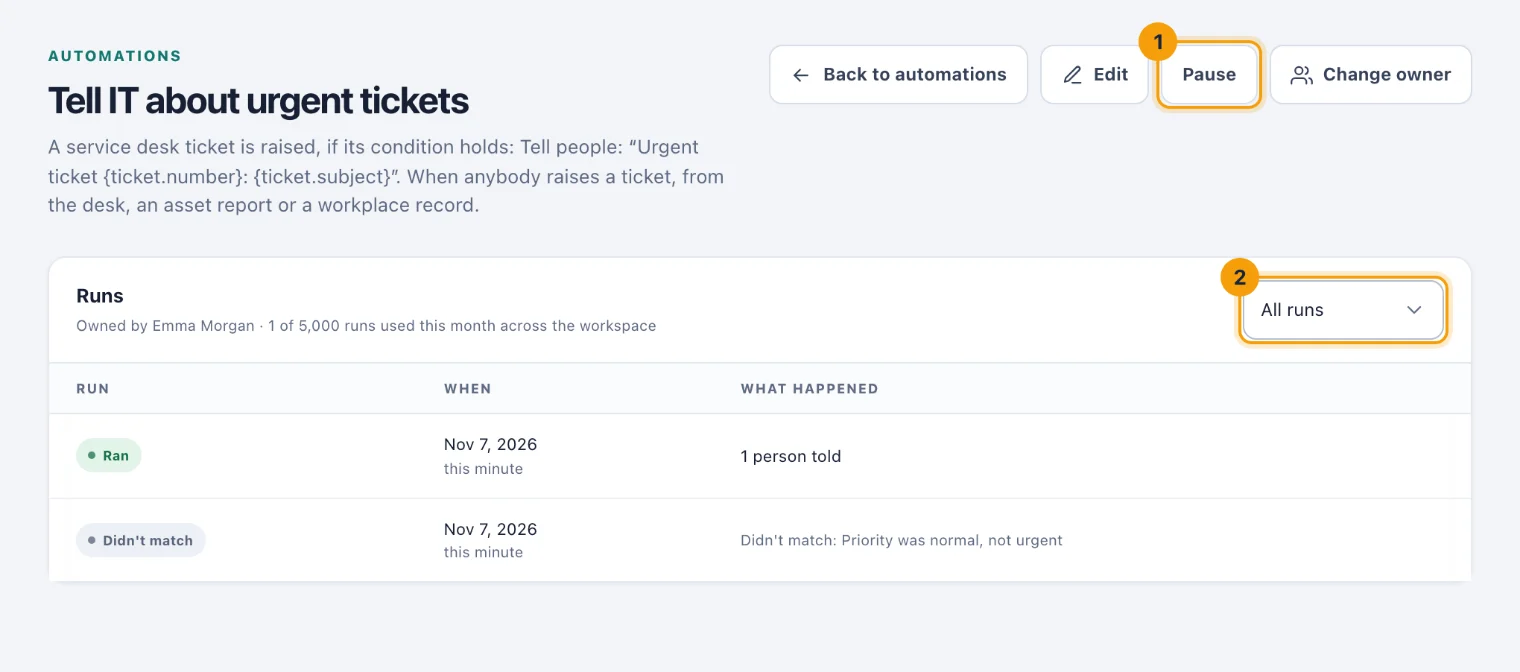
Each run is one of four:
Ran. Its conditions held and every action worked. What happened says what each step did, such as "1 person told".
Didn't match. It heard the event, but a condition said no. The run says which, for example "Priority was normal, not urgent". This is the one to read when a workflow seems to do nothing.
Failed. An action could not be done, and the run says which step and why. When one step fails, the steps before it in that run are undone too, so a run never half-happens.
Skipped. It was held back: this month's runs are used up, the Service Desk it needs is not installed, or the event came at the end of a chain of three workflows each setting off the next, which is how two workflows are stopped from feeding each other forever.
Choose one kind in the filter (2) to see only those runs; All runs shows them all again.
Pause and resume
Pause stops a workflow at once: nothing it hears while paused is acted on, or acted on later. Resume starts it listening again from that moment. Both are on its row and on its runs page (1), and both are recorded in the audit history.
There is no delete. Pause a workflow you no longer want; its runs stay readable.
kitset.io pauses a workflow itself when it needs an app that is no longer installed, for example a workflow that works service desk tickets after the Service Desk is removed. The reason shows under Paused. Install the app again, or edit the workflow, before you resume it.
Change the owner
Every workflow is owned by one person: whoever made it, until somebody changes it. The owner is who the workflow acts as when it works a service desk ticket or puts an event on the calendar, and those changes are recorded in the owner's name. The workflow's page shows its owner above Runs.
Open the workflow's page by choosing Runs on its row.
Choose Change owner. The dialog shows who owns it now.
Choose the person in New owner and choose Change owner.
The change applies from the next event it hears. The new owner is told under the bell, and the change is recorded in the audit history with both owners.
Only an active Owner or System Admin on the Console can own a workflow, the same people who can make one. If nobody else qualifies, the dialog says so; make somebody a System Admin on People and access first.
Any Owner or System Admin can change the owner of any workflow, not only their own.
Automation settings
Choose Settings on Automations to set, for the whole workspace:
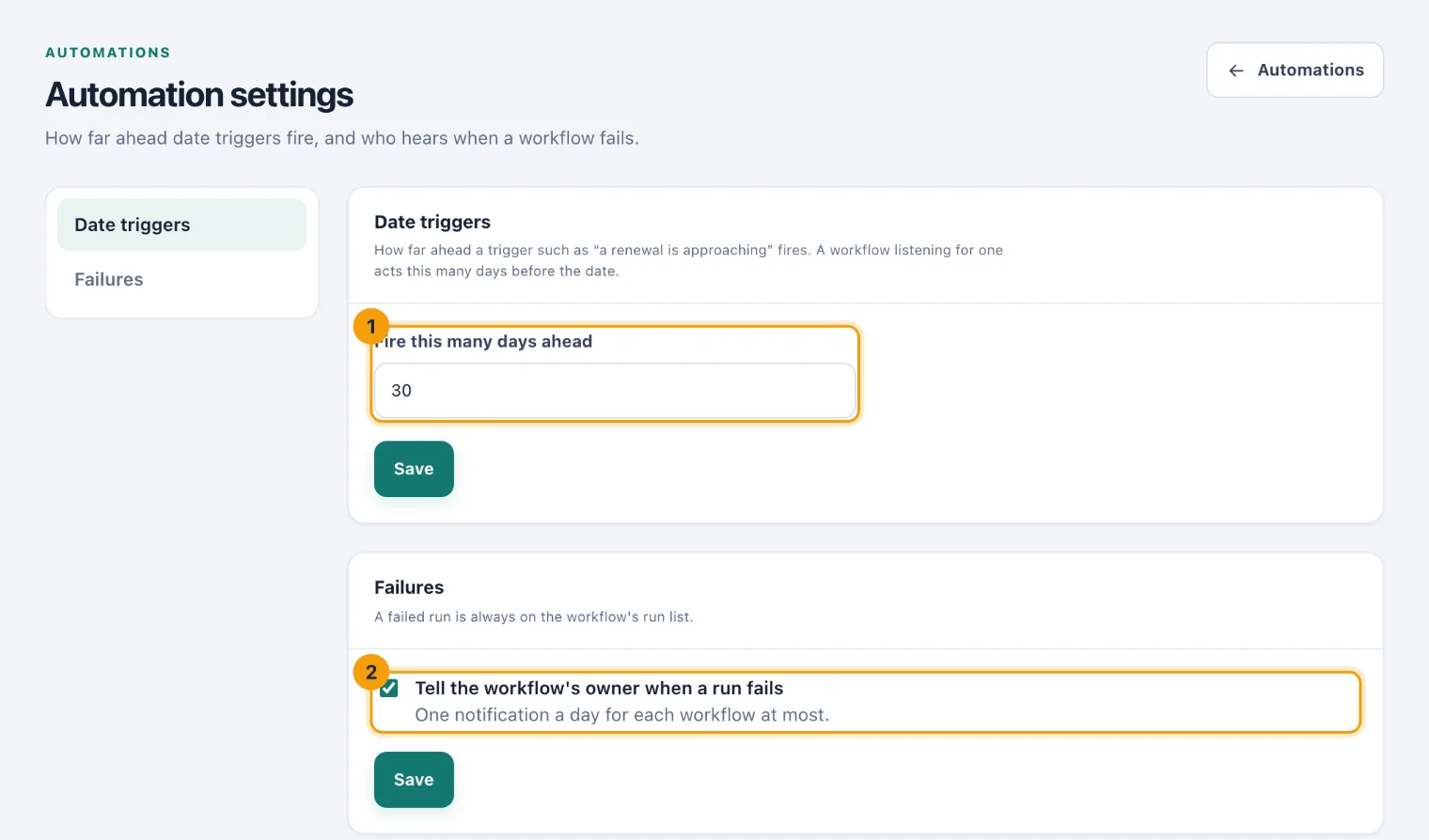
Date triggers: how many days ahead a trigger such as A task is coming due or An asset's date is coming up fires, 30 unless you change it, and at most 90.
Failures: with Tell the workflow's owner when a run fails on, the owner is notified under the bell, once a day for each workflow at most. It is on unless you turn it off. A failed run is always on the workflow's runs page.
Owners and System Admins can change them.
The month's runs
Your plan includes a number of workflow runs each calendar month, shared by every workflow in the workspace. Every workflow's runs page shows how many the whole workspace has used this month, out of how many your plan includes.
A run counts when its conditions held, whether it Ran or Failed.
Didn't match and Skipped runs never count.
Once the month's runs are used up, workflows still hear their events, but each run is Skipped until the 1st. Every Owner and System Admin is told once that month, under the bell and by email.